

Send recurring reminders
A timesheet reminder lands every Friday afternoon for the people in one country, compliance training is chased each year until the button is clicked, and the company newsletter goes out on the first of the month, all from automations that run on a timetable and enrol the right people on each tick. For: admins and owners. Time: about 20 minutes per automation, plus the filter groups.
What you’ll need
Section titled “What you’ll need”- A filter group per audience, for example current employees in Country: United Kingdom, or a department; see Create a filter group.
- An email sender, or Slack connected for direct messages; see Add an email sender and Slack.
- For a compliance nudge, the training link, or the policy published in Library > Content; see Content.
- For a newsletter in a channel, Pyn Bot invited to the channel in Slack, and a Post to Channel step, where enabled for your workspace.
Build it
Section titled “Build it”-
Create a filter group for each audience and read who matched on the Confirm Filter Group page before confirming; see Create a filter group.
-
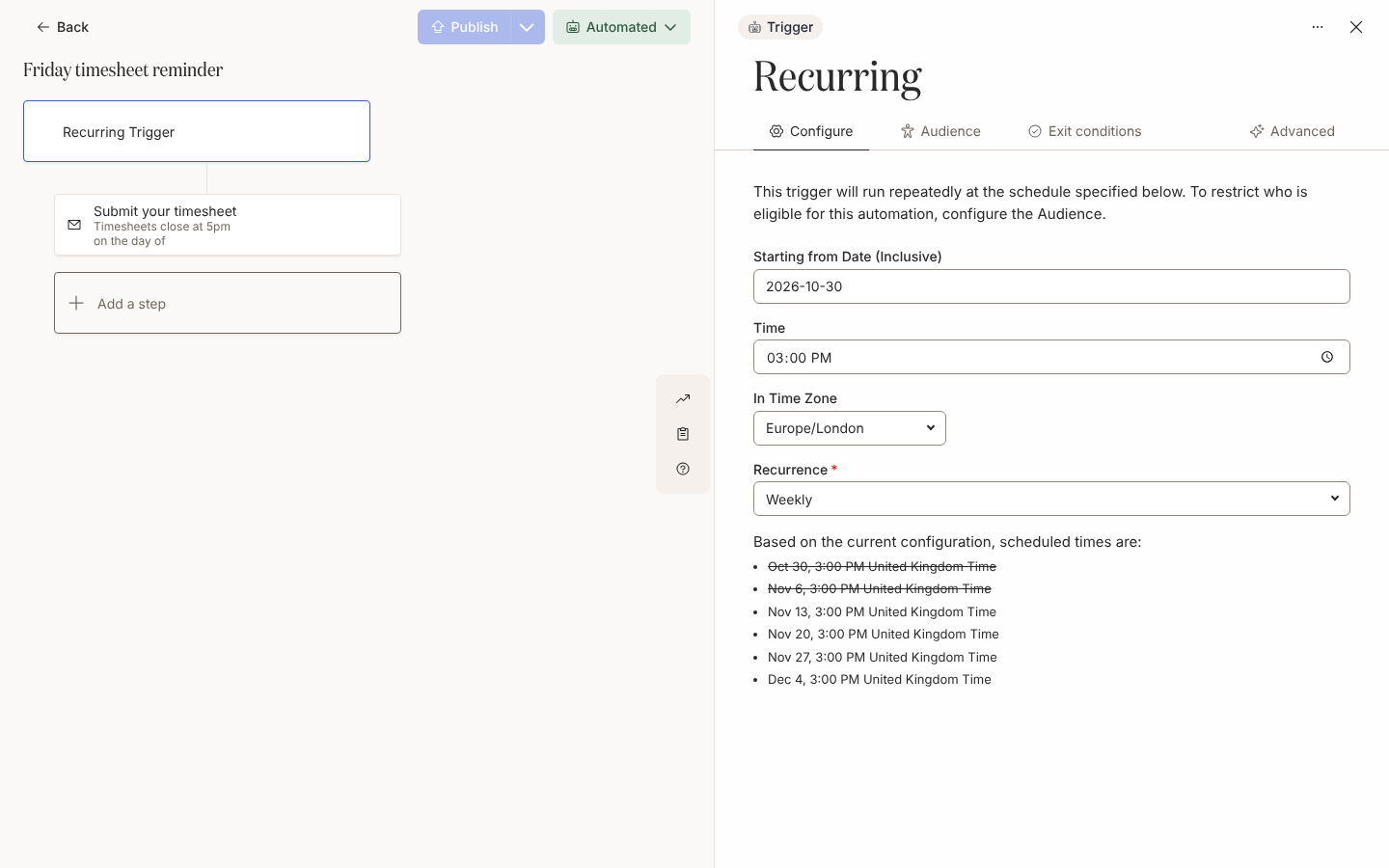
Create an automation with the Recurring Trigger, set Starting from Date (Inclusive) to the first Friday, Time to 15:00, In Time Zone to the country’s zone and Recurrence to Weekly, then read the list of upcoming runs under it; see Configure a recurring trigger.
-
Before publishing, open Audience, keep Lifecycle at Current and add the filter group under Included, then read the Audience Preview count; see Set the audience for an automation.
-
Add a Send Email to Employee or Send Direct Message step to Employee, scheduled on the day of at a time after the trigger’s, with Weekdays Only kept under Days of Week; see Schedule a step.
-
For compliance, add a Link Button with Track Action ticked and up to three reminders, for example 3 days after send and 7 days after send; see Add a button to a message and Add reminders.
-
For a newsletter, add a Post to Channel step to the company channel, where enabled for your workspace, on a trigger whose Recurrence is Monthly; see Post to a channel.
-
Publish, leave the first run in Verification so it waits in Needs Review, then move to Automated; see Publish an automation and Change the mode of an automation.
Variations
Section titled “Variations”A Send Direct Message from Pyn Bot suits a timesheet nudge; the button renders as a Slack button and the click marks the delivery Actioned. The newsletter is a Post to Channel step, where enabled for your workspace: one post per run from a sender who is in the channel, with no reminders because anyone in the channel can act on it.
A Send Email to Employee step with From set to the payroll or People mailbox, as in Choose a sender, so a reply reaches whoever approves timesheets.
For several countries, build one automation per country group, each with its trigger in that country’s time zone so 15:00 means 15:00 locally. One automation with the countries combined under Included and a country group on each step’s Audience tab also works, as in Set a step audience, but every run then uses one time zone.
Watch out for
Section titled “Watch out for”- The default audience enrols every current employee on every run, so set it before the first publish; see Configure a recurring trigger.
- A 09:00 run creates its enrollments within the hour after 09:00; a step on the day of at 09:00 is then already due and sends at once, while one at 10:00 waits for 10:00. The trigger keeps local time across daylight saving in the zone you pick.
- Included groups with the same parent combine with OR and different parents with AND, and a filter or static group is a condition of its own, so including two filter groups means “in both”; see How audiences match.
- Reminders hold back only on a step with a tracked button; on a plain reminder every reminder sends, and a form answered inside Slack does not mark the step actioned either; see Add reminders.
- The trigger’s Prevent repeat enrollments is 1 day, so a daily schedule still enrols each person once a day; see Prevent repeat enrollments.
Check it worked
Section titled “Check it worked”After the first run, Enrollments lists one row per audience member with the run date as Reference, and every later run adds a new set, so the list grows by the audience size each time. In Verification the first set waits in Needs Review; see Review and unpause enrollments. The step appears under Messages with its recipients and date, and for the compliance nudge Track actions lists who is still Unactioned, with a CSV to chase from.
Related
Section titled “Related”- Configure a recurring trigger for the start date, time, zone and recurrence.
- Set the audience for an automation to decide who each run reaches.
- Create a filter group to save a country or department audience once.
- How audiences match for the OR and AND rules.
- Get a policy acknowledged for a compliance ask chased until the button is clicked.