

Enroll from a spreadsheet
A mail merge spreadsheet is a manual enrollment with data attached. Every row is one employee; a Reference Date column gives each row its own date, and any other column becomes a token such as custom.startLocation you can drop into a message. One upload can enrol a whole intake of new hires with different start dates, each greeted with the right office and the right laptop pickup time.
Before you start
Section titled “Before you start”- Build a
.csv,.xlsor.xlsxfile with a header row. Only the first sheet of a workbook is read. - One column holds each person’s primary work email.
- An optional Reference Date column holds dates as
yyyy-MM-dd(for example2026-11-03) oryyyy/MM/dd, or a real date-formatted cell in Excel or Google Sheets. Day-first and month-first text such as03/11/2026is rejected rather than guessed. The header can beReference Date,reference_date,ReferenceDate,Ref Dateorref-datein any capitalisation;Start Dateis treated as an ordinary token column. - Every other column becomes a token. The header is converted to camel case, so
Start Locationiscustom.startLocation. The Reference Date column is never a token. - Steps that use the tokens exist and are published. See Steps and messages for inserting tokens.
-
In Pyn, open Flows in the left navigation, then Automations, and select the automation.
-
Select the mode button, then Manual Enroll.
-
Set Reference Date in the dialog. Rows with a blank Reference Date cell use this date.
-
Select Upload mail merge spreadsheet and choose your file. (Upload a CSV, XLS, or XLSX file of employee email addresses also recognises a header row with extra columns and treats the file as a mail merge.)
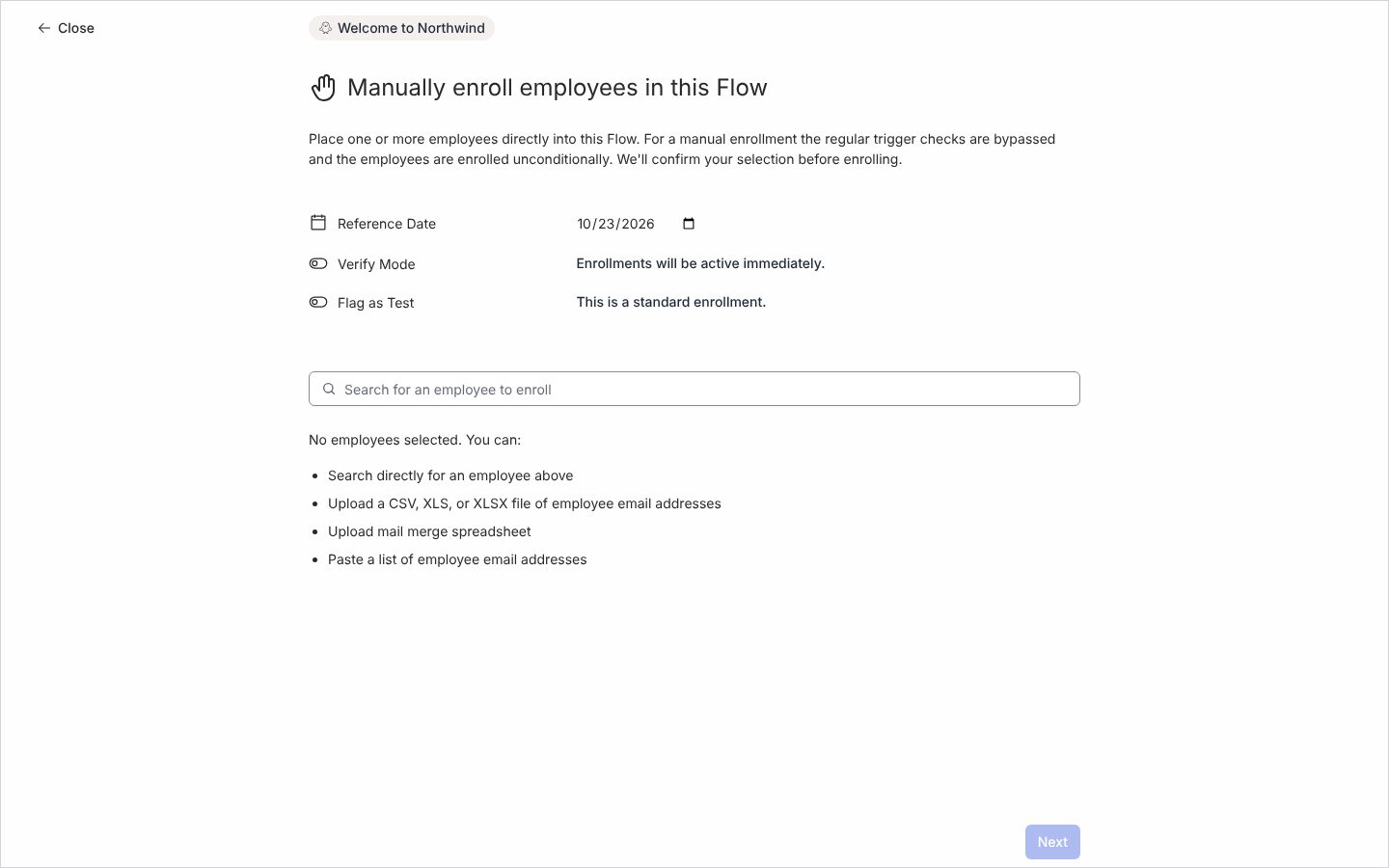
The Manual Enroll dialog lists Upload mail merge spreadsheet among the ways to add people. -
Read the notices under the upload. “The following spreadsheet columns were converted to custom tokens you can use in this Flow’s content:” lists the tokens. “Reference dates were taken from the spreadsheet’s “Reference Date” column.” confirms per-row dates. A list of emails that did not match current employees, and of rows with an invalid reference date, lets you fix and re-upload those rows; the valid rows are already in the selection.
-
Choose Verify Mode and Flag as Test as you need them, then select Next, review the list and select Confirm.
What you should see
Section titled “What you should see”Each row becomes an enrollment under Enrollments with its own Reference Date. Open a message in an enrollment to see the custom tokens filled in with that row’s values. Uploading a second file in the same dialog replaces a person’s date with the new file’s value, and a blank cell in the second file clears the date they had from the first.
Related
Section titled “Related”- Manually enroll employees for the other ways to add people.
- Steps and messages for inserting
custom.tokens in a message. - Enrollments to check each person’s date and messages.