

Reschedule a campaign step
A campaign is a set of dated messages enrolled against a reference date. When a date moves, the Campaigns calendar lets you drag the message, or the campaign itself, to the new day.
Before you start
Section titled “Before you start”- A campaign has been created and enrolled from Campaign Templates, or with Create new on the Campaigns view.
-
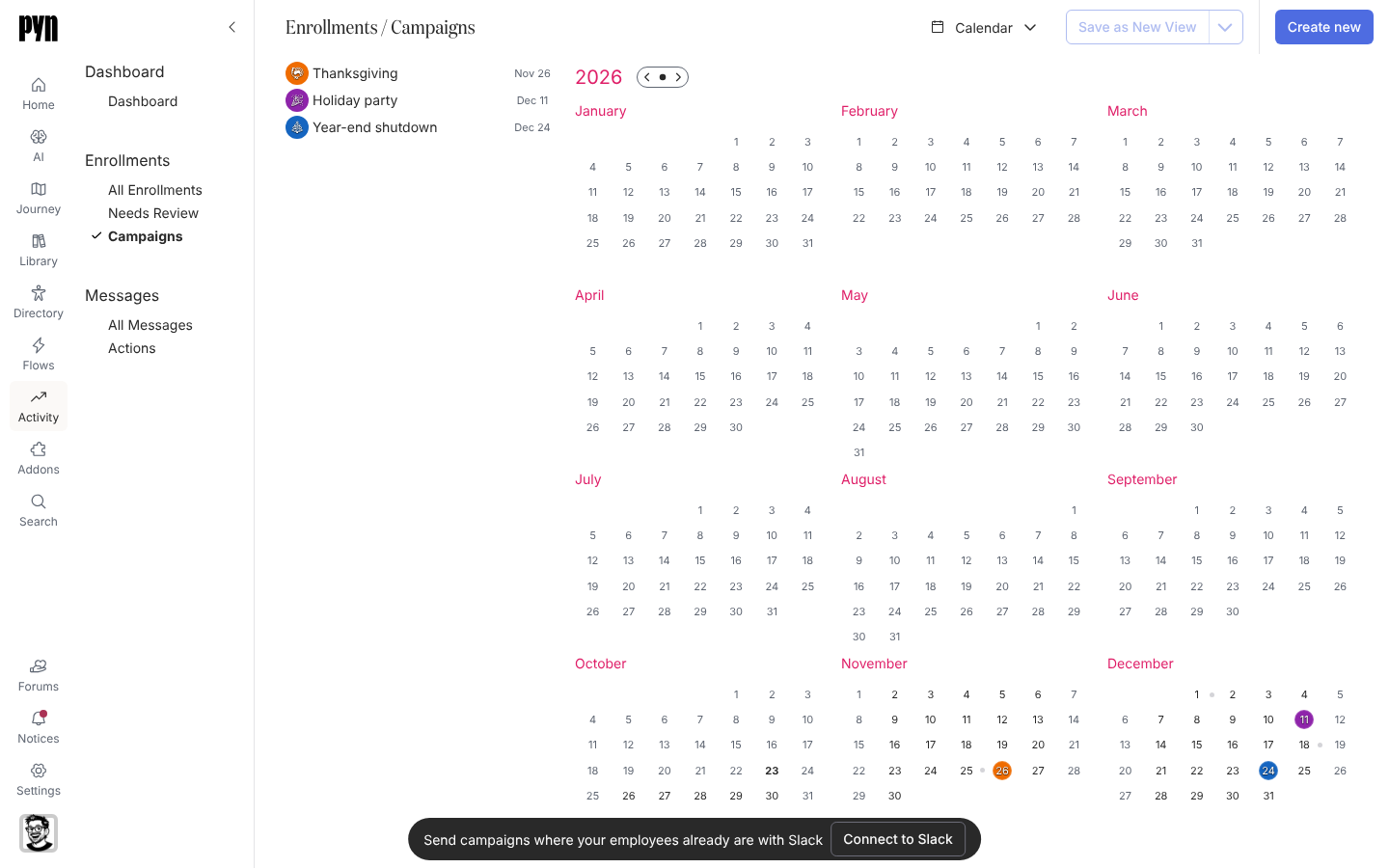
In Pyn, open Activity in the left navigation, then select Campaigns under Enrollments.
-
Use the controls at the top to move between months, or select a month in the year view to open it. Each day lists the campaigns that start on it and the steps that send on it, milestones first and then messages in sending order.
-
Drag a step from its day and drop it on the new day. A step that is Sending or Complete cannot be dragged.
-
To move a whole campaign, drag the campaign entry itself. Its reference date changes to the day you drop it on.
-
Select a step to open its panel. Its state button reads Automated (it will send on its date) or Manual (it is held). Choose the other to switch; a step that reads Draft has not been scheduled yet.
What you should see
Section titled “What you should see”The step appears under its new day as soon as you drop it, and its panel shows the new date. A Manual step keeps its date but does not send until you set it back to Automated. To copy a campaign to a new date, open the campaign’s panel and choose Duplicate: the dialog takes a Title and Reference Date and offers Recalculate Step Dates and Keep Recipients.
Related
Section titled “Related”- Campaign Templates for how campaigns are built and enrolled.
- Pause a scheduled message for holding a step in an automation enrollment.