

Get a policy acknowledged
Everyone receives the policy, confirms with one click, is reminded until they do, and HR exports who has still to act. Pyn has no acknowledgement step type: a message with a tracked button is the acknowledgement, up to three reminders and an escalation chase it, and the Actions CSV is the record. For: admins and owners. Time: about 30 minutes with the policy written.
What you’ll need
Section titled “What you’ll need”- The policy as a piece of content in Library > Content, published by an admin, or a link to it on your intranet; see Publish content.
- An email sender, or Slack connected for direct messages; see Add an email sender and Slack.
- The audience: a group for a yearly re-acknowledgement, or a spreadsheet of work email addresses for a one-off; see Create a filter group.
- A Power User or above to enrol people, an Admin or Owner to publish the automation.
Build it
Section titled “Build it”-
Publish the policy so the button opens a published version rather than the draft; see Publish content.
-
Create an automation with No trigger under Other for a one-off send, or with the Recurring Trigger set to Yearly for a re-acknowledgement; see Use a flow without a trigger and Configure a recurring trigger.
-
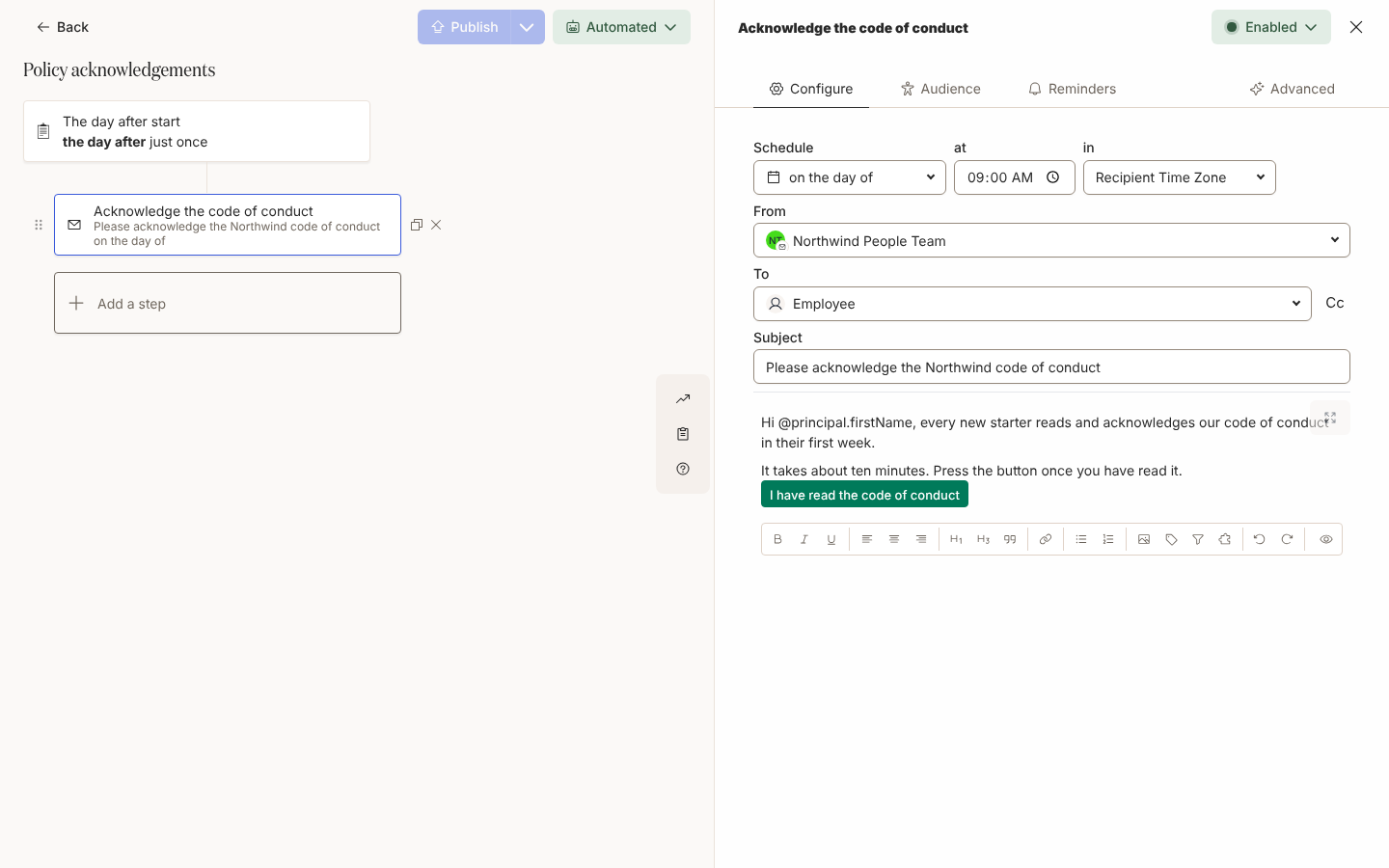
Add a Send Email to Employee step to Employee on the day of, saying what the policy is, why it matters and by when to confirm; see Add an email step.
-
Insert a Link to Library Content button labelled
I have read the policywith Track Action ticked, or a Link Button to the intranet page; see Link to content from a message and Add a button to a message. -
On the Reminders tab add up to three reminders, for example 3, 7 and 14 days after send; see Add reminders.
-
Under Escalations, notify Manager after your last reminder, for example 21 days after send; see Add escalations.
-
Preview, Send a test to yourself, then Publish; on a recurring trigger set the Audience first; see Publish an automation and Set the audience for an automation.
-
For a one-off, select the mode button, then Manual Enroll, paste or upload the addresses with today’s date as Reference Date, and confirm; see Manually enroll employees and Enroll from a spreadsheet.
Variations
Section titled “Variations”Use Send Direct Message instead, as in Add a direct message step. The content button opens the same reader page, Slack replaces it with “(answered)” once clicked, and the escalation reaches the manager in Slack. A recipient with no matched Slack account gets a Bounced delivery, so keep anyone outside Slack on email.
Keep Send Email to Employee and set From to your People team’s mailbox, as in Choose a sender, so a question in reply reaches a person. Where Themes is enabled for your workspace, the email carries your theme as Preview shows it; see Theme your emails.
For new starters, add the same step to your Start of Onboarding automation so each joiner acknowledges the policy in week one. If you need a recorded answer rather than a click, embed a one-field form with a Checkbox instead, as in Embed a form in a message; a form answered inside Slack never marks the delivery Actioned, so its reminders keep arriving and the export is then your record.
Watch out for
Section titled “Watch out for”- Opening the content is the action. Pyn records the click, not the reading, and a reply to the message does not count; see Acknowledge a message.
- A step with no tracked button is not actionable: the Reminders tab warns This step has no actionable content such as buttons or forms and every reminder sends regardless; see Add a button to a message.
- A reminder still pending when the person clicks is cancelled and not sent; its row beneath the delivery reads Invalid; see Add reminders.
- Publishing a new version of the content changes what every button opens, including in messages sent months ago, and earlier clicks still count. A revised policy needs a new send, not an edit; see Content states and versions.
- With No trigger, Manual Enroll is the only way in; terminated employees are skipped, and one go takes up to 1,000 addresses; see Use a flow without a trigger.
- A yearly recurring trigger with the default audience enrols every current employee each run; set the audience first; see Configure a recurring trigger.
- If Publish appears to do nothing, a step has no recipient; check each step’s To field. See Publish an automation.
Check it worked
Section titled “Check it worked”Each person appears under Enrollments with the reference date you set or the run date, and the step reads Delivered, then Actioned once the button is used, with the reminders and the escalation Scheduled beneath it. Open Actions, filter Status to Unactioned, and select Export Data from the Table menu for the CSV to chase from; see Track actions. One person’s outstanding asks are under Outstanding on the Activity tab of their profile; see Read an employee profile.
Related
Section titled “Related”- Add a button to a message for the tracked button that stands in for an acknowledgement.
- Add reminders and Add escalations for the follow-ups.
- Track actions for the Unactioned filter and the CSV.
- Acknowledge a message for what the recipient sees and does.