

Save a view
Filters and metrics are unsaved until you keep them. Saving them as a view adds an entry under Whole Journey, High Priority and Archived in the left rail that anyone in the workspace can open, for example “Onboarding gaps” or “Q4 deliveries”.
Before you start
Section titled “Before you start”- You have filtered the board or changed its metric. The save button stays disabled until something has changed.
-
In Pyn, open Journey in the left navigation and set up the board with filters or metrics.
-
At the top right of the board select Save as New View. On Whole Journey and Archived, which are read-only, the button always reads Save as New View; on a view you own it reads Save View and updates the view in place.
-
The new view opens and appears in the left rail, named after the view it came from with an asterisk.
-
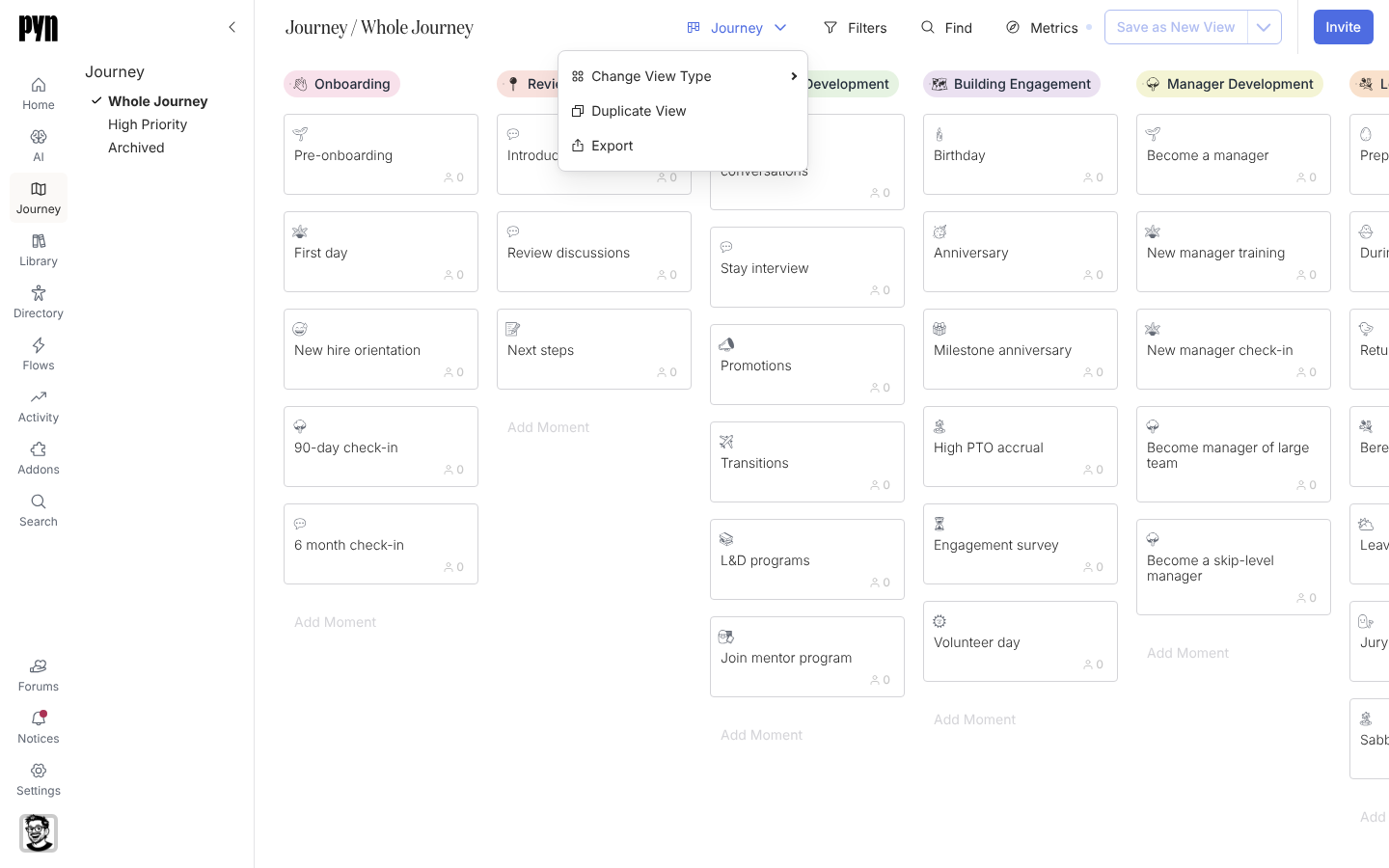
To name it, select the view-type button at the left of the control bar (it reads Journey), then Rename View, and type the new name.
Manage a view
Section titled “Manage a view”The view-type button’s menu also offers:
- Change View Type: Journey (the board), Table (one row per moment with its Category and Title) and the other types the workspace supports.
- Duplicate View: copies the view and opens the copy.
- Export: downloads the board as an image; see Export the map as an image.
- Rename View and Archive View: on a view you saved, rename it or remove it from the rail.
What you should see
Section titled “What you should see”Your view sits in the left rail below the seeded ones and opens with its filters and metric already applied. Reopen it later and it is unchanged until someone selects Save View on it again.
Related
Section titled “Related”- Filter the map to decide what the view shows.
- Read journey metrics to choose the number on each card.
- Export the map as an image to share the view outside Pyn.