

Onboard from the first day to six months
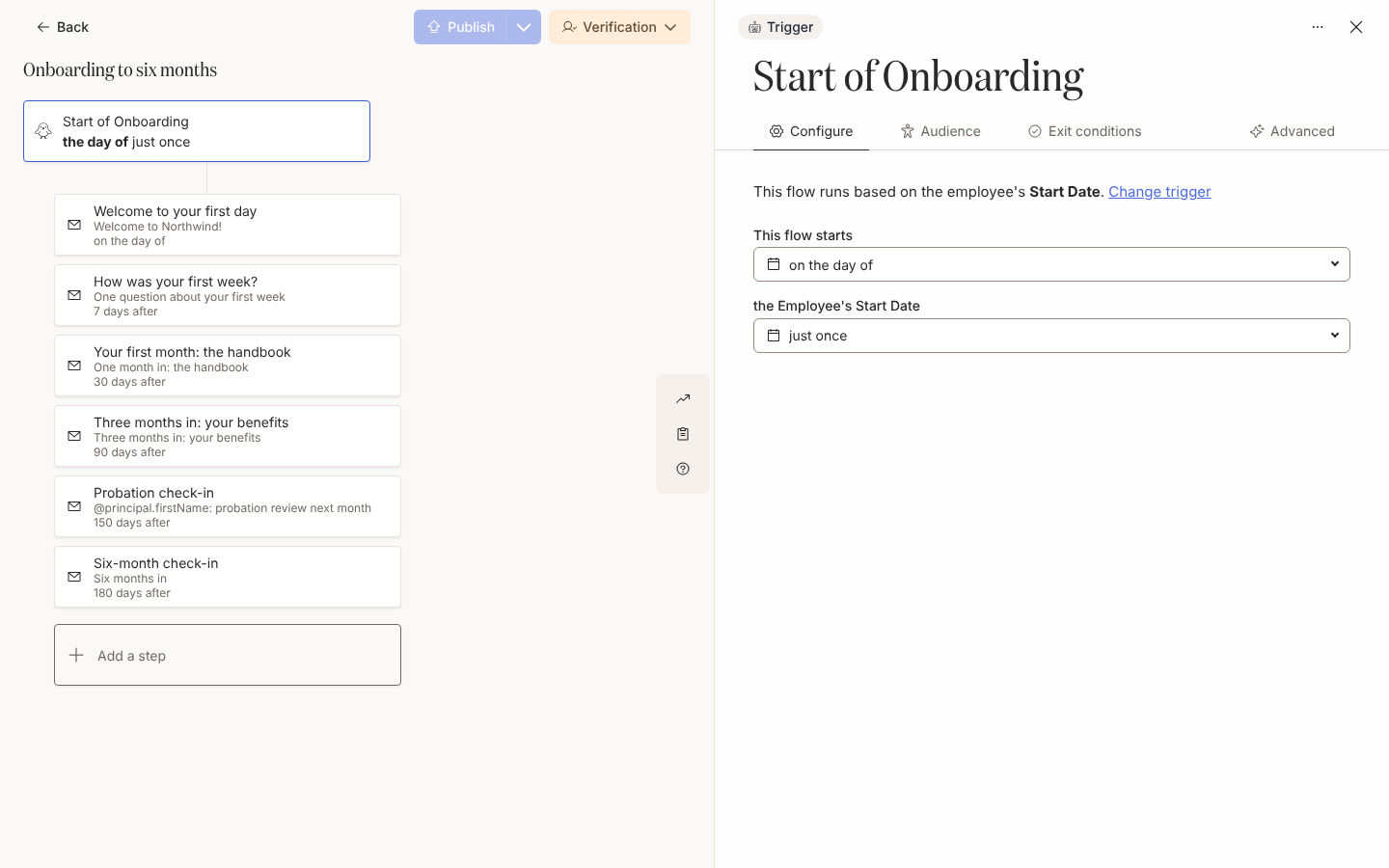
Every new starter gets a welcome on day one, a pulse at the end of week one, the handbook at 30 days, a check-in at 90 and another at six months, from one automation timed off their start date. For: admins and owners. Time: about 30 minutes with the content written; about 10 to extend a 90-day flow you already run.
What you’ll need
Section titled “What you’ll need”- Start Date synced from your HRIS; every source provides it. For a probation nudge timed off the HRIS date, Probation End Date, which HiBob supplies; see HRIS fields.
- An email sender, or Slack connected for direct messages; see Add an email sender and Slack.
- The handbook and benefits guide published in Library > Content; see Publish content.
- Optional: the Start of Onboarding template from the catalogue. It gives you the trigger; you add the steps.
Build it
Section titled “Build it”-
Create an automation with the Start of Onboarding trigger under Employee Lifecycle, set This flow starts to on the day of and leave the recurrence at just once, so the start date is the reference date for every step; see Configure a date trigger.
-
On the Audience tab keep Current and Joiner, so someone enrols before their first day if the trigger fires early; see Launch first-day onboarding end to end.
-
Add a Send Email to Employee welcome on the day of at 09:00 in the Recipient Time Zone, then a step 7 days after that embeds a one-question poll on how the first week went; see Schedule a step and Run a quick poll.
-
Add steps 30 days after and 90 days after, each with a Link to Library Content button to the handbook or benefits guide; see Link to content from a message.
-
Add a six-month check-in 180 days after and a probation nudge with To set to Manager at Custom 150 Days After; see Schedule a step and Choose recipients and Cc.
-
Publish, then set the mode to Verification so the first cohort waits in Needs Review, and switch to Automated after a week or two of clean reviews; see Publish an automation and Change the mode of an automation.
-
Enrol yourself with Flag as Test and a Reference Date a few days out, and read each message as it arrives; see Manually enroll employees.
Variations
Section titled “Variations”Swap the later steps for Send Direct Message so the poll and the check-ins land where people chat, as in Add a direct message step. Keep the day-one welcome on email: a recipient whose Slack account is not matched gets a Bounced delivery with the reason Recipient Not Available In Slack. On the Slack steps, tick Send by email if the recipient is not in Slack on the Advanced tab so anyone without a Slack account gets the message by email; see Send a direct message by email when someone is not in Slack.
Keep every step as Send Email to Employee and set From to your People team’s mailbox so a reply reaches a person; see Add an email step. In email the poll is a button to a page with the same row of answers.
Probation from the HRIS date. Where Probation End Date is synced, build a second automation on it under Employee Properties with This flow starts at 2 weeks before; see Configure an employee property trigger. For 90 days only, the catalogue’s 90-day check-in template shifts the reference date 90 days after the start and fires 2 weeks before it; see Trigger catalogue.
Watch out for
Section titled “Watch out for”- In Verification nothing sends until you open Needs Review, select Verify and Unpause each enrollment; the Automations table shows Verify as the status, and a flow left there looks published but is silent; see Review and unpause enrollments.
- Extending a running 90-day flow to six months reaches people already enrolled only if you tick them in Update Enrollments after publishing, or later from Update Active Enrollments on the mode menu; anything already sent is left alone; see the FAQ and Publish an automation.
- A person added to the HRIS after their start date enrols late and every step already due sends at once; turn on Skip if overdue at enrollment on the welcome, or decide per person in Verification; see Handle late enrollments.
- Answering the poll never marks the delivery Actioned, so do not add reminders to that step expecting them to stop; see Run a quick poll.
- every year and the other recurrences are for anniversaries, in their own automation; onboarding stays at just once; see Configure a date trigger.
Check it worked
Section titled “Check it worked”Each new starter appears under Enrollments with their start date as Reference and six steps dated from day one to day 180. In Verification the row sits in Needs Review with a Verify button; once unpaused, the welcome shows as delivered and the rest as Scheduled. The poll’s Activity drawer in Flows > Polls lists each answer by name, and Track actions shows who opened the handbook.
Related
Section titled “Related”- Launch first-day onboarding end to end to build the first three steps in one sitting.
- Reach new starters before day one for the week before the start date, to a personal address.
- Give managers a new-hire checklist for the manager’s steps inside this automation.
- Schedule a step for the offsets, custom days and delivery days.