

Filter the map
With forty or more moments on the board, filters let you look at one question at a time: which high-priority moments do we not have yet, or which moments belong to L&D. Filters work on the properties you have set, so an unset property only matches (No Value).
Before you start
Section titled “Before you start”- The moments you care about have their properties set. See Set a moment’s properties.
-
In Pyn, open Journey in the left navigation.
-
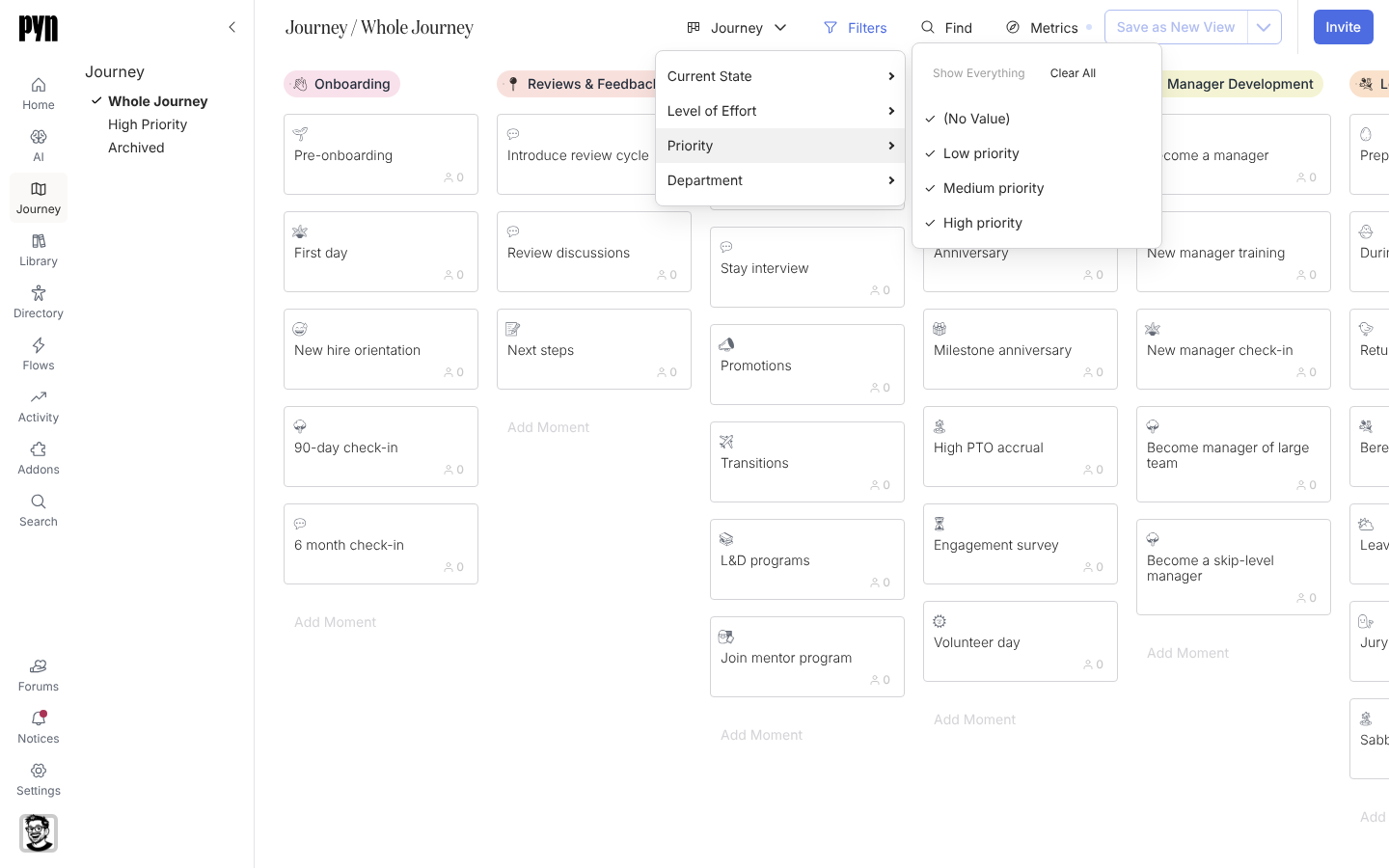
At the top of the board select Filters. The menu lists Current State, Level of Effort, Priority and Department.
-
Hover a property. Its values slide out, plus (No Value) for moments that have none.
-
Tick one or more values. The board updates as you tick; a moment shows when it matches every property you have filtered.
-
To remove a property’s filter, hover it and select Show Everything. Clear All on a property clears its ticks.
-
To find one moment, select Find, type part of its title into Enter your terms, and the board keeps only matching cards.
What you should see
Section titled “What you should see”The Filters button is highlighted while a filter is on, and columns show only matching cards; a column with no matches is empty rather than hidden. The Save as New View button becomes active, so you can keep the filtered board as a view of your own.
Related
Section titled “Related”- Save a view to keep this filter as a named view.
- Set a moment’s properties if a moment is missing from a filter because its property is unset.
- Moment properties for every value a filter offers.