

Create a lifecycle group
Who starts in the next two weeks? Who left in the last month? A lifecycle group holds everyone who is within a set number of days of a date on their record. Birthday and Onboarding are lifecycle groups every workspace starts with; you can add your own.
Before you start
Section titled “Before you start”- You are a workspace admin.
- The date is on the employee record. A lifecycle group can follow Birthday or any date property, such as Start Date or Termination Date, including the custom date fields your HRIS adds. Employee properties lists them.
-
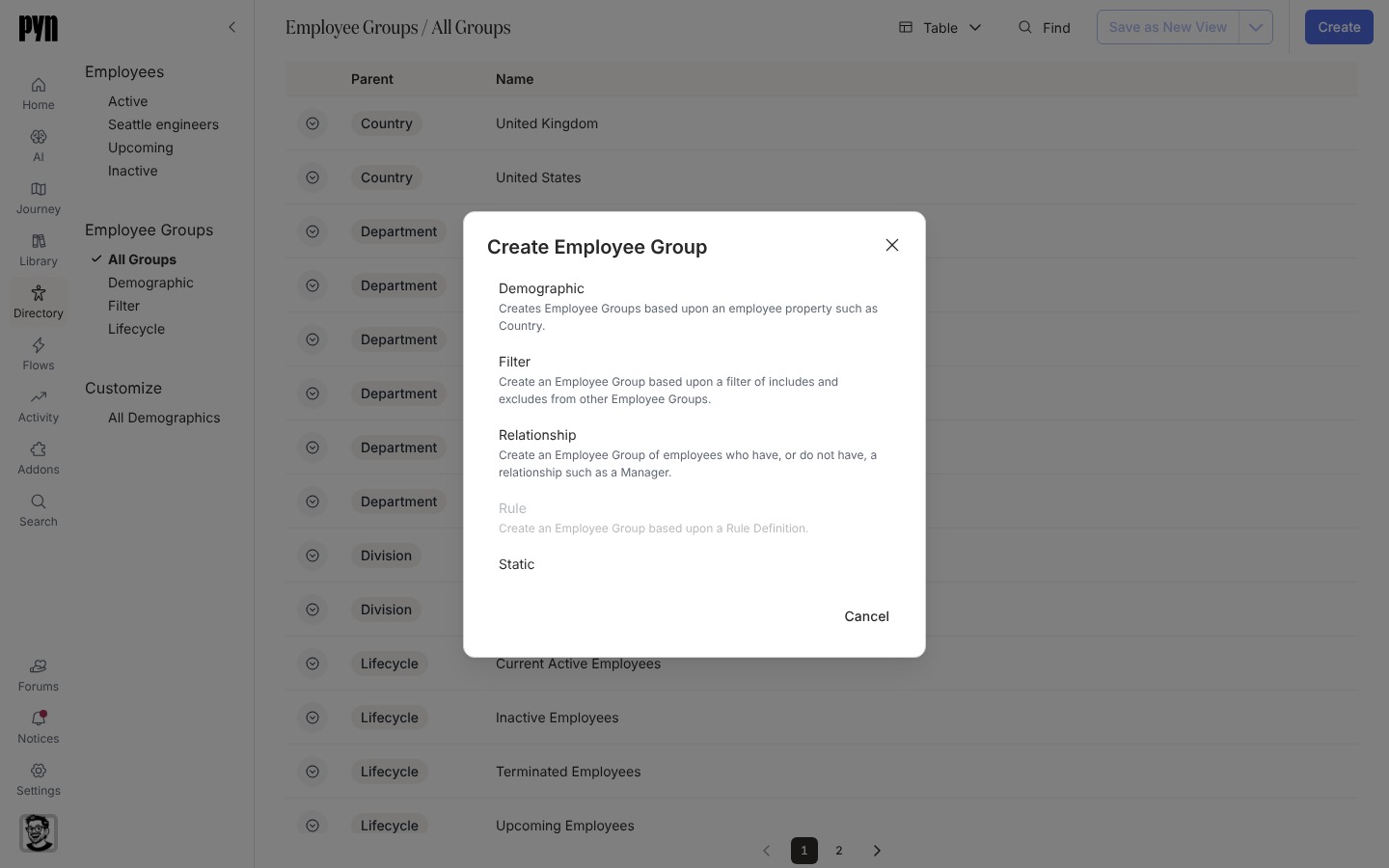
In Pyn, open Directory in the left navigation, then select All Groups under Employee Groups.
-
Select Create, then Lifecycle in the Create Employee Group dialog.
-
Under Select a Date Property, choose the date the group follows.
-
In Days Before, enter how many days before the date an employee joins the group. In Days After, enter how many days they stay from the date, counting the day itself. A new group starts with 0 and 1, which is the day of the date alone.
-
Type a Group Title, or leave it to take the name of the date property.
-
Select Create. The dialog reads Click done to open the new Group. Adding employees to the group may take a few minutes, depending on the size of your organization.; select Done.
Each of the two fields takes a whole number of days up to 3,650. Create stays disabled while both are 0, with “Enter at least one day before or after the date.” under Days After.
Change the days or the title
Section titled “Change the days or the title”Open the group’s panel, open its menu and select Edit. Edit Lifecycle Group shows the same fields with Date Property disabled. Change Days Before, Days After or Group Title and select Save.
After you save new days, the members change over the next few minutes. A new title alone moves nobody. Birthday and Onboarding are edited the same way.
What you should see
Section titled “What you should see”The group opens in its panel with Date Property, Days Before and Days After above Group Employees:. After the few minutes the dialog mentions, Group Employees: lists everyone inside the window today. The group is listed in All Groups and in the Lifecycle view the next time the list loads.
Use the group in an automation’s audience, or point a Group Change trigger at it to enrol each person as they enter the window. Widening the window adds the people who newly match, and a Group Change trigger watching the group treats each of them as a new arrival.
Related
Section titled “Related”- Group types for how each kind of group is evaluated and the groups every workspace starts with.
- Configure a group change trigger to start a flow when someone enters or leaves the group.
- Employee properties for the date properties a group can follow.
- Automations for sending to the group.