

Support a new manager
Someone gains their first direct report and, the same week, hears what is expected of them, starts a four-week series on 1:1s, feedback and career conversations, and their own manager is told how to coach them. For: admins and owners. Time: about 45 minutes with the content written; about 15 from the catalogue template.
What you’ll need
Section titled “What you’ll need”- Reporting lines synced from your HRIS, with Manager mapped for your source; see HRIS fields. A workspace fed from a spreadsheet needs the manager column in each Employee File upload.
- An email sender, or Slack connected for direct messages; see Add an email sender and Slack.
- Four short pieces of content in Library > Content: what we expect of managers, running 1:1s, giving and receiving feedback, career conversations; see Create content.
- Optional: the catalogue templates Promoted to manager (four weekly emails, each linking a piece of content), Join new manager training and Check in with new manager.
Build it
Section titled “Build it”-
Publish the four pieces of content so the buttons have something to open; see Publish content.
-
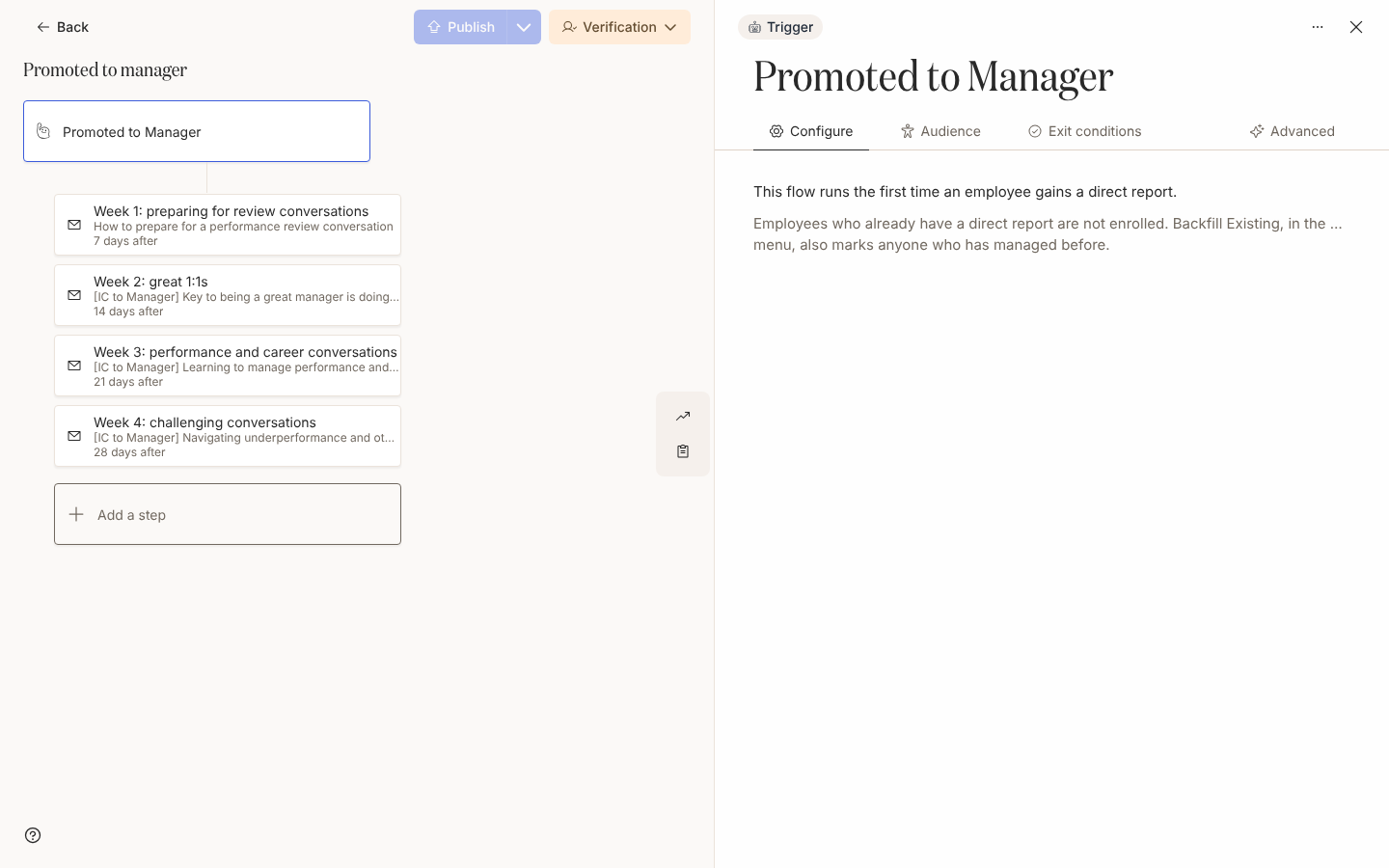
Create an automation with the Promoted to Manager trigger under Team and Org Changes, as in Configure a team change trigger, or add Promoted to manager from the catalogue, as in Create an automation, and skip to step 5.
-
Keep Lifecycle at Current and exclude any group whose reporting lines should not count, such as contractors; see Set the audience for an automation.
-
Add four Send Email to Employee steps to Employee, scheduled on the day of, 1 week after, 2 weeks after and 28 days after, each with a Link to Library Content button; see Schedule a step and Link to content from a message.
-
Add two steps with To set to Manager: a heads-up on the day of and a check-in 3 weeks after with a Link Button that has Track Action ticked; see Choose recipients and Cc and Add a button to a message.
-
Add a training invitation 2 weeks after with a tracked sign-up button, a reminder 5 days after send and an escalation to Manager 10 days after send; see Add reminders and Add escalations.
-
Publish, then set the mode to Verification so the first promotions wait in Needs Review; see Publish an automation and Change the mode of an automation.
-
Enrol yourself with Flag as Test on and read every message as it arrives; see Manually enroll employees.
Variations
Section titled “Variations”Swap each Send Email to Employee for Send Direct Message, as in Add a direct message step. The content button and the tracked link work the same in Slack. A recipient with no matched Slack account gets a Bounced delivery, so keep the manager’s briefing on email unless every manager is in Slack.
Keep the steps as Send Email to Employee and set From to your People team’s mailbox, as in Choose a sender, so a reply reaches a person.
For a manager who changes team rather than gains a first report, use the Change of Manager trigger from the same page; its principal is the employee whose manager changed.
Watch out for
Section titled “Watch out for”- The trigger fires once, when the first direct report appears, and only for changes after the first HRIS load. Anyone who was already a manager when you connected the HRIS never enrols; use Manually enroll employees for them.
- To keep people who have managed before out of the flow, select Backfill Existing from the trigger drawer’s … menu, as in Configure a team change trigger; how long they stay out follows Prevent repeat enrollments.
- The catalogue’s Check in with new manager and Join new manager training both run from the day of the promotion. Put any gap on the step’s schedule, for example 12 weeks after; see Trigger catalogue.
- The reference date is the day the reporting line reaches Pyn, not the effective date in the HRIS. A backdated promotion enrols late and the steps already due send at once; see Handle late enrollments.
- If Publish appears to do nothing, a step has no recipient; check each step’s To field. See Publish an automation.
- Publishing a new version of content changes what every button opens, including in emails sent weeks ago; see Content states and versions.
Check it worked
Section titled “Check it worked”The day a reporting line makes someone a manager for the first time, they appear under Enrollments with that date as Reference Date. In Verification the enrollment waits in Needs Review; see Review and unpause enrollments. Once unpaused, the first two messages show as delivered within the hour and the rest as scheduled over four weeks. Track actions shows who has used the training button and the manager’s check-in link.
Related
Section titled “Related”- Tutorial: new-manager flow to build the same automation step by step, with the message copy.
- Configure a team change trigger for Promoted to Manager and Change of Manager.
- Trigger catalogue for the template catalogue triggers and their defaults.
- Content for the pages the emails link to.
- Mark a promotion or change of manager for a change of manager or a promotion that creates no first-time manager.