

Reschedule a step on the calendar
The all-hands moved a day; the benefits deadline slipped a week. On the month view of the calendar you drag a step to its new day, and the panel does the rest of the schedule.
Before you start
Section titled “Before you start”- The step has not started sending. A step that is Sending or Complete cannot be moved.
-
In Pyn, open Activity in the left navigation, then select Campaigns.
-
Select a month name on the year calendar to open that month. The steps for the month show inside their days.
-
Drag the step from its day and drop it on the new day. The step’s Scheduled date changes; its time and time zone stay as they were.
-
To change the time as well, select the step to open its panel. If it reads This message is scheduled., select the state button and choose Manual.
-
On Configure, set the Scheduled date, at and in, then set the state back to Automated.
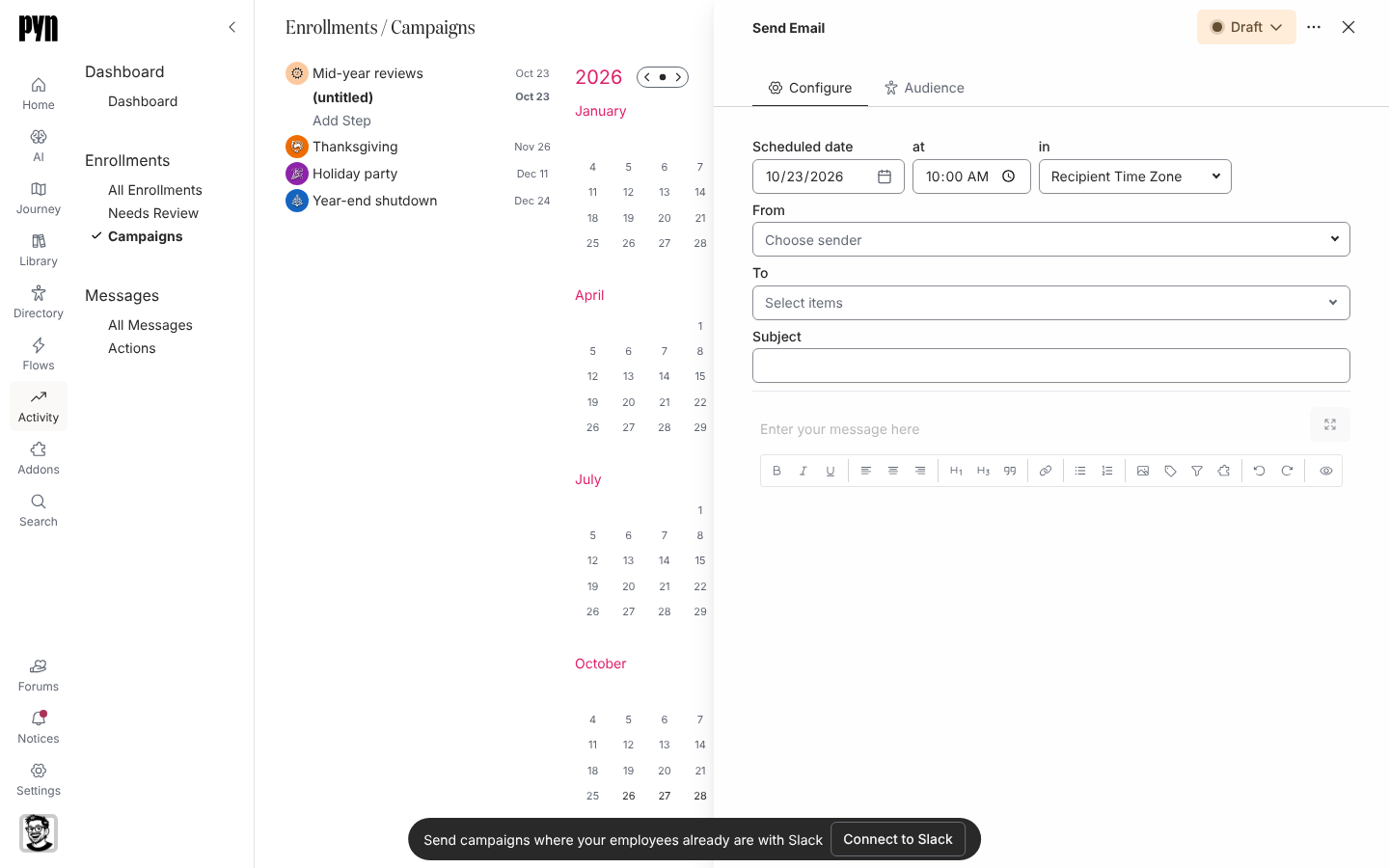
A campaign step has a calendar date and a list of recipients; the header's state button moves it from Draft to Automated. -
Select the month name or Today to return to the year view.
What you should see
Section titled “What you should see”The step’s dot moves to the new day on both the month and year views, and its row in the sidebar shows the new date. If the step has deliveries already scheduled, they are rescheduled with it; under Activity, All Messages, each shows the new date.
Related
Section titled “Related”- Create a campaign for the step panel.
- Schedule a step for how the time and time zone are read.
- Campaign states for which states can be edited.