

Theme your emails
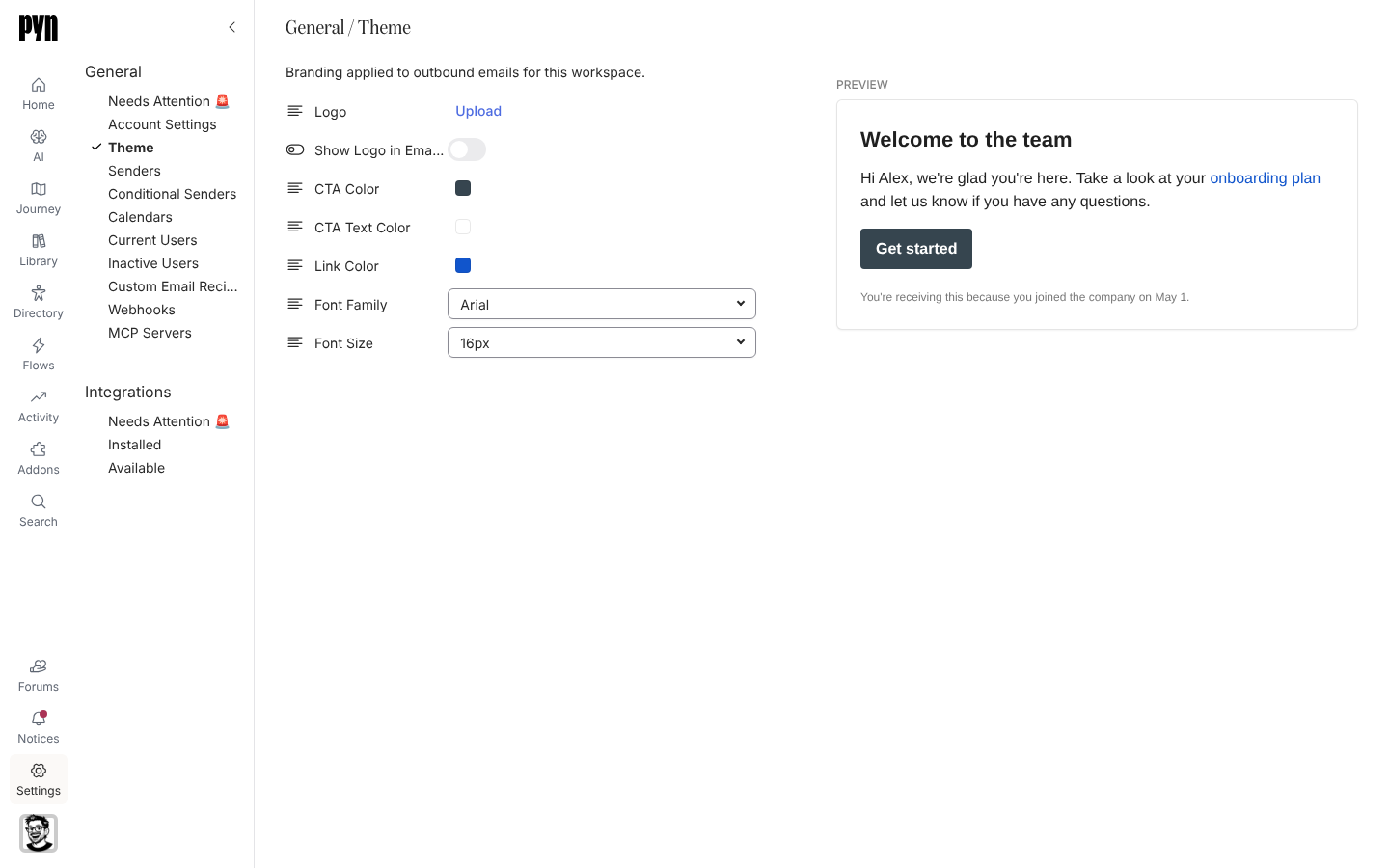
You want the emails Pyn sends to look like they came from your company. Theme sets the logo, the colour of buttons and links, and the font, and shows a preview as you change them. The page describes itself as “Branding applied to outbound emails for this workspace.”
Before you start
Section titled “Before you start”- You are an admin or owner.
- Theme shows under General only in workspaces where themes are enabled. If you do not see it, ask Pyn support.
- Have a logo image ready. It is picked from Media, so upload it there first or from the picker.
-
In Pyn, open Settings in the left navigation, then Theme under General.
-
Next to Logo, select Upload (or Replace if one is set) and choose an image from Media. The logo appears beside the button once saved.
-
Turn on Show Logo in Emails. The toggle is disabled until a logo exists.
-
Set CTA Color and CTA Text Color for buttons, and Link Color for links. Pick a swatch or enter a value; the preview updates as you drag and saves when you let go.
-
Choose a Font Family from the email-safe list and a Font Size.
-
Check the Preview on the right. It renders a sample welcome email with your logo, link colour, button and footer.
What you should see
Section titled “What you should see”The preview matches what recipients get: the logo at the top when the toggle is on, links and the Get started button in your colours, and body text in the chosen font. The next email any flow sends uses the theme; emails already sent do not change.
Related
Section titled “Related”- Account Settings for the company name and time zone.
- Media to upload or replace the logo image.
- Automations to send a test email and see the theme applied.