

Find content
The Content gallery groups every piece by its Journey moment, in the order of the map. When the gallery grows, filter it to a moment or search a title rather than scrolling.
-
In Pyn, open Library in the left navigation. It opens on Content, on the Everything view.
-
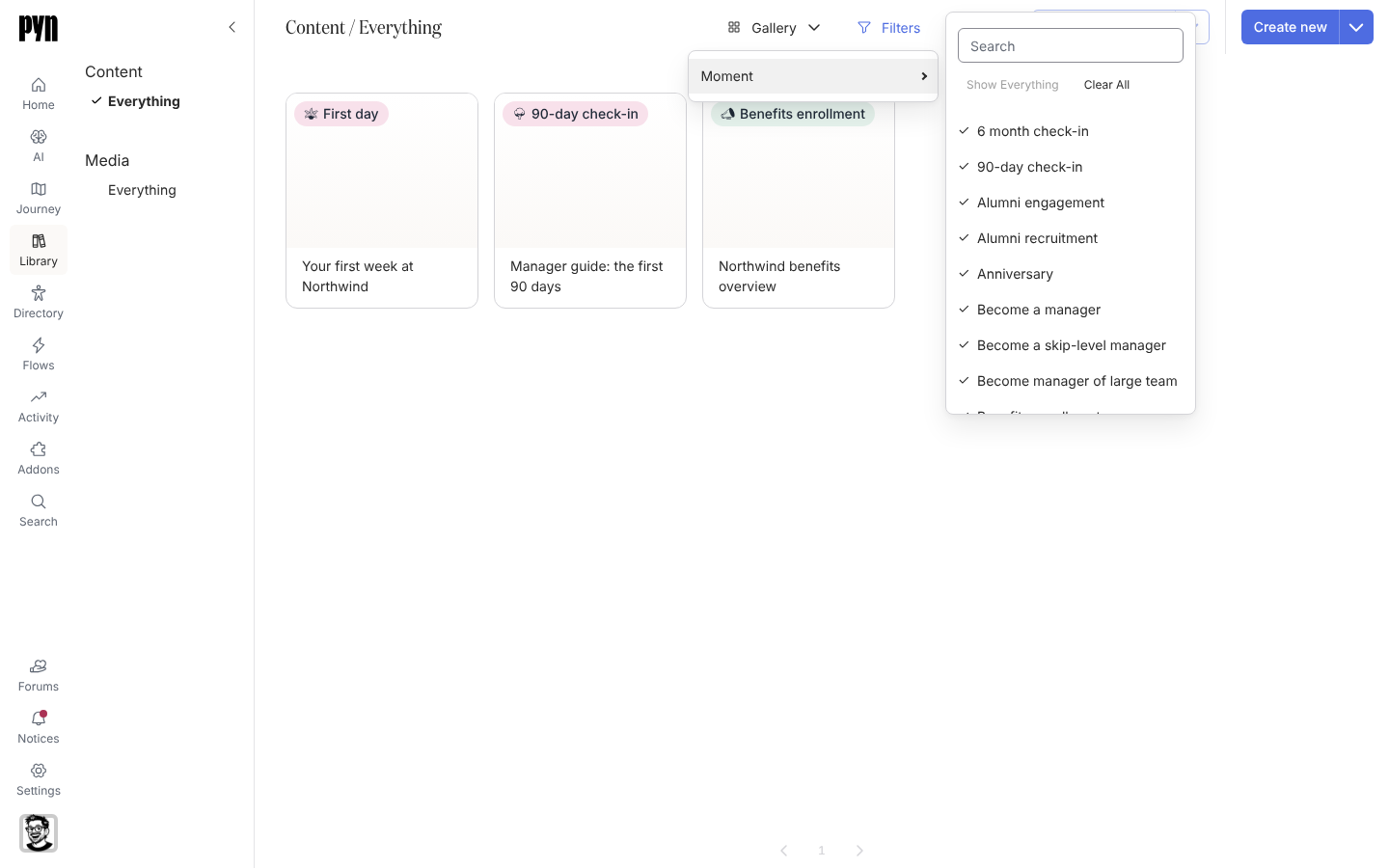
To see one moment’s content, select Filters, hover Moment, and tick the moments you want. Type in the search box at the top of the list to find a moment by name.
-
To clear the filter, hover Moment again and select Show Everything; Clear All removes the ticks.
-
To search by title, select Find, type part of the title into Enter your terms, and the gallery keeps only matching cards.
-
To see a list instead of cards, select the view-type button at the left of the control bar (it reads Gallery), then Change View Type, then Table.
-
To keep any of this, select Save as New View, then rename the new view from the same menu.
What you should see
Section titled “What you should see”The Filters or Find button is highlighted while active and the gallery shows only matching content, still grouped by moment. Select a card to open it in the editor; Back returns you to the filtered view.
Related
Section titled “Related”- Create content and set its moment so these filters find it.
- Journey for the moments the Library groups by.