

Sign in with SSO
Your company has connected its identity provider to Pyn, and you want to sign in the same way you sign in to everything else at work. You give Pyn your email address; Pyn looks up the provider that owns that domain and hands you to it.
Before you start
Section titled “Before you start”- An admin has installed the Single Sign-On integration for your workspace. SSO explains how.
- You know your work email address. Pyn uses its domain, such as
example.com, to find the right provider.
-
Open
https://app.pyn.ai/sign-inand select Continue with SSO. -
On Enter your email address, read “Enter your work email address and you will be taken to your organisation’s single sign-on provider.” Type your address in Email.
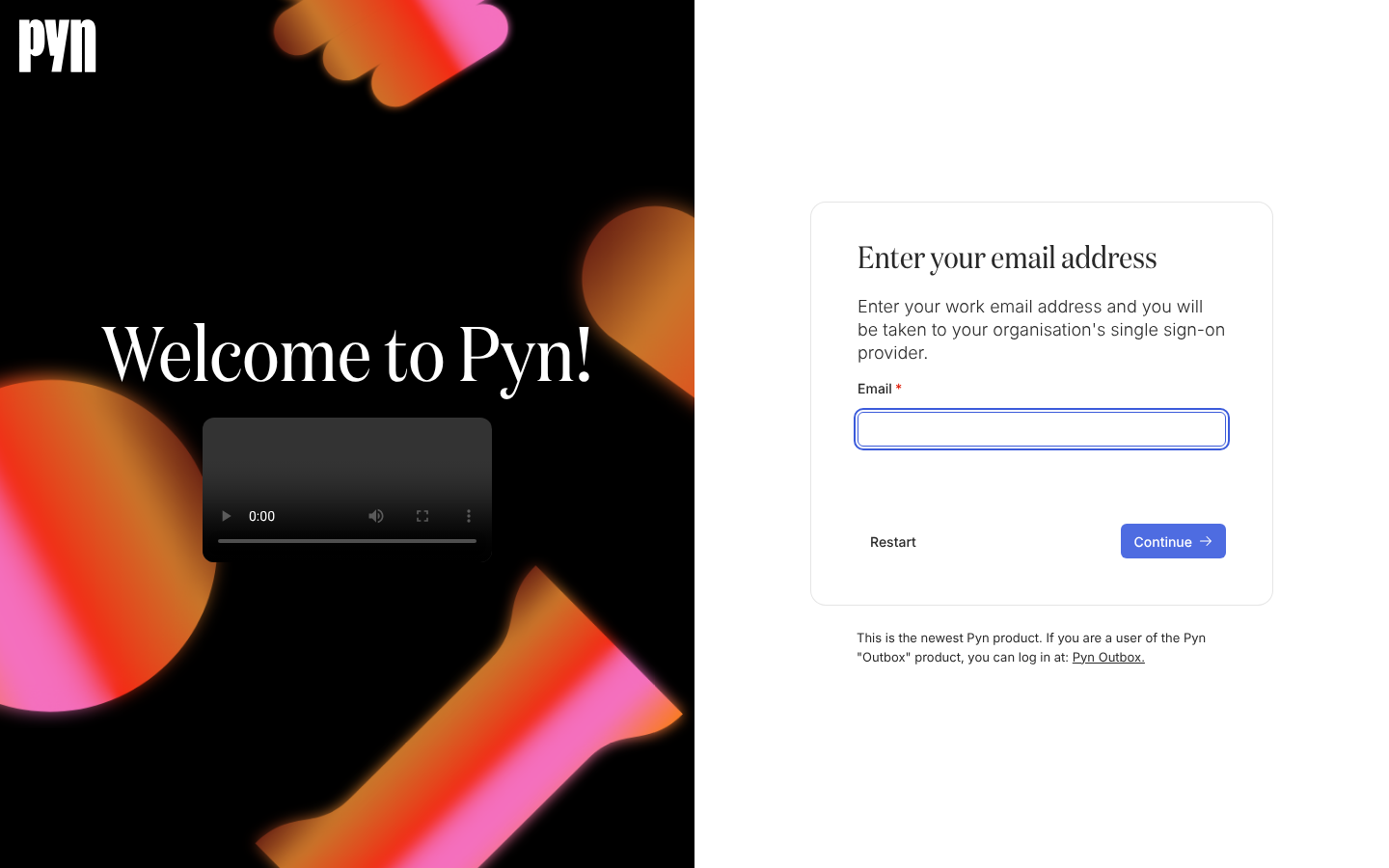
After Continue with SSO, Pyn asks for the work email it uses to find your identity provider. -
Select Continue. The field locks while Pyn looks the domain up.
-
Sign in at your identity provider when it opens. It returns you to Pyn.
What you should see
Section titled “What you should see”The Signing In screen, then Home or Switch Workspace if you belong to more than one workspace.
Troubleshooting
Section titled “Troubleshooting”- “Email not found” appears under the field. No workspace has claimed that email domain for single sign-on, or the address is malformed. Check the spelling, or sign in with Google or Microsoft or a magic link and ask your admin whether SSO is connected.
- “Something went wrong, please try again” appears. The lookup failed on the network. Select Continue again; Restart returns you to the four buttons.
- Your provider signs you in but Pyn shows no workspace. Pyn does not create users on first sign-in through SSO. An admin still has to invite your address, or you need to be in a provider group that is mapped to a role.
Related
Section titled “Related”- Sign in for the other options and what happens after sign-in.
- SSO for how an admin connects Okta or an OpenID Connect provider and maps groups to roles.
- Roles and permissions for what each mapped role can do.