

Add reminders
A manager asked to pick a buddy, an employee asked to sign the handbook: most people act on the second ask if not the first. A reminder sends the same message again a set number of days after the original was delivered, and only while the original is still unactioned.
Before you start
Section titled “Before you start”- The step is a Send Direct Message or Send Email to Employee step with a tracked button or embedded form; see Add a button to a message.
-
In Pyn, open the automation from Flows, Automations, and select the step.
-
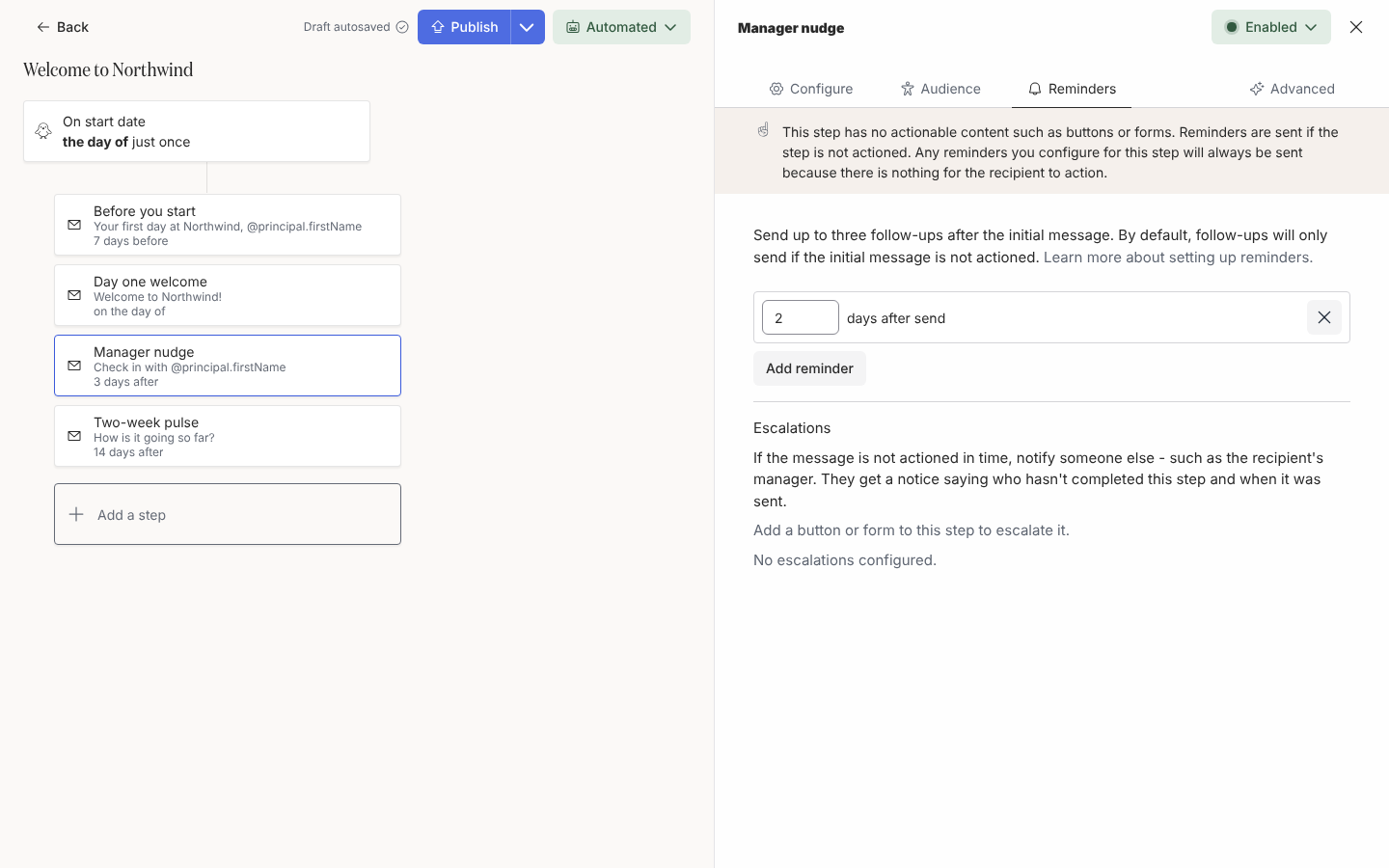
Select the Reminders tab. It reads No reminders configured. on a new step.
-
Select Add reminder. A row appears reading 2 days after send.
-
Change the number of days if you want: any whole number from 1 to 90. One reminder two or three days after the original suits most asks; a week later suits a longer task.
-
Select Add reminder again for a second or third follow-up, each with its own delay. Three is the maximum.
-
Close the drawer. Reminders are saved with the step and take effect when you Publish the automation.
How reminders behave
Section titled “How reminders behave”- Pyn creates the reminders when the original delivery is delivered, so each delay counts from the moment the recipient got the message, at the same time of day.
- A reminder is a copy of the original message from the same sender in the same medium.
- Once the recipient clicks a tracked button or submits the form, every remaining reminder is cancelled. Stopping the enrollment cancels them too.
- Calendar invitations, channel invitations and tickets have no reminders.
What you should see
Section titled “What you should see”Under Enrollments, a delivered step lists its reminders beneath it, each Scheduled for its day and then Delivered or cancelled. The Actions view shows the original ask as Unactioned until the person acts, whichever message they act from.
Related
Section titled “Related”- Add a button to a message to make the step actionable.
- Add escalations to tell someone else when reminders are not enough.
- Actions to see who has acted.