

Add a category
You want a new column on the Journey, for example “Internal mobility” or “Wellbeing”, so that its moments have a home. A category is created empty and opens straight away so you can name it.
Before you start
Section titled “Before you start”- You are a workspace admin. Everyone can read the Journey, but adding, moving and archiving categories and moments needs the Admin role.
-
In Pyn, open Journey in the left navigation. The board opens on Whole Journey.
-
Scroll to the right end of the board and select Add Category.
-
A new column appears and its panel opens on the right. Select the title at the top of the panel and type the category name.
-
Select the emoji at the top of the panel to pick an emoji and a colour together. The colour tints the whole column.
-
In Details, select (No Description) and write what this stage of the journey covers.
-
Close the panel. Changes save as you make them; there is no save button.
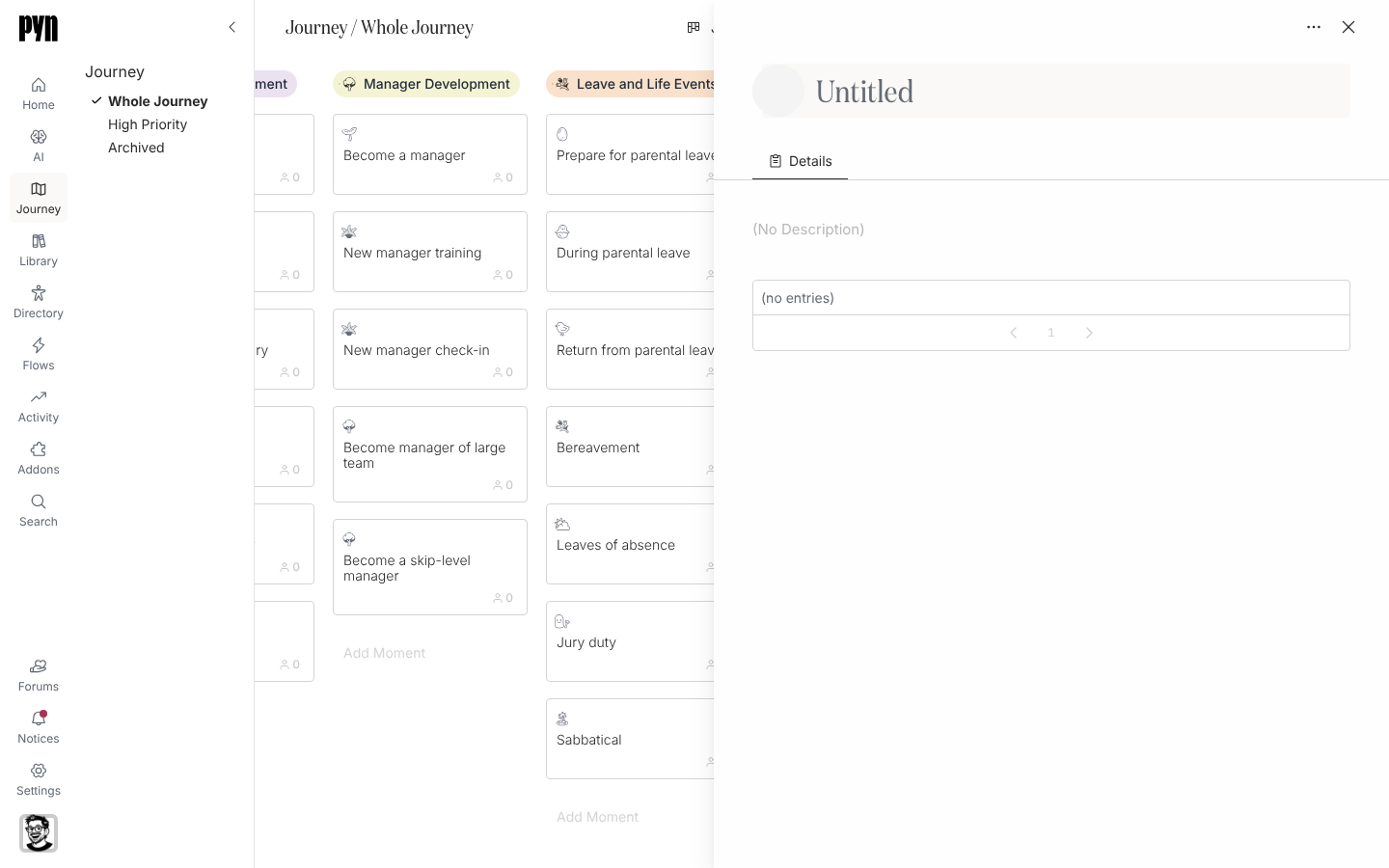
What you should see
Section titled “What you should see”The new column sits at the right end of the board with your title, emoji and colour. It has no moments yet; the Add Moment card at its foot is where you add the first one. Drag the column’s heading to move it earlier in the journey.
Related
Section titled “Related”- Add a moment to fill the new category.
- Reorder moments and categories to put the column where it belongs in the lifecycle.
- Moment properties for what a category holds.