

Create content
You want a page employees can open from a message, for example “Your first week” or “How to claim expenses”. Content starts as a draft that saves itself as you type; nobody sees it until you publish.
Before you start
Section titled “Before you start”- You are signed in to Pyn. Anyone can create and edit content; publishing needs the Admin role.
- Decide which Journey moment the content belongs to, so it is grouped with the right flows.
-
In Pyn, open Library in the left navigation. It opens on Content.
-
Select Create new at the top right. To start from a ready-made piece instead, select the arrow beside it, then Add from Template, pick a category on the left and a template on the right. Either way the editor opens.
-
Select Your title here and type the title. Employees see it as the page heading.
-
Select Your content here and write the body. The toolbar gives you headings, bold, italic and underline, alignment, lists, quotes and links; type
@to insert a token such as the employee’s preferred name; use the image button to insert media. -
On the right-hand rail select Details, then under Moment select Select Moment and choose the moment. The drawer also holds the Archive button.
-
Watch the header: Saving… while a change is written, then Draft autosaved once it is stored.
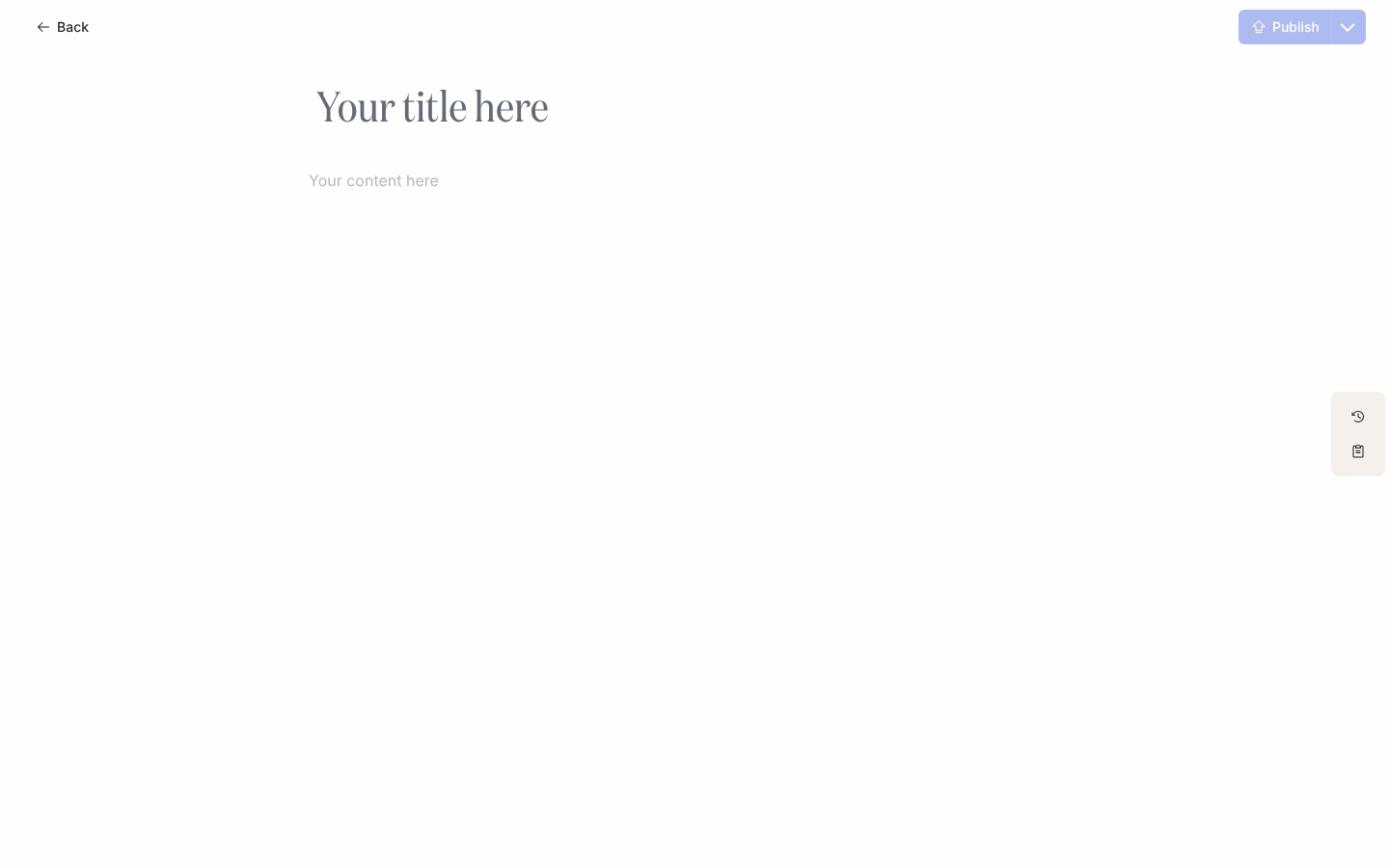
What you should see
Section titled “What you should see”The header reads Draft autosaved and the Publish button is active. Select Back at the top left to return to the Content view: the new piece appears as a card under its moment, or under no moment if you did not choose one.
Related
Section titled “Related”- Publish content to make the draft visible to employees.
- Link to content from a message to put a button to it in a step.
- Insert media in a message for images and video in the body.