

Create an automation
You want a new automation in your workspace, either built from scratch around a trigger or copied from one of Pyn’s templates so the trigger, timing and copy are already in place. Either way you end up in the editor with a draft you can shape and publish.
Before you start
Section titled “Before you start”- You are a power user, admin or owner. Creating, duplicating, archiving and publishing automations need the admin or owner role; power users can edit and manually enrol.
- Know which moment the automation is for. The Trigger catalogue maps moments to triggers.
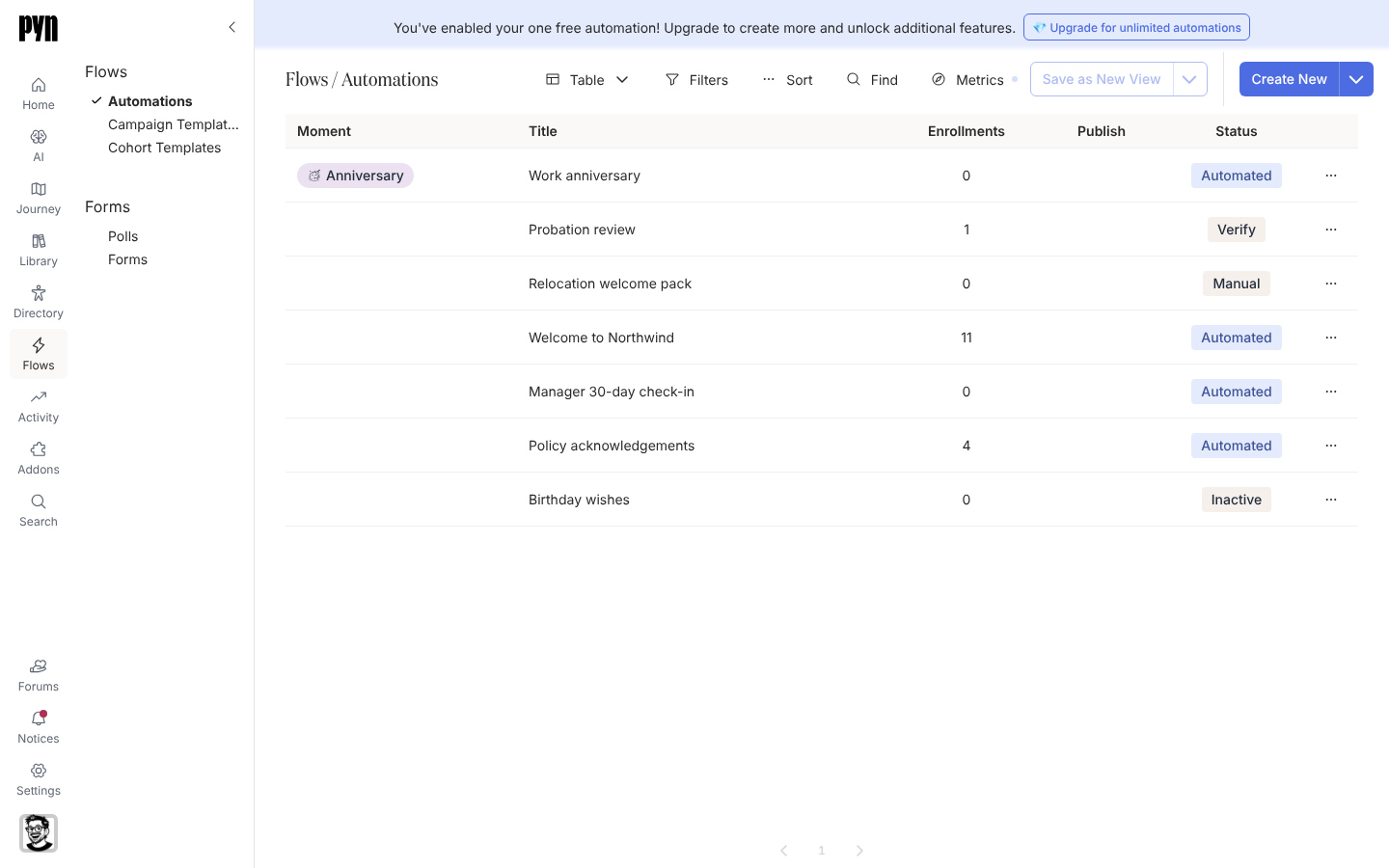
- On the free plan, one automation can be active at a time. The banner above the table says so and offers an upgrade.
-
In Pyn, open Flows in the left navigation, then select Automations.
-
To start from a trigger, select Create New. The Select Trigger dialog opens with its categories on the left: Employee Lifecycle, Dates and Schedules, Team and Org Changes, Form Submission, Employee Properties, Leave Based, Sales Enablement, Support Enablement and Other.
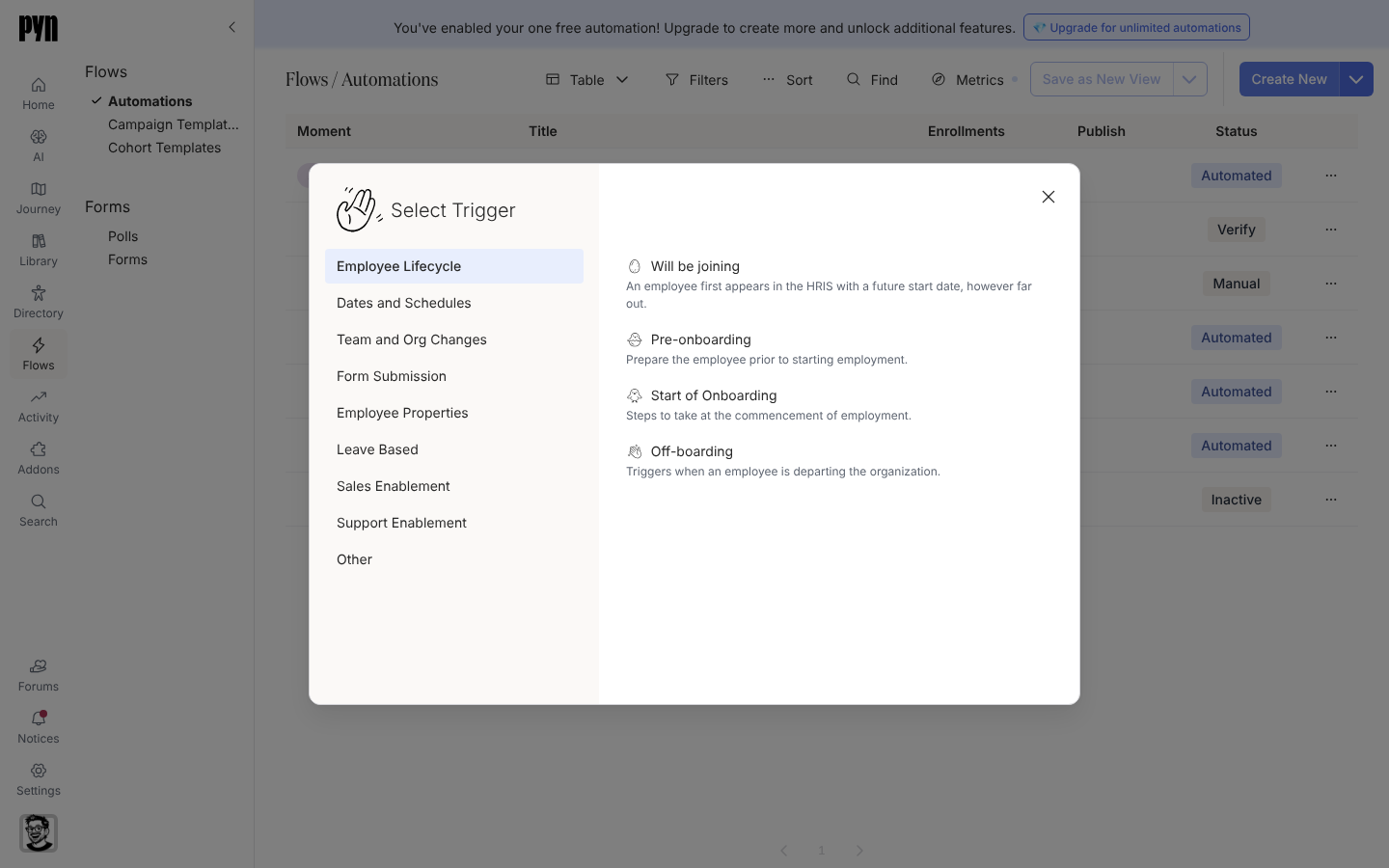
Select Trigger lists the categories on the left and each category's triggers with a one-line description. -
Select a trigger. Pyn creates the automation in Manual mode (a Form Submission trigger starts in Verification) and opens the editor with the trigger drawer showing.
-
To start from a template instead, select the arrow beside Create New, then Add from Template. The Add from Template dialog lists automation and campaign templates grouped by journey category. Select one and Pyn copies it into your workspace, attached to its moment, and opens it.
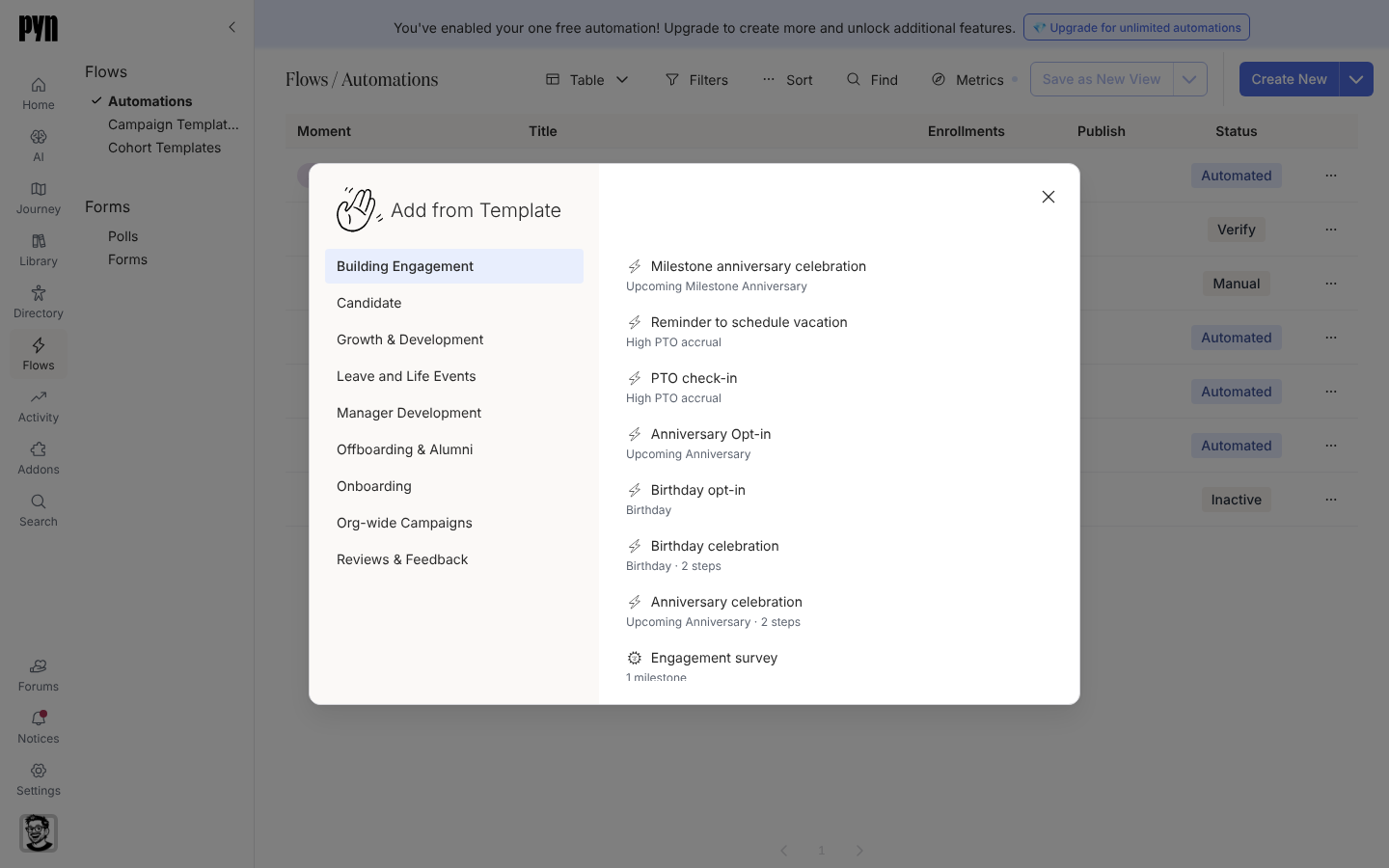
Add from Template copies a ready-made automation into your workspace. -
In the editor, select the title field, which reads (Untitled), at the top left and type a name. Titles save as you type.
-
Work through the trigger drawer tabs Configure, Audience and Advanced, then select Add a step to build the sequence. Each step opens its own drawer; the Steps and messages pages cover recipients, senders and schedules.
-
Select Publish when the draft is ready. Then open the mode button beside it and use Change Mode to move the automation to Verification or Automated.
What you should see
Section titled “What you should see”The automation appears in the Automations table with your title, a Status chip showing its mode and an Enrollments count of 0. The Publish column reads Required while the draft has changes you have not published.
Related
Section titled “Related”- Choose a trigger to pick the right family for the moment.
- Set the audience for an automation to limit who is enrolled.
- Change the mode of an automation to turn it on.
- Steps and messages for everything inside a step.