

Library
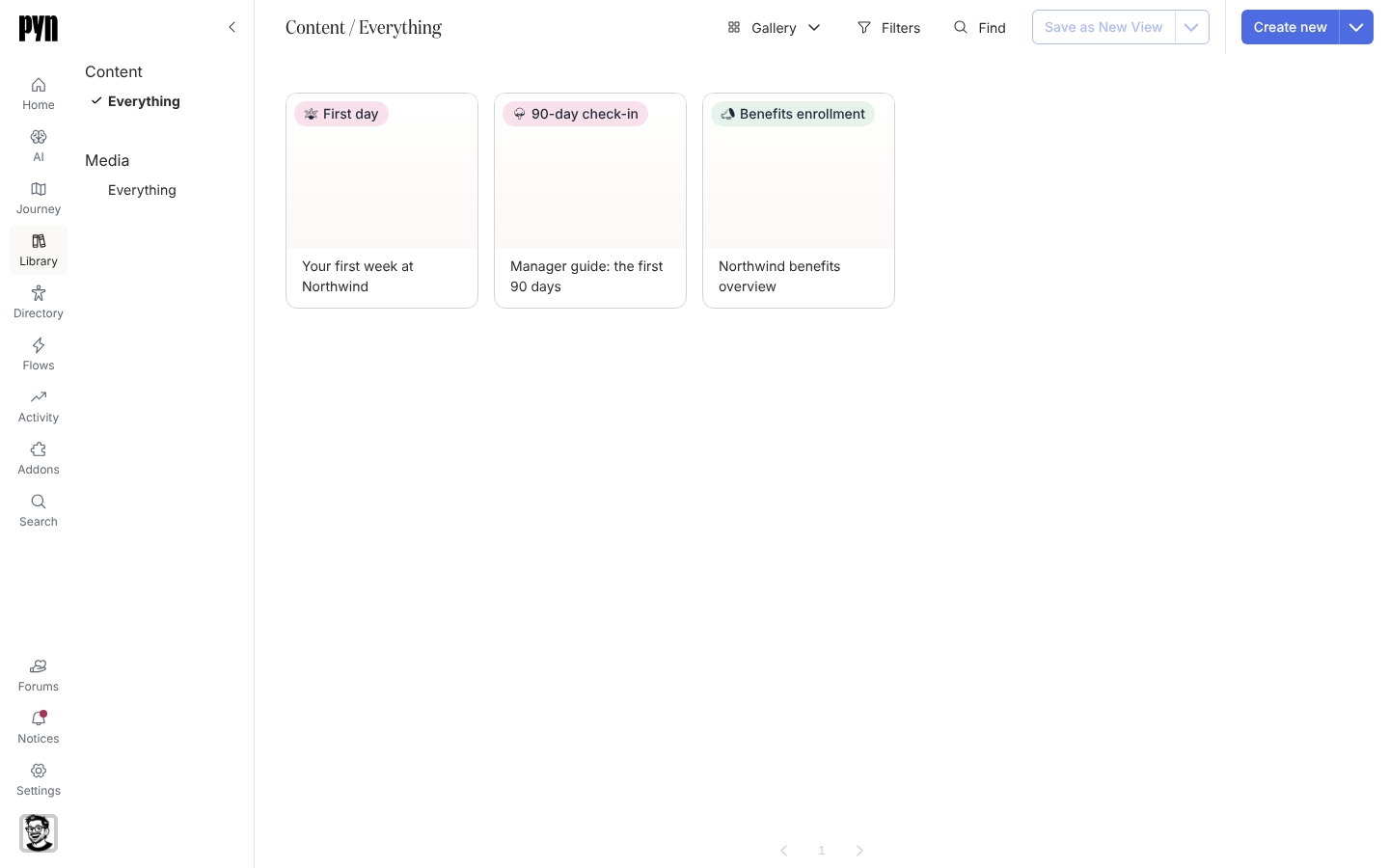
The Library is where the longer things live. Content is a page an employee opens from a button in a message: a first-week guide, a benefits overview, a manager checklist. Media is the images, video and files you drop into messages and content. Each is stored once, so a change in the Library reaches every flow that links to it.
Everyone in the workspace can read the Library and create content and media. Publishing content and adding from the template catalogue need the Admin role.
Concepts
Section titled “Concepts”- Content: a titled, rich-text document edited as a draft and published as versions. A message links to it with a button, and the employee reads the published version on a Pyn page styled with your theme.
- Version: a snapshot taken each time you select Publish. History lists every version; open one to read it, and Restore to make it the published version again.
- Moment: each piece of content can belong to a Journey moment. The Library groups content by moment, and the moment’s Content tab lists it.
- Media: an uploaded image, video or file. Every upload is scanned for malware before it can be used; the scan result shows on the media item.
- Views: Content and Media each have an Everything view in the left rail. Find and Filters narrow it, and Save as New View keeps the result.
What you can do here
Section titled “What you can do here”- Content: Create content, Publish content, Restore a previous version, Archive content, Find content, Link to content from a message.
- Media: Upload media, Insert media in a message.
ContentWrite, publish and version the pages employees read.
MediaUpload images, video and files for messages and content.
Reference: content states and versionsDraft, published, previous version, archived.
Reference: media types and scan statesWhat you can upload and what Scanning, Clean, Infected and Error mean.
Where it is in the app
Section titled “Where it is in the app”Open Library in the primary navigation on the left of every page, or open /library/home. It lands on Content, Everything; the Media section sits below it in the left rail.