

Manually enroll employees
Manual enrollment puts the people you choose straight into an automation’s published version. It skips the trigger and the audience, so it is the tool for testing a flow on yourself, catching someone the trigger missed, running a training cohort or re-running a sequence against a new date.
Before you start
Section titled “Before you start”- The automation is published. If it has unpublished changes, Pyn warns “This automation has unpublished changes” and offers Continue Anyway, which enrols against the last published version.
- Each person is matched by their primary work email and must be a current employee or an upcoming joiner. Terminated employees and people on leave are skipped.
- Decide the reference date. Every step is scheduled relative to it, so for an onboarding flow it is the start date and for a training flow it is the day the course begins.
-
In Pyn, open Flows in the left navigation, then Automations, and select the automation.
-
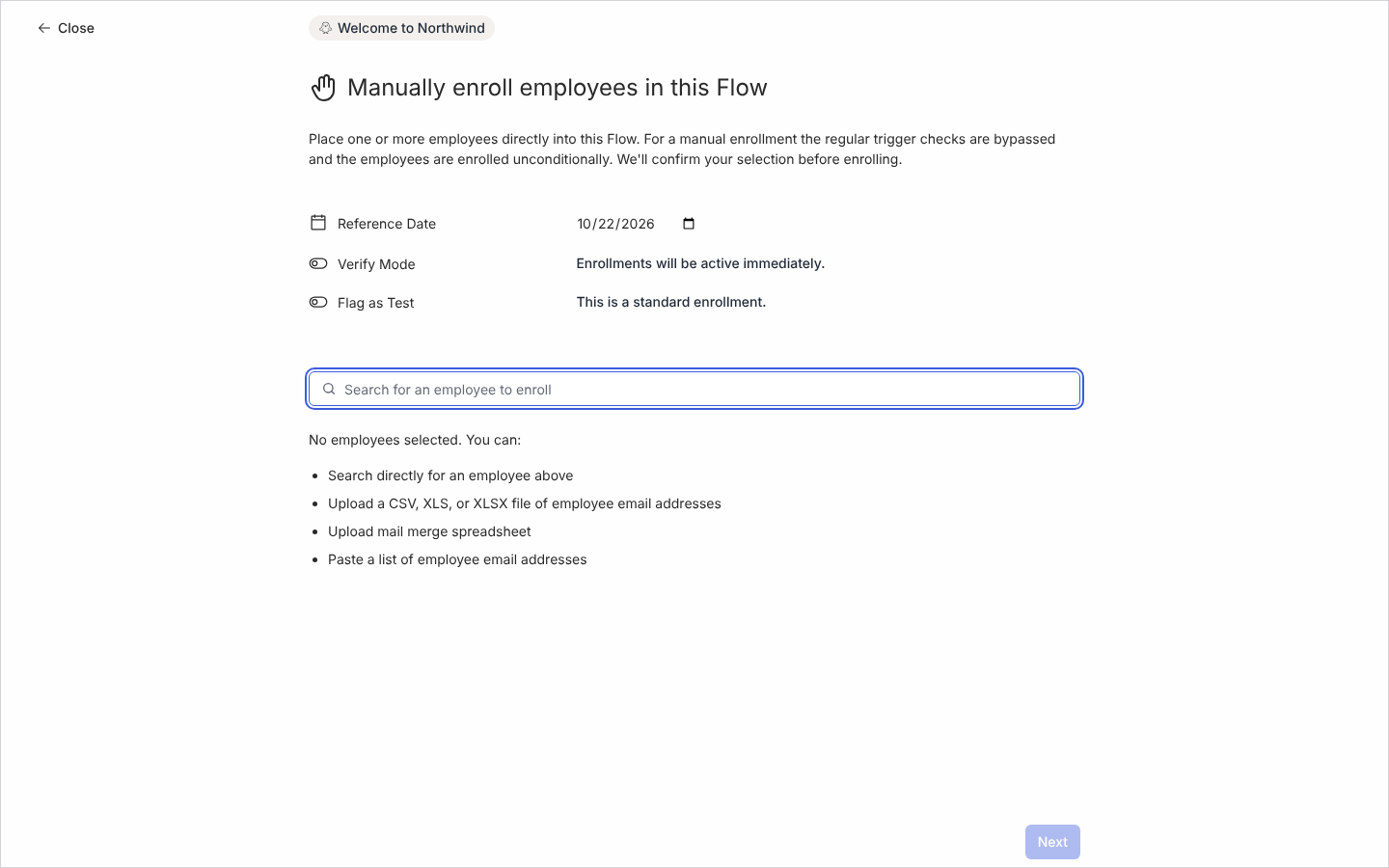
Select the mode button at the top (for example Manual or Automated), then Manual Enroll. The full-page dialog Manually enroll employees in this Flow opens.
-
Add people in any of these ways:
- Type a name in Search for an employee to enroll and select each match.
- Select Paste a list of employee email addresses and paste addresses separated by commas, spaces or new lines.
- Select Upload a CSV, XLS, or XLSX file of employee email addresses and choose a file with one address per row.
- Select Upload mail merge spreadsheet for a file with a header row and extra columns; see Enroll from a spreadsheet.
Up to 1,000 people can be enrolled in one go. Addresses that match nobody are listed so you can fix them.
-
Set Reference Date. People added by search or paste always use this date.
-
Turn on Verify Mode to create the enrollments paused (“Created enrollments will need verification to proceed.”), so you can review each person’s steps in Needs Review before anything sends. Leave it off for “Enrollments will be active immediately.”
-
Turn on Flag as Test when enrolling yourself (“This is a test enrollment and is not included in metrics.”). Test enrollments are excluded from the Enrollments count and from the Dashboard.
-
Select Next, check the list under Confirm Manual Enrollments, then select Confirm.
What you should see
Section titled “What you should see”The confirmation screen reads “Congratulations. Your enrollments are ready.” with a link to each enrollment. Under Enrollments, each person has a row with your reference date; paused rows wait in Needs Review when you used Verify Mode. If Pyn reports “There was an error enrolling. Check the activity page to confirm enrollment status, or reach out to support.”, open Enrollments before trying again so you do not enrol anyone twice.
Related
Section titled “Related”- Enroll from a spreadsheet for per-row reference dates and custom tokens.
- Handle late enrollments for what happens to overdue steps.
- Use a flow without a trigger for flows that only ever enrol by hand.
- Enrollments to review, unpause or stop what you created.