

Mark a promotion or change of manager
The day someone’s reporting line changes, they hear how the handover works and their new manager gets a briefing on who has joined their team. A promoted employee gets a note from HR on the effective date, by trigger where your HRIS carries the change and by Manual Enroll where it does not. For: admins and owners. Time: about 30 minutes per automation.
What you’ll need
Section titled “What you’ll need”- Manager synced and populated for everyone; see HRIS fields and Fix a missing manager, time zone or email.
- For promotions by trigger, a property that changes with the promotion: Job title, or a level field mapped as a custom field; see HRIS fields. Without one, a list of the promoted people and their effective dates.
- An email sender, or Slack connected for direct messages; see Add an email sender and Slack.
- Optional: a demographic group per level, so a Group Change trigger can watch people entering it; see Configure a group change trigger.
Build it
Section titled “Build it”-
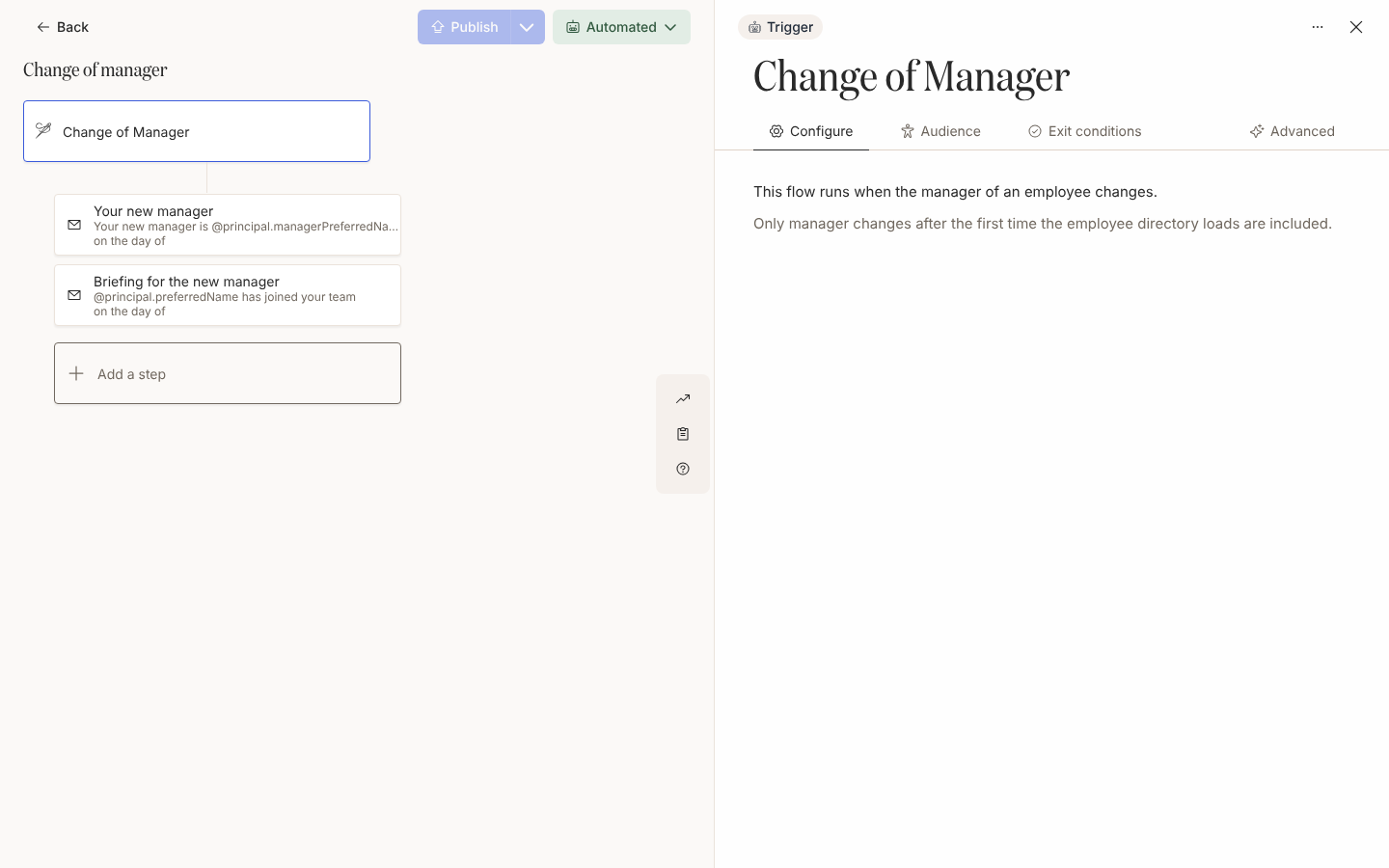
Create an automation with the Change of Manager trigger under Team and Org Changes; its principal is the employee whose manager changed; see Configure a team change trigger.
-
Keep Lifecycle at Current and exclude any group whose reporting lines should not count, such as contractors; see Set the audience for an automation.
-
Add a Send Email to Employee step to Employee, on the day of, introducing the change, and a second step with To set to Manager briefing the new manager on who has joined their team; see Choose recipients and Cc.
-
Write both with
@principal.managerPreferredNamefor the new manager and@recipient.preferredNamefor whoever receives the message; see Tokens. -
For promotions your HRIS exposes as a title or level, create a second automation on Employee Properties with the property and the exact value to match, or on Group Change with Employee enters group on the level’s group; see Configure an employee property trigger and Configure a group change trigger.
-
For promotions your HRIS does not expose, create an automation with No trigger, publish it in Manual mode and enrol each promoted person with the effective date as Reference Date; see Use a flow without a trigger and Manually enroll employees.
-
Publish each automation and preview the manager’s step for a current employee to confirm the resolved recipient in the preview header; see Publish an automation and Preview and send a test.
Variations
Section titled “Variations”Swap each Send Email to Employee for Send Direct Message, as in Add a direct message step. A manager with no matched Slack account gets a Bounced delivery, so keep the manager’s briefing on email unless every manager is in Slack.
Keep the steps as Send Email to Employee, set From to your People team’s mailbox so a reply reaches a person, and Cc HRBP on the manager’s briefing; see Choose a sender.
For a batch of promotions after a review cycle, upload a spreadsheet with a Reference Date column and a New Title column, read in messages as custom.newTitle; see Enroll from a spreadsheet. For someone gaining their first direct report, use the Promoted to Manager trigger and the series in Support a new manager.
Watch out for
Section titled “Watch out for”- Change of Manager fires on every change of manager, including an HRIS correction, with a one-month gap before the same person enrols again; see Prevent repeat enrollments. Run it in Verification mode at first so a data fix does not send an introduction; see Change the mode of an automation.
- A text property match is exact and case-sensitive:
Senior Engineerdoes not matchsenior engineer. Copy the stored value from a promoted employee’s record; see Configure an employee property trigger. - The reference date is the day the change reaches Pyn, not the effective date in the HRIS. A backdated promotion enrols late and the steps already due send at once; see Handle late enrollments.
- Tokens are filled when the message is sent, so
@principal.managerPreferredNamein a step weeks after the change names whoever is the manager then; keep introductions on the day of; see Tokens. - Team change and group change triggers ignore changes during the first HRIS load, so nobody is enrolled for a reporting line that existed when you connected the HRIS; see Trigger catalogue.
- If Publish appears to do nothing, a step has no recipient; check each step’s To field. See Publish an automation.
Check it worked
Section titled “Check it worked”The day a reporting line changes, the employee appears under Enrollments with that date as Reference Date, and the manager’s step lists the new manager by name. A property or group trigger enrols within a few hours. A manual enrolment shows the reference date you set, and in Verification it waits in Needs Review; see Review and unpause enrollments.
Related
Section titled “Related”- Configure a team change trigger for Change of Manager.
- Configure an employee property trigger for a title or level match.
- Manually enroll employees for promotions the HRIS lacks.
- Support a new manager for first-time managers.