

Schedule a step
In an automation every step is timed from the enrollment’s reference date, the start date, anniversary or other date the trigger anchors on. In a campaign a step has a calendar date instead. Either way you also choose a time of day, a time zone and the days on which Pyn is allowed to deliver.
Before you start
Section titled “Before you start”- You know the automation’s reference date. Configure a date trigger explains how the trigger sets it.
- Employees have a time zone in Directory if you plan to use Recipient Time Zone; without one Pyn uses the workspace time zone for that person.
-
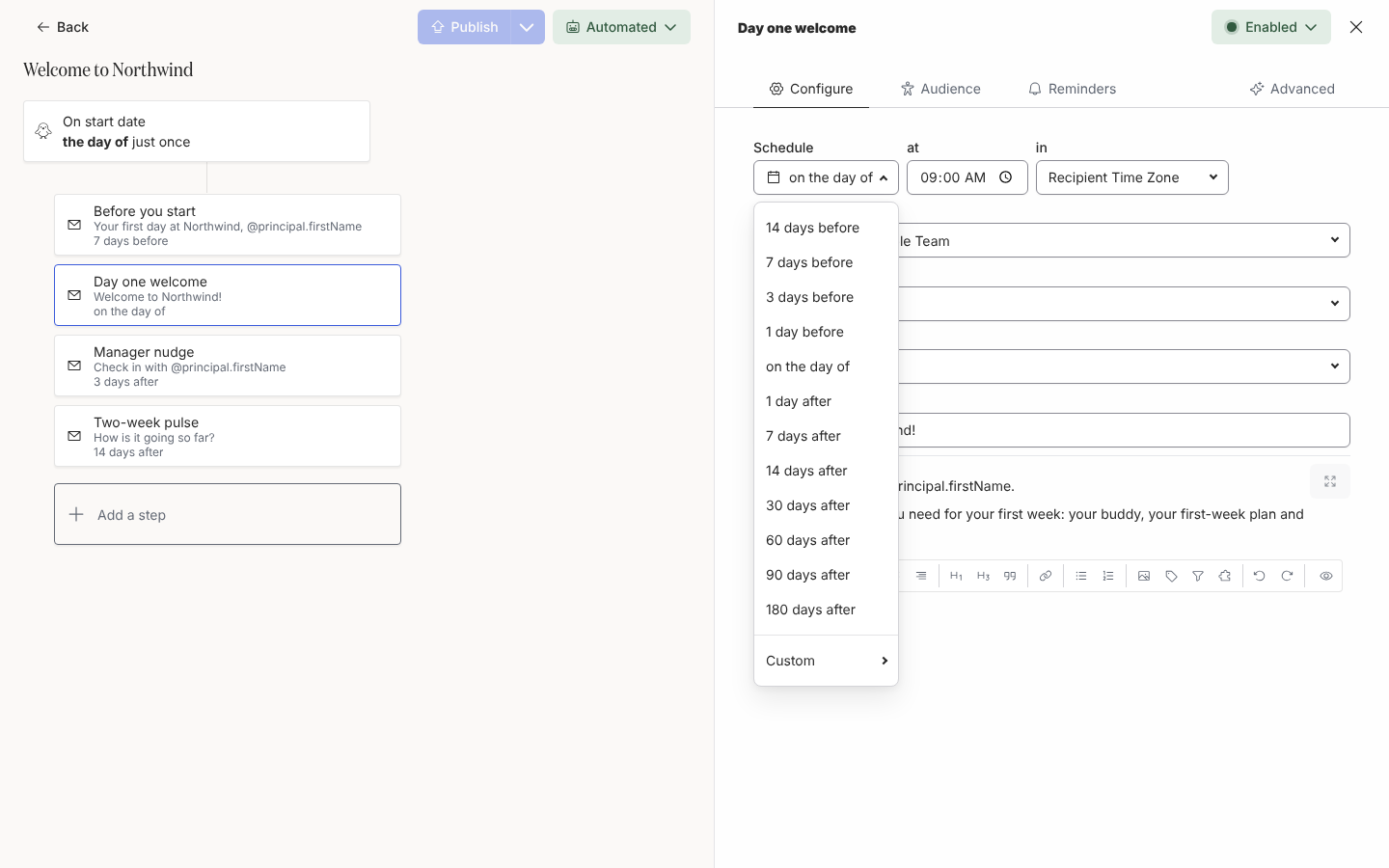
In Pyn, open the automation from Flows, Automations, and select the step. On Configure, the first row is the schedule.
-
Select Schedule and choose an offset: 14 days before, 7 days before, 3 days before, 1 day before, on the day of, 1 day after, 7 days after, 14 days after, 30 days after, 60 days after, 90 days after or 180 days after. For anything else choose Custom and enter an amount, a unit (Days, Weeks, Months, Years) and Before or After.
-
In at, set the time of day. The picker moves in 5-minute steps; 10:00 is the default.
-
In in, choose Recipient Time Zone or a named time zone. Recipient time zone means a 10:00 email reaches London at 10:00 London time and Austin at 10:00 Austin time.
-
Select the Advanced tab. Under Days of Week, keep Weekdays Only or select All Days, or tick the days yourself.
-
Under On Non-Delivery Days, choose what happens when the computed day is not one you ticked: Deliver anyway, Deliver on previous delivery day (the default) or Deliver on next delivery day.
-
Tick Skip if overdue at enrollment if a step whose day has already passed when someone enrols should be skipped rather than sent straight away.
How Pyn works out the send time
Section titled “How Pyn works out the send time”Pyn adds the offset to the reference date, moves the day backwards or forwards if it falls on a day you did not tick, then sets the time of day in the chosen time zone. “Previous delivery day” walks back to the nearest allowed day even when that is still after the reference date; if no allowed day exists within a week either side, the step is delivered anyway. The reference date itself is a calendar date with no time, so the step’s at time is the only clock involved.
What you should see
Section titled “What you should see”The step card shows the offset, for example 7 days before. Under Enrollments, each enrollment’s step shows the exact date and time Pyn computed for that person, and its delivery reads Scheduled until then. On a campaign, the same fields appear as Scheduled date, at and in; drag the step on the calendar to move the date, see Reschedule a step on the calendar.
Related
Section titled “Related”- Configure a date trigger for where the reference date comes from.
- Handle late enrollments for records that arrive after a step’s day.
- Reschedule a step on the calendar for campaign steps.