

Set a step audience
An automation’s audience decides who enrols. A step’s audience decides which of those people get that particular step. Use it when most of a flow is the same for everyone and one or two steps are not.
Before you start
Section titled “Before you start”- The groups you want to include or exclude exist in Employee Groups.
-
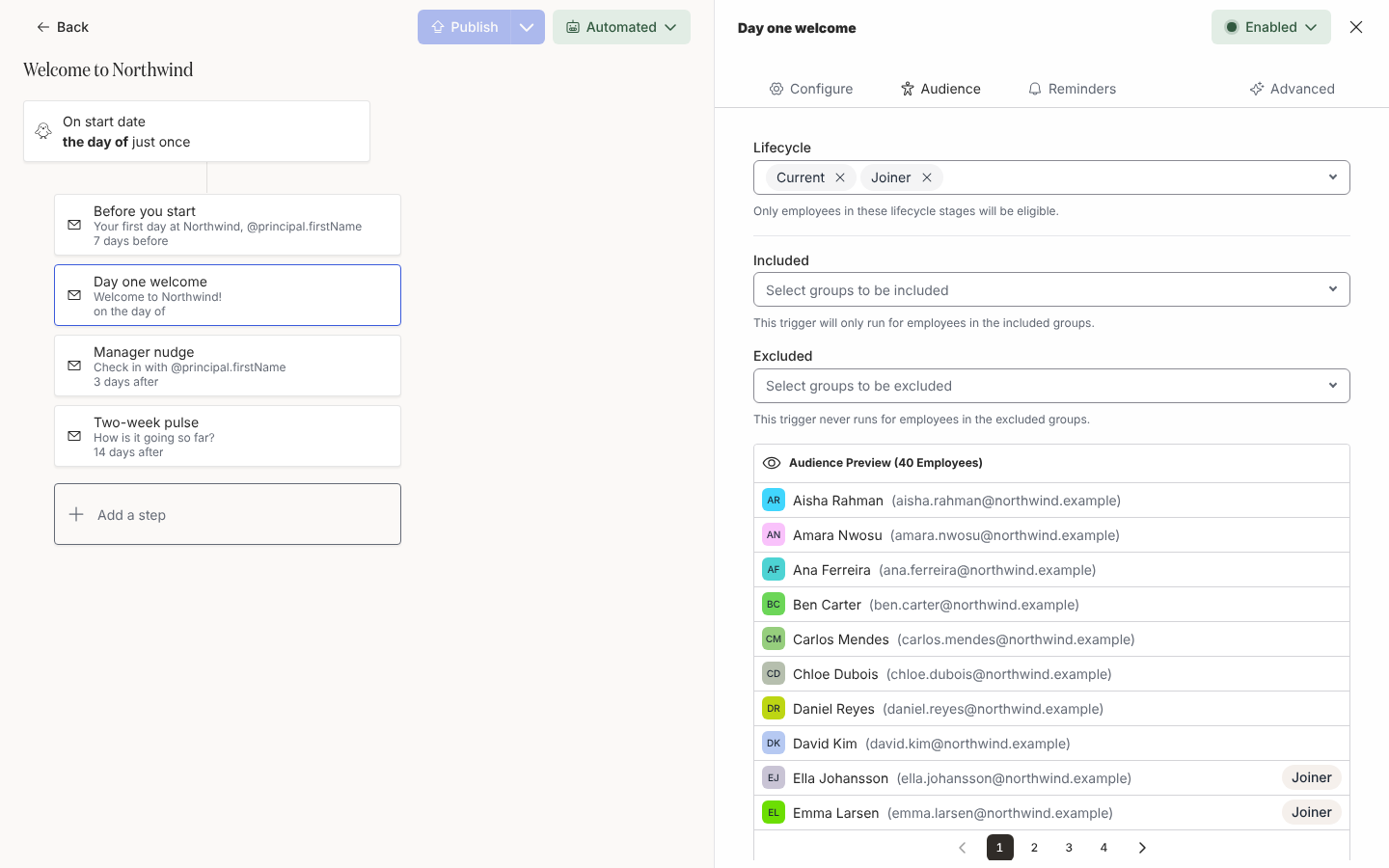
In Pyn, open the automation from Flows, Automations, and select the step.
-
Select the Audience tab.
-
Under Lifecycle, keep the stages the recipient can be in: Current, Joiner, On leave, Terminated. A new step starts with Current only. Add Joiner on any step that sends before the start date.
-
Under Included, add groups so that only their members get this step. Groups with the same parent match any one of them, and groups with different parents must all match; see How audiences match. Leave it empty to include everyone enrolled.
-
Under Excluded, add groups whose members never get this step. Exclusion wins over inclusion.
-
Read the Audience Preview under the fields to see who matches today, then close the drawer. The step saves as you go.
What you should see
Section titled “What you should see”The step card carries a filter badge when it has an audience narrower than the automation’s. If you empty Lifecycle, the card warns The audience is empty, so this step is never sent. Under Enrollments, an enrolled employee outside the step’s audience shows the step as skipped with no delivery; someone who leaves an included group while the step is still scheduled has it stopped.
Related
Section titled “Related”- Set the audience for the automation-level audience that decides who enrols.
- Employee Groups to create the groups you include or exclude.
- Schedule a step for the Joiner warning on pre-start steps.