

Media
Media is the Library’s file store. Upload a banner, a GIF, a short video or a PDF here and pick it from any message or piece of content, or upload straight from the message editor and it lands here too. Each file is scanned for malware on upload and shows its scan result.
What you can do here
Section titled “What you can do here”- Upload media from the Media view.
- Insert media in a message from your computer or from the Library.
- Media types and scan states lists what you can upload and what each scan state means.
Where it is in the app
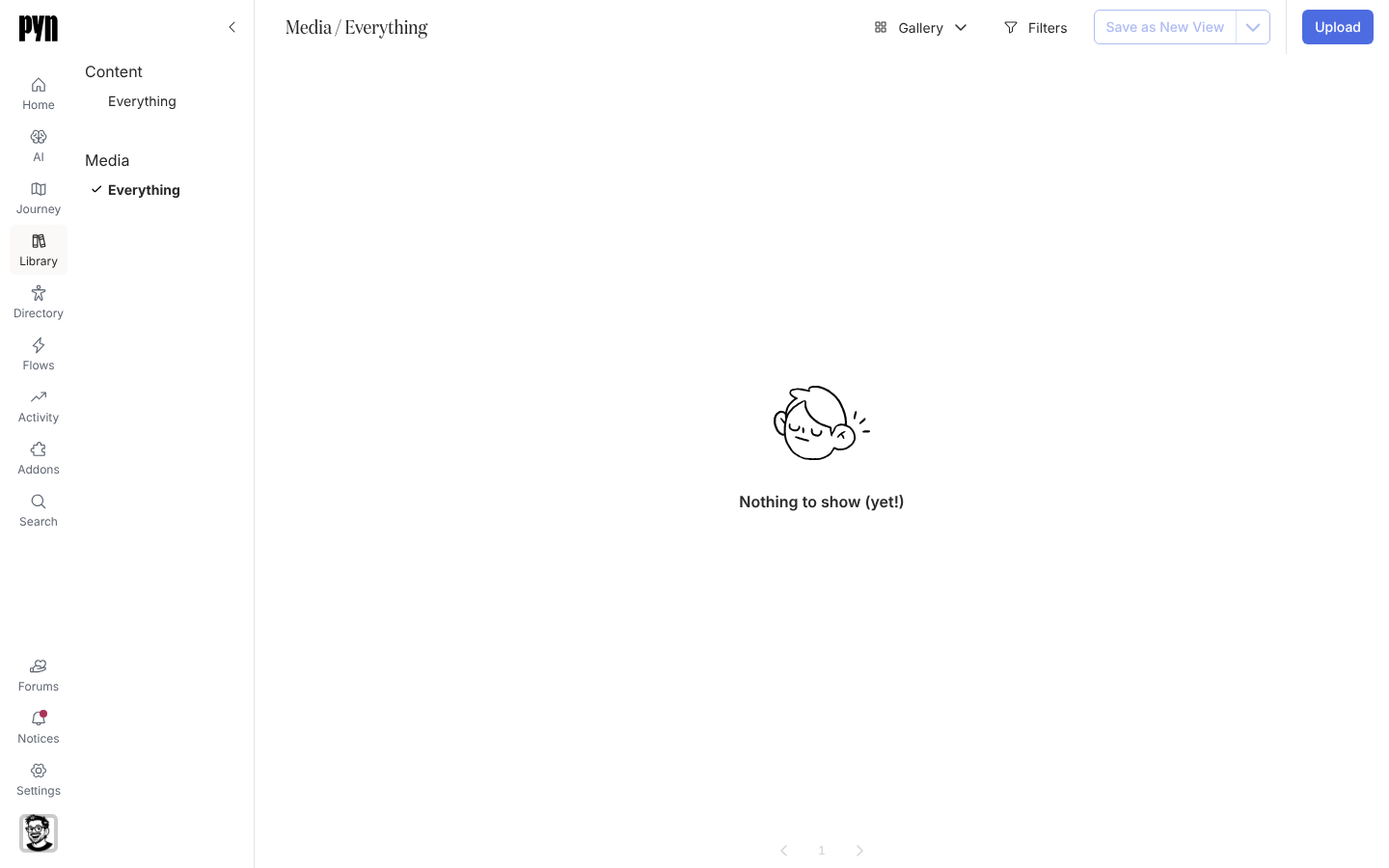
Section titled “Where it is in the app”Open Library in the left navigation and select Everything under Media in the left rail. The view lists uploads newest first, with Upload at the top right. Select a tile to open the media panel, which previews the file and lists its type, filename, scan result and, for images, width and height.
Related
Section titled “Related”- Upload media to add a file.
- Insert media in a message to use it.
- Content for the pages that embed media.