

Sign in with Google or Microsoft
You have a Google Workspace or Microsoft 365 work account and want the quickest way into Pyn. One click sends you to your provider, which confirms who you are and returns you to your workspace.
Before you start
Section titled “Before you start”- You were invited to a workspace at the same email address as your Google or Microsoft account, or you are about to create the first workspace for your company.
- Your browser allows pop-ups and redirects from
accounts.google.comorlogin.microsoftonline.com.
-
Open
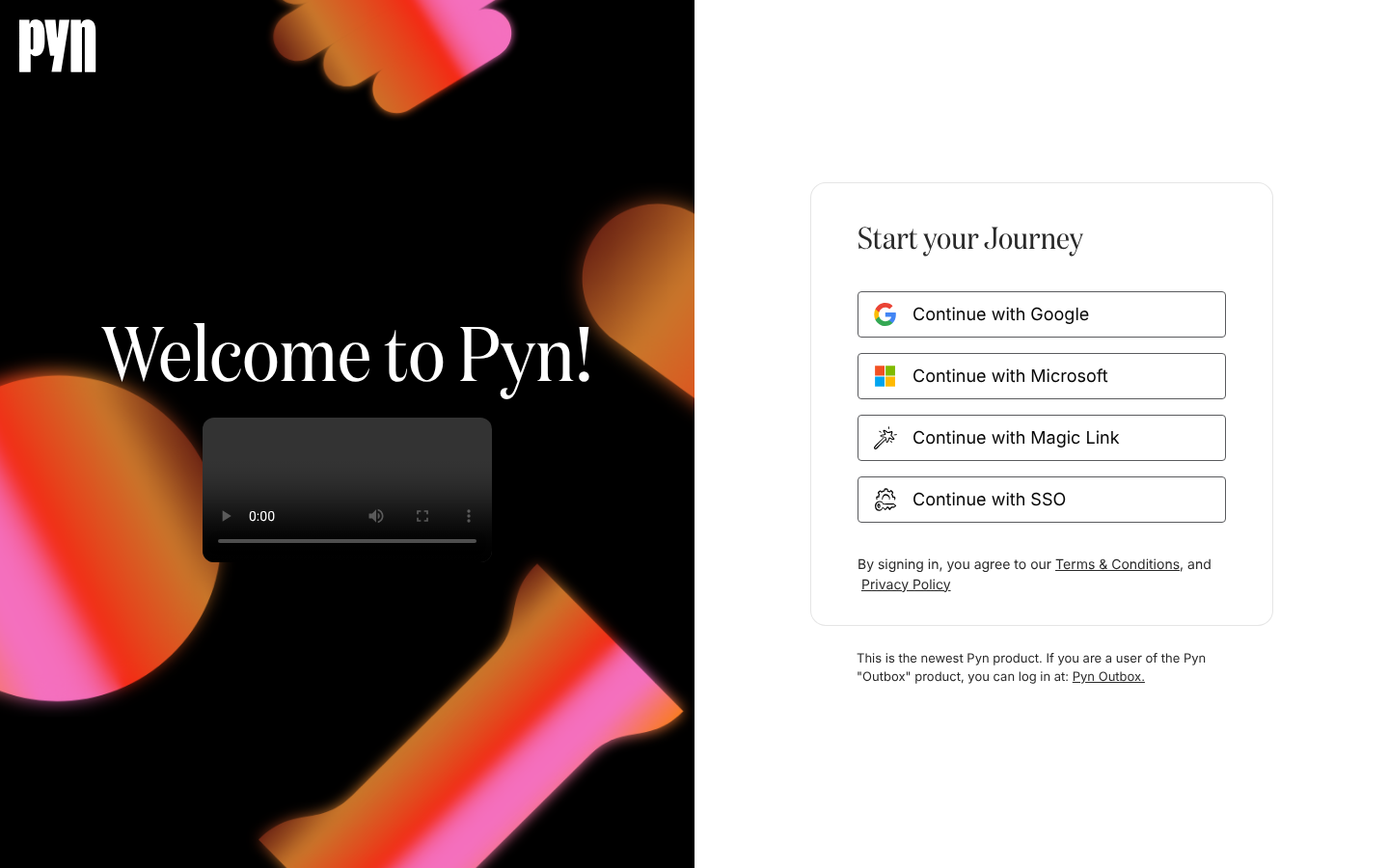
https://app.pyn.ai/sign-inin your browser. The page is headed Start your Journey. -
Select Continue with Google or Continue with Microsoft.
-
Choose the work account that matches the email address you were invited with, and approve the sign-in if your provider asks.
-
Wait on the Signing In screen while Pyn finds your workspaces.
What you should see
Section titled “What you should see”With one workspace you land on Home, greeted by name. With several you see Switch Workspace; with none you see Create a Workspace for your team. Your avatar in the bottom-left corner shows the photo from your Google or Microsoft account.
Troubleshooting
Section titled “Troubleshooting”- Your provider refuses the sign-in. Some organisations restrict which apps may use Microsoft or Google credentials. Ask your IT administrator to allow Pyn (
app.pyn.ai); when an administrator signs in with Microsoft they are prompted to grant access for the whole organisation. - You land on Create a Workspace for your team but someone did invite you. The invitation went to a different address. Sign out and use a magic link to the invited address, or ask the admin to invite the address you use with Google or Microsoft.
Related
Section titled “Related”- Sign in for the other options and what happens after sign-in.
- Sign in with a magic link when your address is not a Google or Microsoft account.
- Fix a sign-in problem for each message the sign-in page can show.