

Connect Okta
You want your people to sign in to Pyn with Okta. An Okta administrator creates an OpenID Connect web application, you paste its details into Pyn, and Pyn gives you a redirect URI to register and a sign-in link to share.
Before you start
Section titled “Before you start”- You are an admin or owner in Pyn, and the Okta integration is enabled for your workspace.
- An Okta administrator can create an app integration: Applications > Create App Integration, OIDC - OpenID Connect, Web Application, grant type Authorization Code only, and assign the people or groups who should have access.
- The app must emit a
groupsclaim in the ID token and your org must allow thegroupsscope for it; Pyn requestsopenid,profile,emailandgroups. - You have the Issuer URL (your Okta org URL, or the custom authorization server’s issuer), the Client ID and the Client Secret.
-
In Pyn, open Settings in the left navigation, then Available under Integrations.
-
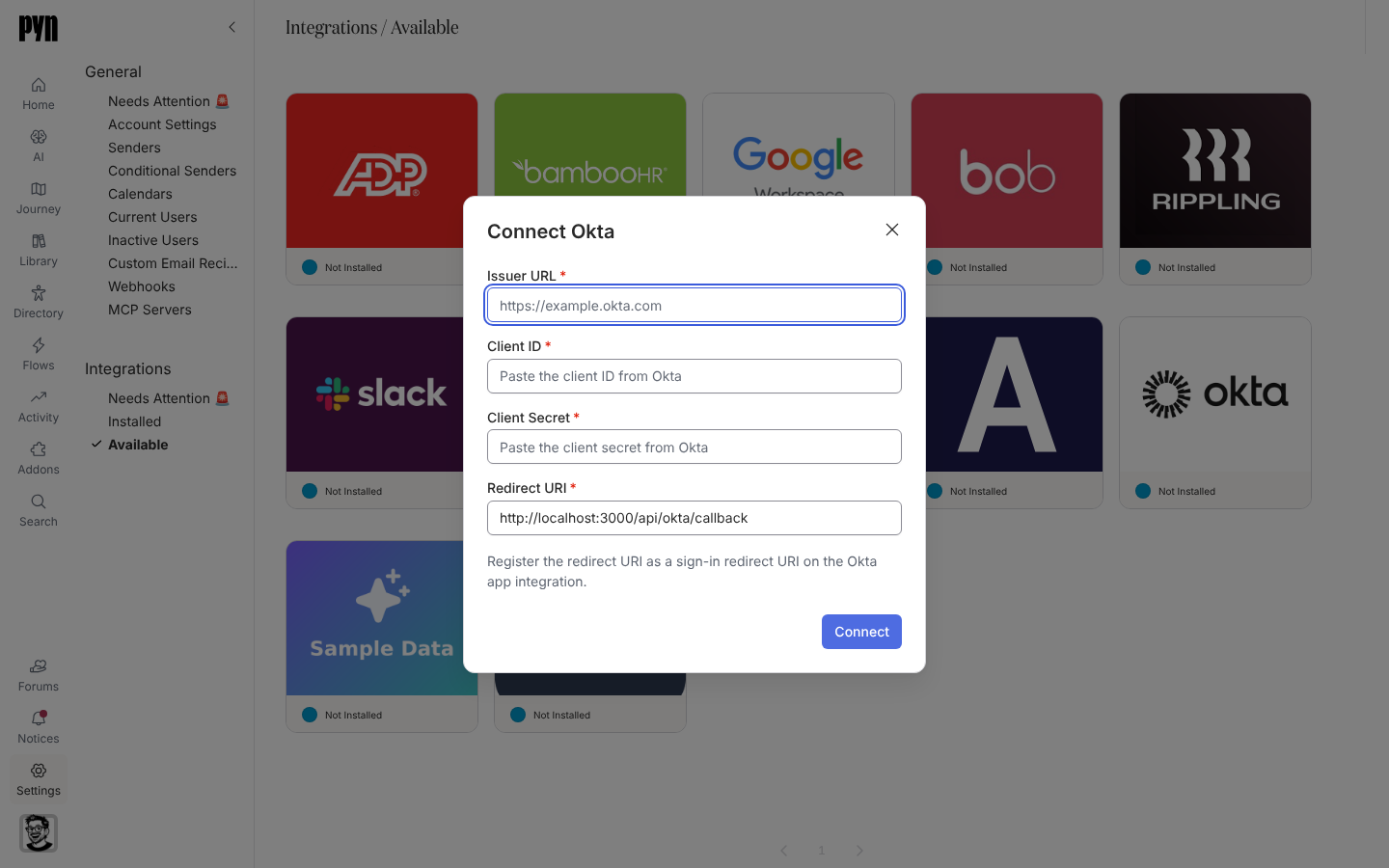
Select the Okta tile. The Connect Okta dialog opens.
-
Enter the Issuer URL (for example
https://example.okta.com), the Client ID and the Client Secret. -
Leave the Redirect URI as shown and “Register the redirect URI as a sign-in redirect URI on the Okta app integration.” Your Okta administrator adds it to the app’s Sign-in redirect URIs.
-
Select Connect. The Okta integration panel opens.
-
On the panel, copy the Initiate Login URI: “Register this as the initiate login URI on the Okta app integration. Opening it signs you in.” Share it with your people, or add the app to the Okta dashboard.
-
To let Okta set roles, fill Owner Groups, Admin Groups, Power User Groups and User Groups on the panel with group names from the claim.
What you should see
Section titled “What you should see”The tile shows Active under Installed. Opening the Initiate Login URI, or choosing Continue with SSO on the sign-in page and entering a work email, sends the person to Okta and back into Pyn. The panel’s Identities tab lists each person who has signed in through Okta. If the dialog reports “Okta could not be connected. Check the details and try again. If the error persists, contact support.”, confirm the issuer is the base URL that serves the OpenID configuration and that the redirect URI is registered exactly.
Related
Section titled “Related”- Single sign-on for role mapping and what employees see.
- Connect an OpenID Connect provider for Entra, Auth0, Ping or Keycloak.
- Users for the roles the group lists refer to.