

Launch first-day onboarding end to end
Goal: an onboarding flow that reaches every new starter without anyone remembering to send it. Time: 20 to 30 minutes. You end up with: an automation triggered by the start date, with three email steps, published, tested on yourself, reviewed in Verification mode and then running in Automated mode.
You are an Owner, Admin or Power User, your workspace has employees with start dates in Directory, and a sender is connected (Set up your workspace in 30 minutes covers both).
Chapter 1: Start from the trigger
Section titled “Chapter 1: Start from the trigger”-
In Pyn, open Flows in the left navigation, then select Automations.
-
Open an onboarding automation from the list, or select Create New in the top-right corner and choose a trigger under Employee Lifecycle in the Select Trigger dialog: Start of Onboarding for steps from day one, or Pre-onboarding to begin before the start date.
-
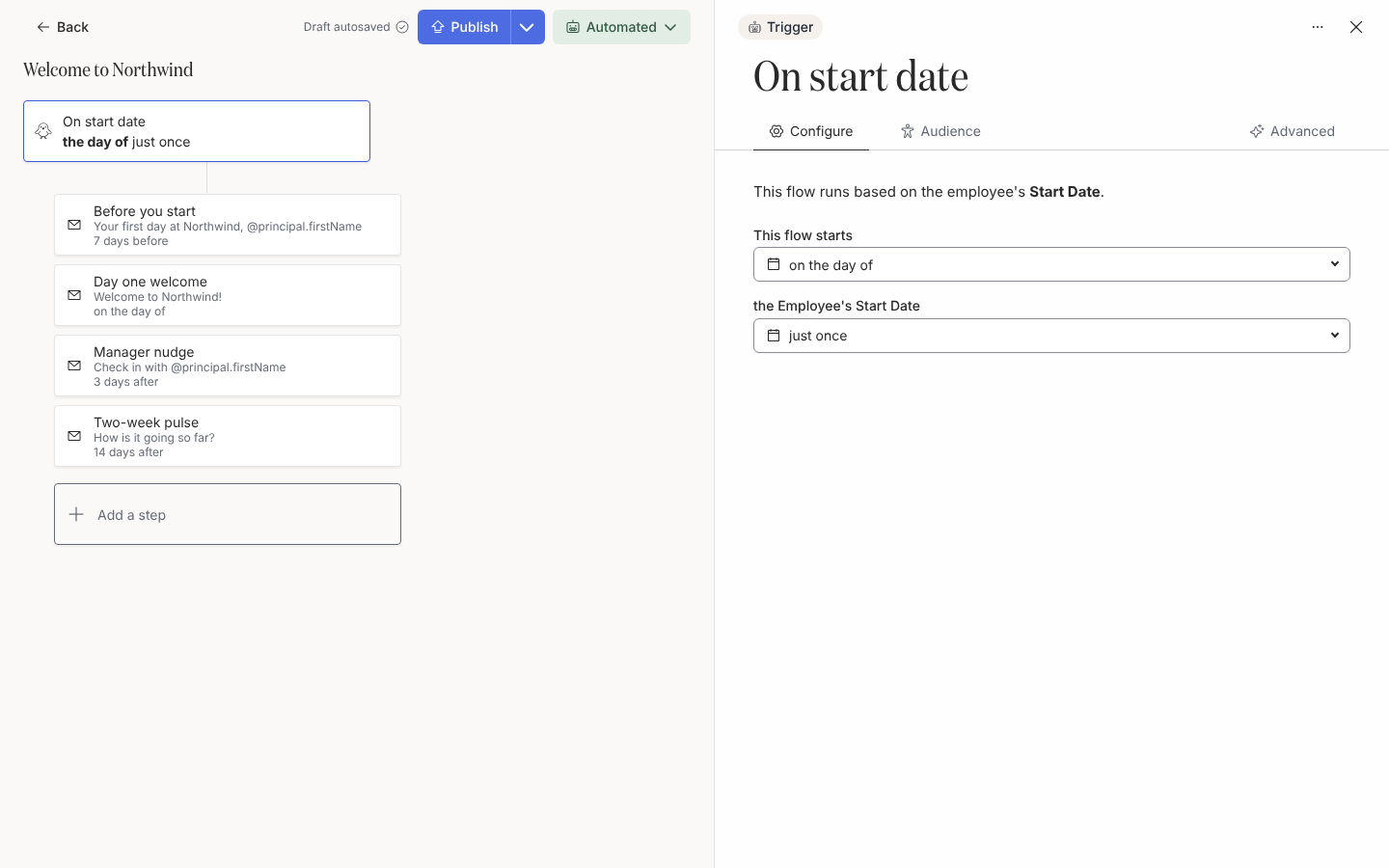
Select the trigger card at the top of the editor. In the drawer, on Configure, set This flow starts to on the day of so the start date is the reference date every step is timed from, and leave the Employee’s Start Date at just once.
-
Under Prevent repeat enrollments, choose Never reenroll, so a corrected start date does not enrol the same person twice.
-
Select the Audience tab. Under Lifecycle, keep Current and Joiner so people enrol before their first day; leave Included and Excluded empty unless only part of the company should get this flow. Audience Preview shows who matches.
Chapter 2: Add the three messages
Section titled “Chapter 2: Add the three messages”-
Select Add Step and choose Send Email to Employee under Communication.
-
In the drawer, give the step a title such as
Before you start. Under Send from, pick your sender. Under To, keep Employee; for a pre-start message choose the personal address, since the work mailbox may not exist yet. -
Under Schedule, choose 1 week before, set the time to 9:00 and choose Recipient Time Zone. Leave the weekdays as they are, and under On a skipped day choose Deliver on next delivery day.
-
Write the subject and body. Type
@to insert a token such as the employee’s preferred name, so the message reads as if written for them. -
Add a second Send Email to Employee step titled
Day one welcome, scheduled on the day of the reference date, to the employee’s work address. -
Add a third step, Send Email to Employee, titled
Manager check-in nudge. Under To, choose Manager; under Schedule, choose 3 days after. This one reminds the manager to book time with their new report. -
Select Publish in the top-right corner. The steps now run against this published version.
Chapter 3: Test it on yourself
Section titled “Chapter 3: Test it on yourself”-
Select Use This, then Manual Only in Select how you would like this flow to operate:. The flow is on, but nothing enrols by itself yet.
-
Open the mode menu in the top-right corner and select Manual Enroll.
-
Under Search for an employee to enroll, find yourself. Set the Reference Date to a date next week, turn on Flag as Test, select Next and then Confirm.
-
Open Activity in the left navigation. Under Enrollments, your test enrollment is listed with each step and its scheduled date. Open a step to see the message with your name filled in.
Chapter 4: Review real enrollments, then let it run
Section titled “Chapter 4: Review real enrollments, then let it run”-
Back on the automation, open the mode menu, select Change Mode and choose Verification. From now on each new starter enrols, but every enrollment pauses.
-
In Activity, select Needs Review. Open each paused enrollment, check the dates and the messages, and unpause the ones that are right.
-
After a week or two of clean reviews, select Change Mode again and choose Automated. Pyn confirms with Congrats!; enrollments now schedule and send without review.
What you should see
Section titled “What you should see”In Flows, the automation shows Automated as its mode and a count of enrollments. In Activity, All Enrollments lists one row per new starter and All Messages lists each email with its status: Scheduled until the day, then Delivered. The free plan includes this one automation; see Plans and what each unlocks before turning on a second.
Next steps
Section titled “Next steps”- Add a Slack or Teams step so the day-one welcome arrives where people chat: see Automations.
- Ask the manager to confirm they met their new starter by adding a button and a reminder to the nudge step.
- Repeat the pattern for work anniversaries, which need no HRIS beyond the start date you already have.
Related
Section titled “Related”- Automations for every trigger, step type and schedule option.
- Enrollments for reviewing, unpausing and stopping enrollments.
- Employees for the start dates and managers this flow depends on.
- Set up your workspace in 30 minutes for connecting the sender this flow sends from.