

Add a custom bot
You want messages to come from @PeopleTeam rather than from the Pyn Bot or a person. A custom bot is a Slack app you create in your workspace from a manifest Pyn gives you; you paste its bot token into Pyn and it appears as a sender.
Before you start
Section titled “Before you start”- The Slack integration is Active under Settings > Integrations.
- You, or a Slack workspace administrator working with you, can create apps at
api.slack.com/apps.
-
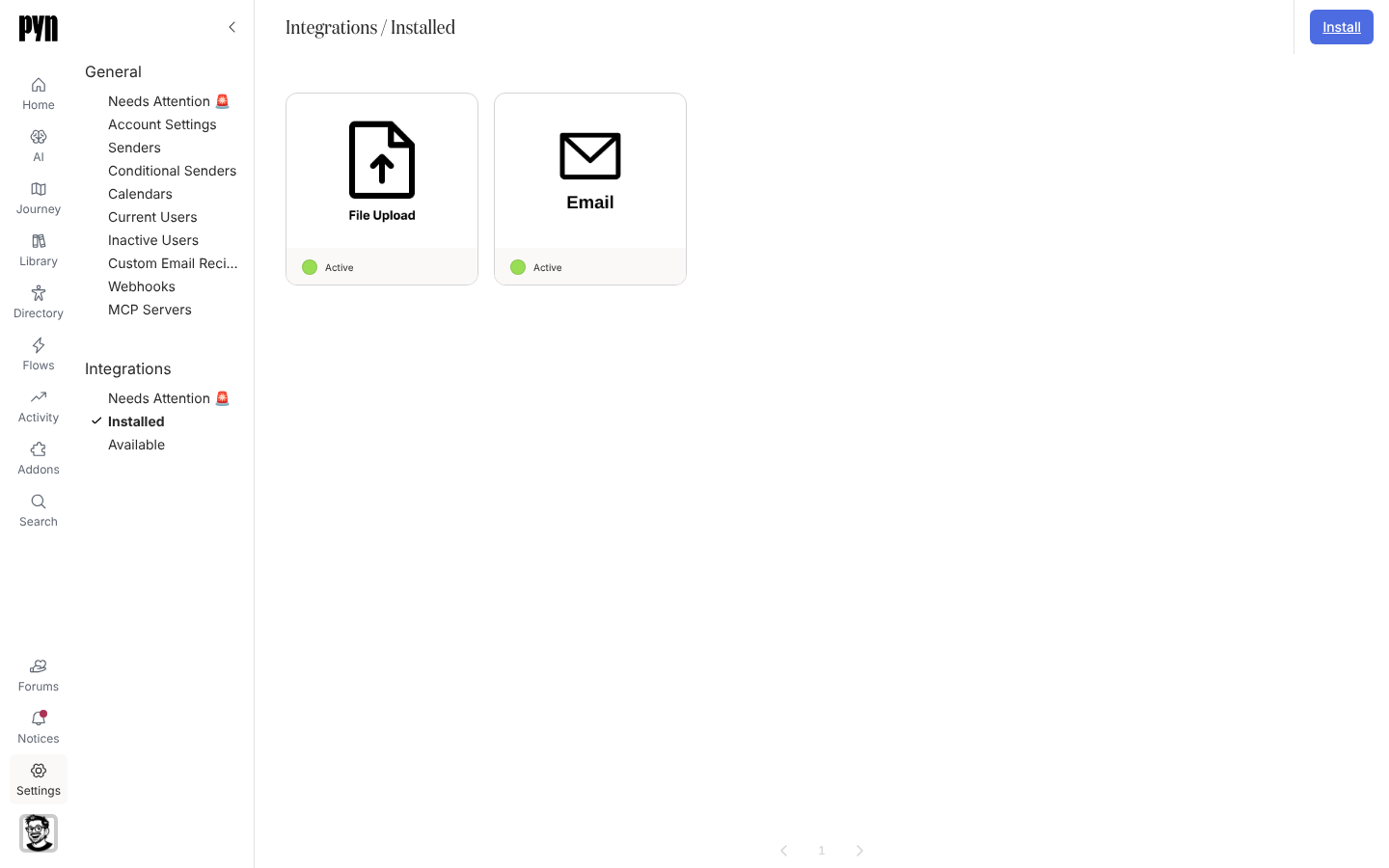
In Pyn, open Settings in the left navigation, then Installed under Integrations, and select the Slack tile.
-
Open the … menu and select Add custom bot.
-
Expand Slack set up and select Copy manifest. The manifest requests
channels:read,channels:write.invites,chat:write,groups:read,groups:write.invitesandim:writefor the bot. -
In Slack, go to
api.slack.com/apps, select Create New App, then From a manifest. Choose the workspace, paste the manifest on the YAML tab and finish creating the app. Replace both occurrences ofCHANGEME_Namewith the bot’s name. -
Install the app to the workspace and, under Basic Information, set its display name, description and icon.
-
Under OAuth & Permissions, copy the Bot User OAuth Token (it starts with
xoxb-). -
Back in Pyn, paste it into Bot Token and select Add.
What you should see
Section titled “What you should see”The bot appears under Settings > General > Senders with status Active and in the From list of Slack steps in Automations. If Pyn rejects the token, the dialog shows “We could not add the custom bot. Please check the token and try again.” or Slack’s own reason; check you copied the bot token, not the signing secret or an xoxp- user token.
Related
Section titled “Related”- Slack for the integration itself.
- Senders to test or archive the bot.
- Automations to send from it.