

Switch workspace
You belong to more than one organisation in Pyn, for example a live workspace and a sandbox, or two companies you consult for. Switching changes which workspace every page shows without signing you out.
Before you start
Section titled “Before you start”- Your email address is linked to at least two workspaces. If an admin of the other workspace has not invited you yet, it will not appear in the list.
-
In Pyn, select your avatar at the bottom of the left navigation. The menu opens with the current workspace’s name as its heading.
-
Select Switch Workspace.
-
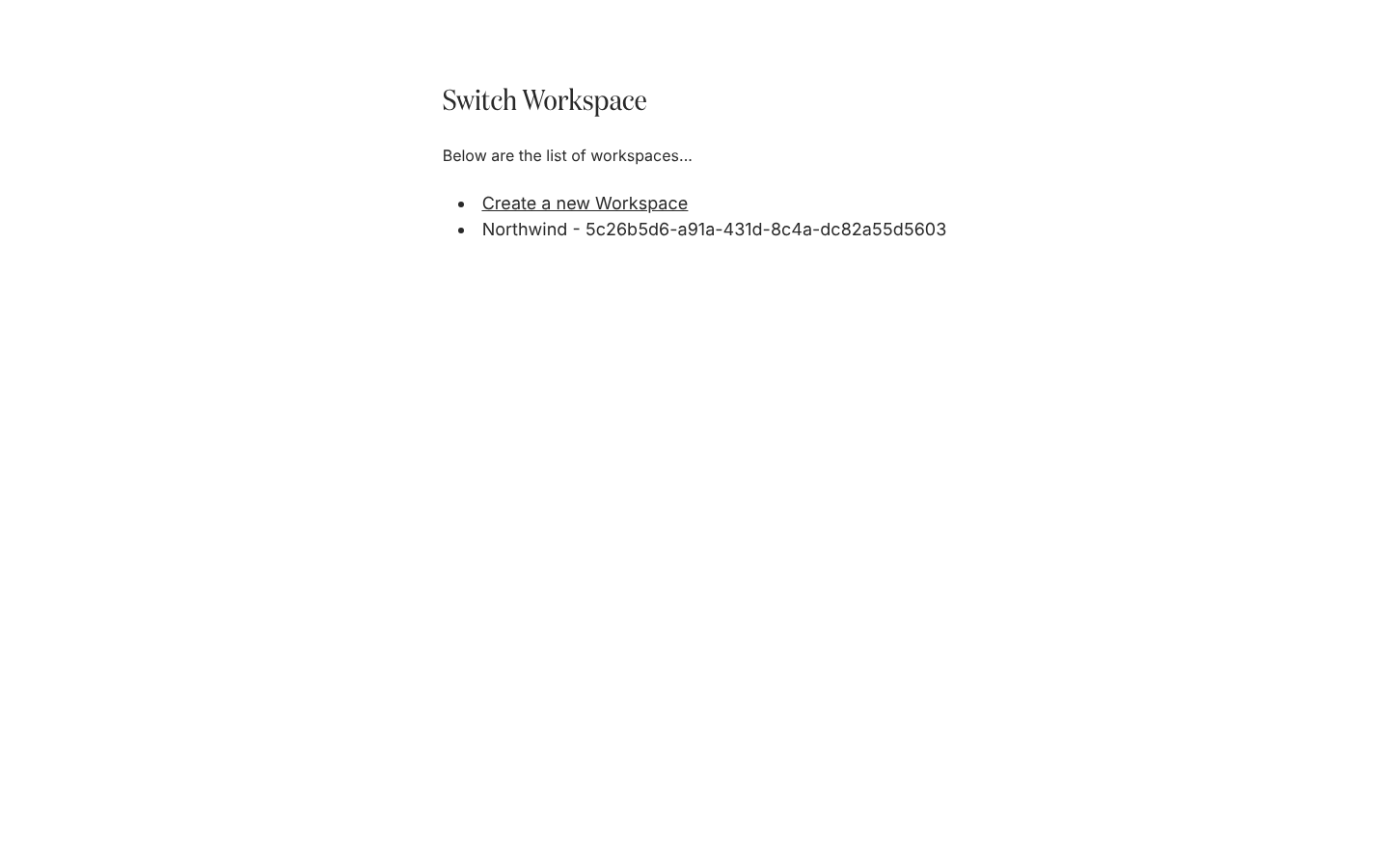
On the Switch Workspace page, select the workspace you want from the list. The first entry, Create a new Workspace, starts a new one instead.
What you should see
Section titled “What you should see”Home for the workspace you chose, with its name at the top of the profile menu. Pyn clears everything it had loaded from the previous workspace, so tables and counts reload. Your role can differ between workspaces; the navigation shows only what your role in this one allows.
Related
Section titled “Related”- Workspaces for what a workspace is and how sandbox and playground workspaces are marked.
- Profile for the other items in the profile menu.
- Fix a sign-in problem if a workspace you expect is missing.