

Jira
The Jira integration powers the Raise ticket step: when a new starter reaches day minus three, an automation can open an IT provisioning ticket with their details already filled in. Pyn connects to one Atlassian site through the account that signs in, syncs its projects, and raises issues as that account.
Before you start
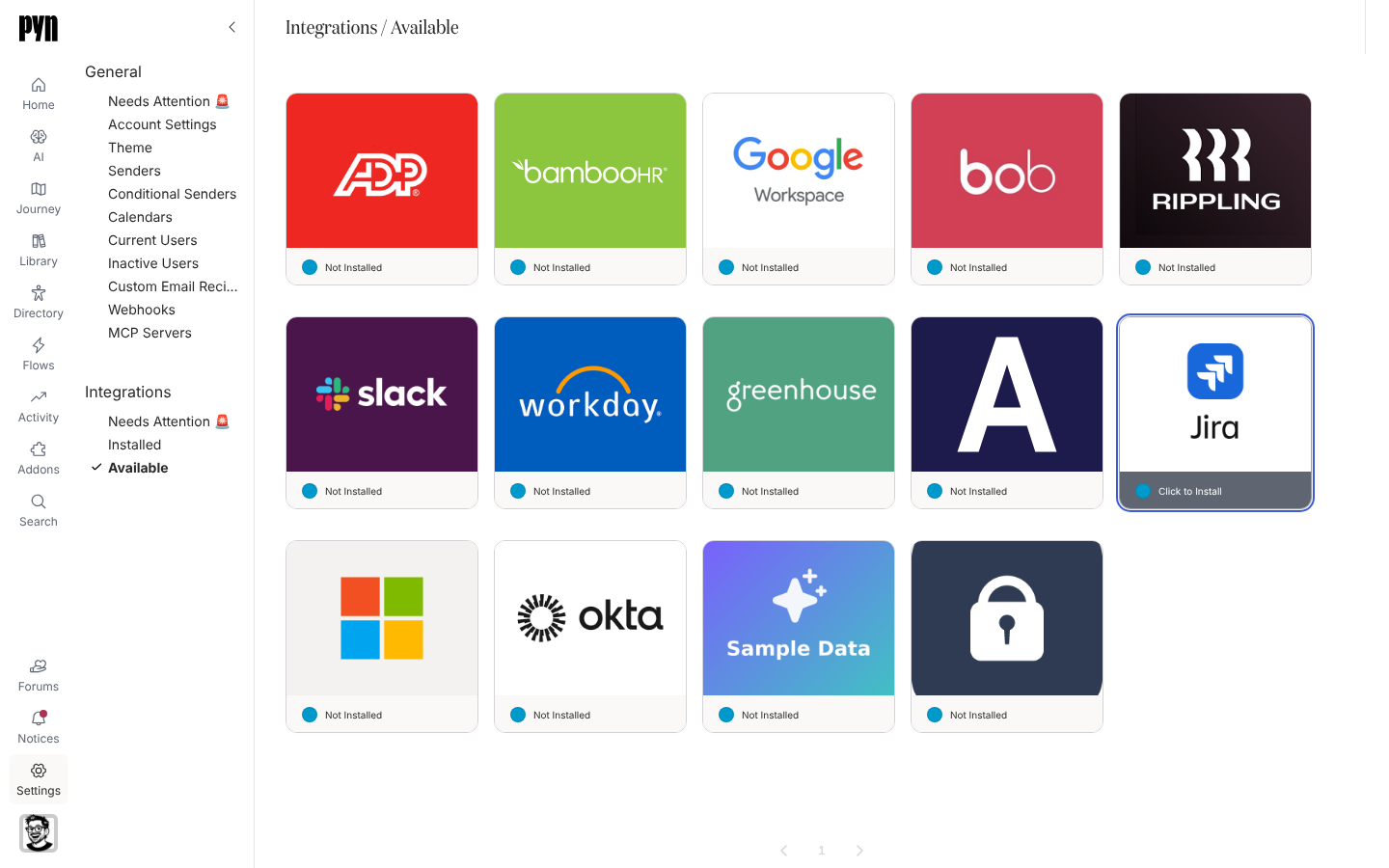
Section titled “Before you start”- You are an admin or owner in Pyn, and the Raise ticket step is enabled for your workspace; the Jira tile appears under Available only then.
- You can sign in to Atlassian with an account that can create issues in the projects you want to use. Issues are raised as this account, so a shared service account is the usual choice.
Connect
Section titled “Connect”-
In Pyn, open Settings in the left navigation, then Available under Integrations.
-
Select the Jira tile. Atlassian opens; choose the site and accept the permissions.
-
Atlassian returns you to Pyn and the Jira panel opens. Details shows the Site Name, Site URL and the Account Id that connected.
-
Open the Projects tab. For each project a step should be able to raise tickets in, tick Available to steps. Pyn then syncs that project’s issue types.
If the tile was installed but never connected, its panel reads “Connect Jira so an automation can raise a ticket on someone’s behalf.” with a Connect Now button.
What syncs
Section titled “What syncs”- The site’s projects, with their key, name, type (Business, Service Management or Software) and whether they are team managed. Pyn refreshes them every 12 hours.
- Issue types for each project you have made available to steps, so the step can offer them.
- Each ticket a step raises is recorded with its issue key and link and shown as a delivery in Activity.
Test it
Section titled “Test it”Open an automation in Automations, add a Raise ticket step, and check the project and issue type lists offer what you ticked. Enrol a test employee and open the delivery in Activity: it links to the issue in Jira.
Reconnect or disconnect
Section titled “Reconnect or disconnect”- Reconnect in the … menu repeats the Atlassian sign-in for the same site. The panel also shows it when needed: “Pyn can no longer reach Jira with the stored credentials.”
- Deactivate stops steps raising tickets; Activate resumes.
Troubleshooting
Section titled “Troubleshooting”| What you see | What it means |
|---|---|
| Tile under Needs Attention 🚨, History: “Error: Authentication failed, please reconnect” | The Atlassian grant expired beyond refreshing or was revoked. Reconnect. |
| History: “Error: Insufficient Jira permissions” | The connected account cannot create issues in that project, or the granted scopes are too narrow. Reconnect with an account that can. |
| A project is missing from the step | It is not ticked Available to steps, or it was created after the last 12-hourly refresh. |
Related
Section titled “Related”- Integrations for the catalogue.
- Automations to add a Raise ticket step.
- Fix a sender or integration that needs attention when the tile shows Error.