

Add a button to a message
A message that asks for something needs a button: “Read the handbook”, “Confirm your equipment”, “Pick a buddy”. A button with Track Action turned on tells Pyn whether the recipient acted, which is what reminders, escalations and the Actions view are built on.
Before you start
Section titled “Before you start”- The step is a Send Direct Message or Send Email to Employee step. Channel posts take buttons too, but nobody in particular is asked to act.
- For a content button, the content is published in Library. For a form button, the form is published in Forms.
-
In Pyn, open the automation from Flows, Automations, and select the step to open it in the drawer.
-
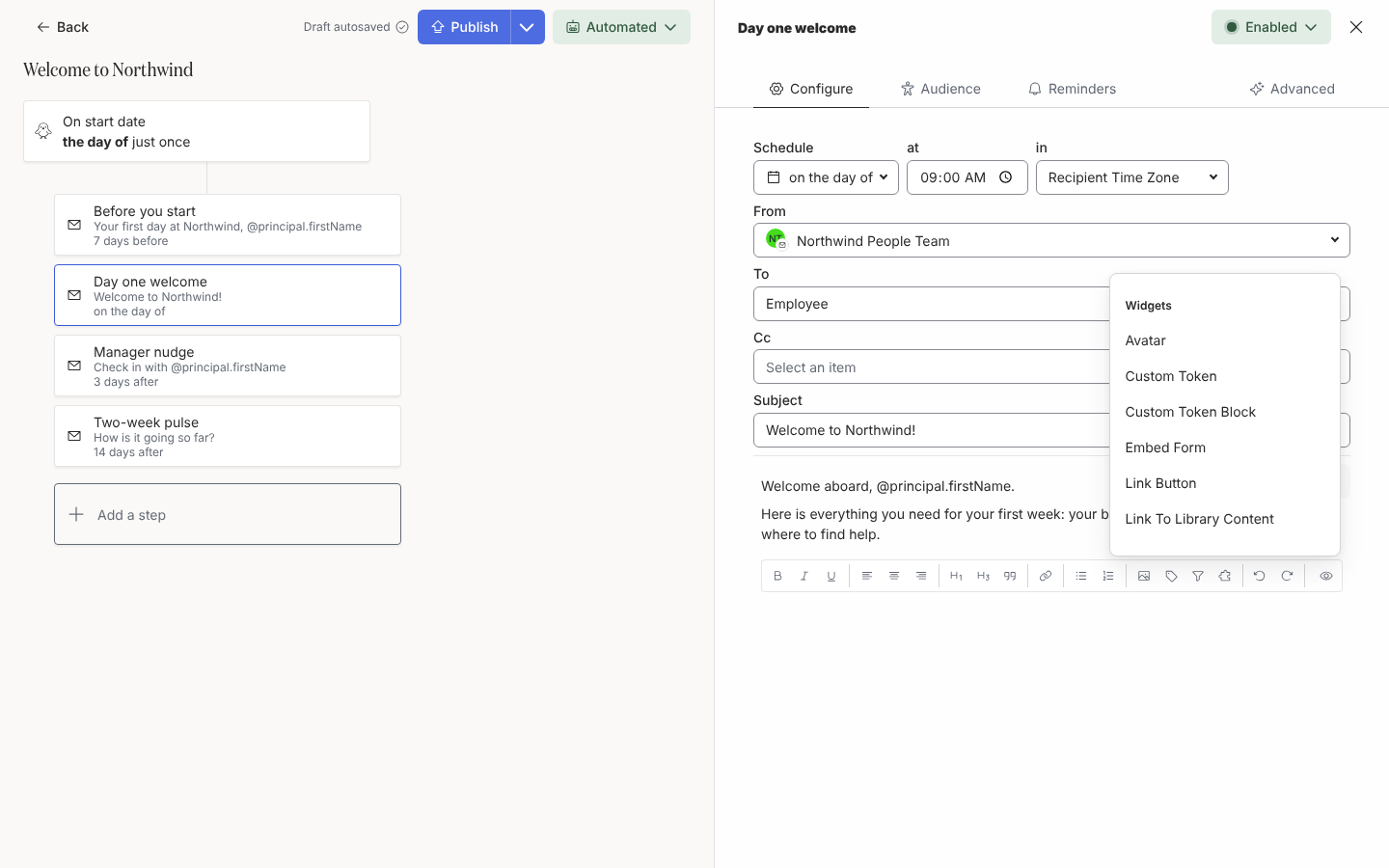
Place the cursor in the message where the button goes, then select Insert widget (the puzzle icon) in the toolbar. The Widgets menu opens.
-
Choose the kind of button:
- Link Button: enter the Link (a web address or an email address) and a Label of up to 32 characters.
- Link To Library Content: search for and select the Library Content, then set the Label. The recipient opens the content on a page of its own.
- Embed Form: choose the Form from the list (forms and polls both appear). The label is the form’s title.
-
Choose a Button Style: Default, Primary or Danger.
-
Leave Track Action ticked so clicking the button counts as actioning the step. Untick it only for a link you do not need to follow up on.
-
Select Save. The button appears in the editor as a pill you can select to edit again.
-
Select Preview and then Send a test to yourself to check the button opens the right thing, then Publish the automation.
What you should see
Section titled “What you should see”In Slack the button renders as a Slack button; in email it is a styled button in your theme colours. Once sent, the delivery under Messages reads Delivered, then Clicked when any link is opened, and Actioned once a tracked button or form is used. The Actions view lists every tracked ask with Actioned, Clicked or Unactioned.
Related
Section titled “Related”- Use content in a step for the content behind a Link To Library Content button.
- Embed a form in a message for form buttons and the Slack picker.
- Add reminders to follow up when nobody clicks.
- Actions to see who has acted and export the list.