

Workday
The Workday integration reads a custom report your Workday administrator publishes as a service (RaaS) and keeps the Directory current. You control exactly what Pyn sees by choosing the report’s columns, and the Advanced tab shows which columns arrived.
Before you start
Section titled “Before you start”- You are an admin or owner in Pyn.
- A Workday administrator creates a custom report, enables it as a web service with JSON output, and gives you its Report URL, plus the Username and Password of an integration system user that can run it.
- The report should include these columns, matched by name with spaces and underscores ignored:
Employee_ID,WorkEmail,NameorPreferred_Name,Preferred_Name_First_Name,Business_Title,Hire_Date,Original_Hire_Date,Termination_Date,Active_Status,Department_Name,Business_Unit,Team,Manager_ID,Work_Country,Time_Zone(an IANA name such asAustralia/Sydney),Home_Email_Addressfor pre-boarding,Birthday,Worker_Type,Employee_Type,Time_TypeandExempt.
Connect
Section titled “Connect”-
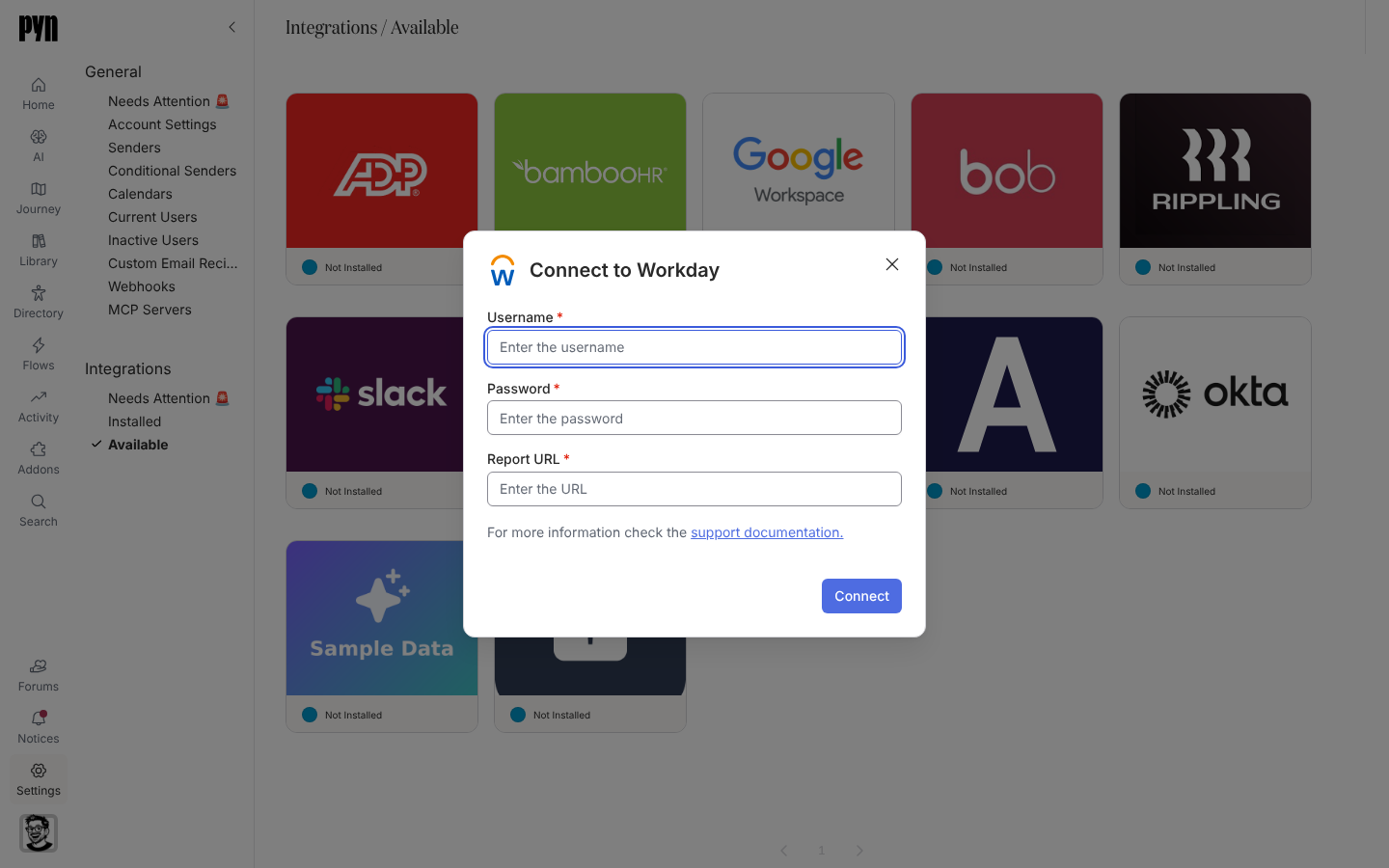
In Pyn, open Settings in the left navigation, then Available under Integrations.
-
Select the Workday RaaS tile. The Connect to Workday dialog opens.
-
Enter the Username and Password.
-
Enter the Report URL. It must start with
https://; “That URL is not in the correct format.” means it does not. -
Select Connect. The dialog shows “Validating those credentials…” while Pyn runs the report.
-
On success a notice reads “Your Workday RaaS has successfully been added to Pyn. It will take a minute or two for the employee data to be pulled from Workday.”
Errors the dialog can show: “Could not verify the credentials. The username or password appear to be invalid.” / “Could not verify the credentials. The supplied URL is not in the correct format.” / a note that Workday is returning a “Down for Maintenance” response, in which case wait and try again.
What syncs
Section titled “What syncs”Pyn runs the report every five minutes while the integration is active and logs each run under History. Details shows the Report Type (Employee, Candidate or Evergreen), Username and Report URL; Advanced lists Fields in Report with a count for each column received.
| Pyn property | Report column |
|---|---|
| External id | Employee_ID and Worker_ID; a report mixing the two keeps both |
| Display name, legal name, preferred name | Name / Full_Name / Preferred_Name, Preferred_Name_First_Name |
| Work email, secondary email, personal email | Work_Email, CF_Additional_Work_Email, Email_Primary_Home / Home_Email_Address / Personal_Email |
| Start date, tenure date, termination date | Hire_Date, Original_Hire_Date, Termination_Date / Term_Date |
| Job title | Business_Title |
| Department, business unit, team | Department_Name, Business_Unit, Team |
| Country, time zone | Country / Work_Address_Country / Work_Country, Time_Zone |
| Manager | Manager_ID |
| Exempt, worker type, employee type, time type | Exempt, Worker_Type, Employee_Type, Time_Type |
| Custom columns | Workspace extensions mapped to a report column |
Column names are matched case-insensitively with underscores and spaces removed, so Hire_Date, HireDate and Hire Date all work. See HRIS fields for the matrix.
Test it
Section titled “Test it”Open the Workday tile under Installed and read History for a successful run, then check Fields in Report under Advanced against the columns you expected. Open Employees and confirm names, start dates and managers.
Reconnect or disconnect
Section titled “Reconnect or disconnect”- Reconnect opens Reconnect to Workday with the username and URL filled; enter the password (and any changed value) and select Connect. “Your Workday RaaS has successfully been updated.” confirms it and clears an error state.
- Deactivate stops the report running; Activate resumes.
Troubleshooting
Section titled “Troubleshooting”| What you see | What it means |
|---|---|
| History: “Error: Authentication failed, please reconnect” | The integration user’s password changed or the account was disabled. Reconnect. |
| A column is missing under Fields in Report | It is not in the report, or its name does not match any name Pyn reads. Add or rename it in Workday. |
| People missing | They are not returned by the report’s filters; check Active_Status and the population the report covers. |
| Time zones wrong | Time_Zone is not an IANA name, or is missing; Pyn falls back to country and the workspace default. |
Related
Section titled “Related”- Integrations for the catalogue.
- HRIS fields for the field matrix.
- Sync cadence and matching for schedules and matching.
- Employees to check the synced records.