

Account
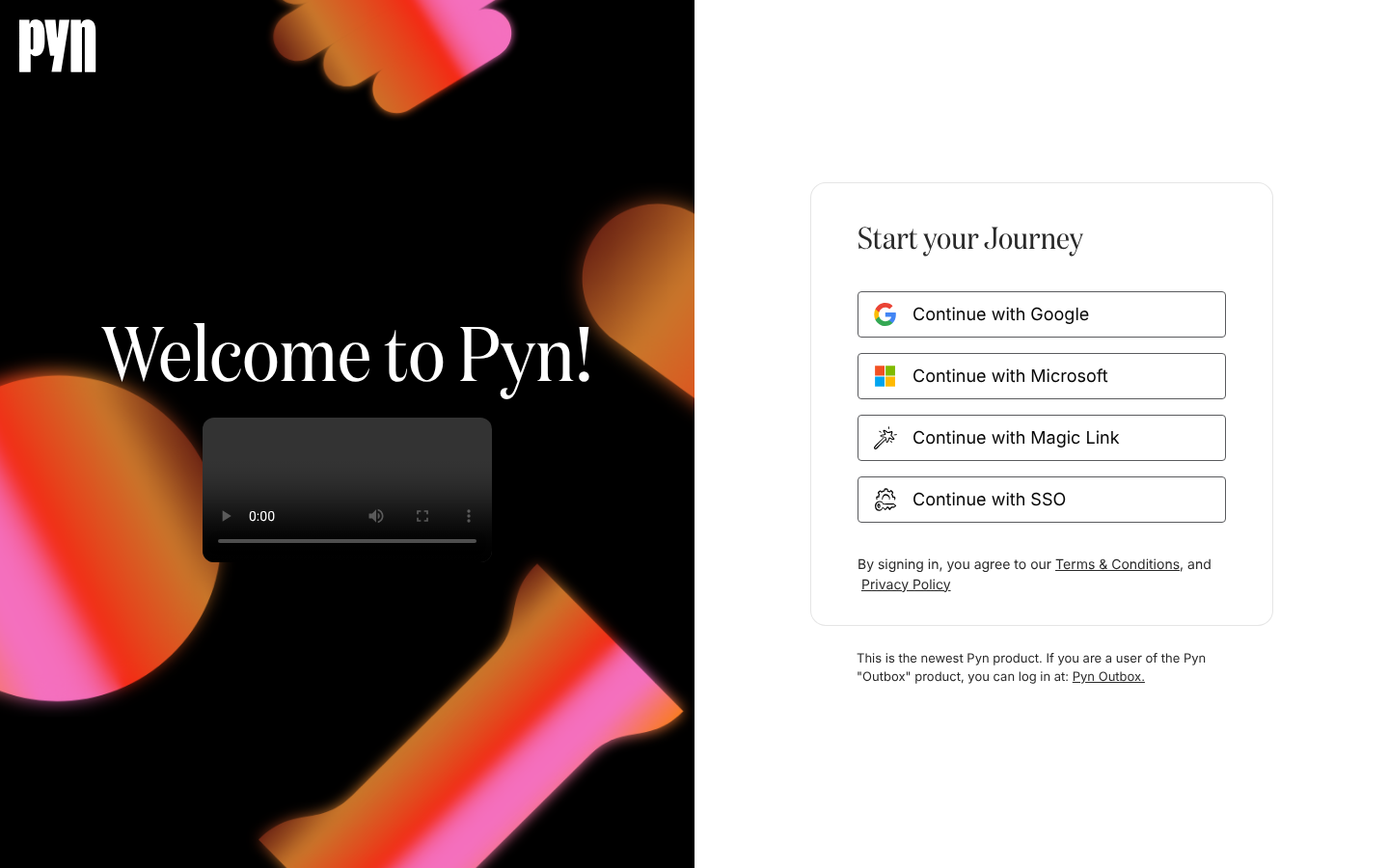
Account covers the edges of the app: the sign-in page, the step between signing in and landing in a workspace, the workspace switcher, and the profile menu in the bottom-left corner of every page. Everyone who uses Pyn passes through these screens; nothing here needs an admin role.
Who uses it
Section titled “Who uses it”- Everyone with a Pyn login signs in, signs out and uses the profile menu.
- People in more than one organisation switch between workspaces.
- The person setting Pyn up creates the first workspace and lands on Home.
Employees who only receive messages from Pyn never sign in. They open links in Slack, Teams or email and land on public pages that need no account.
Concepts
Section titled “Concepts”- Identity: the account you sign in with. Pyn accepts Google, Microsoft, a magic link sent to your email, and your company’s single sign-on. The email address is what ties them together: signing in with Google and later with a magic link for the same address reaches the same workspaces.
- Workspace: one organisation’s Pyn. Your identity is linked to one or more workspaces; each link carries your role in that workspace.
- User: your record inside a workspace, listed under Settings, Current Users. It holds your name, email, photo, role and status.
- Role: Owner, Admin, Power User or User. It decides which parts of the app you see. Roles and permissions has the full matrix.
- Session: signing in starts a session that ends one day after you signed in, or when you sign out.
What you can do here
Section titled “What you can do here”- Sign in with Google or Microsoft
- Sign in with a magic link
- Sign in with SSO
- Fix a sign-in problem
- Sign out
- Switch workspace
- Create a workspace
- Profile: where your name and photo come from, and what the profile menu offers
Where it is in the app
Section titled “Where it is in the app”The sign-in page is /sign-in. After you sign in, Pyn passes through /signing-in and lands you on /home, on /switch-workspace if you belong to more than one workspace, or on /create-workspace if you belong to none. The profile menu is the avatar at the bottom of the left navigation.
Related
Section titled “Related”- Sign in for every way into Pyn and what happens next.
- Workspaces to switch between organisations or create a new one.
- Profile for what Pyn shows about you and where it comes from.
- Roles and permissions for what each role can see and do.