

Home
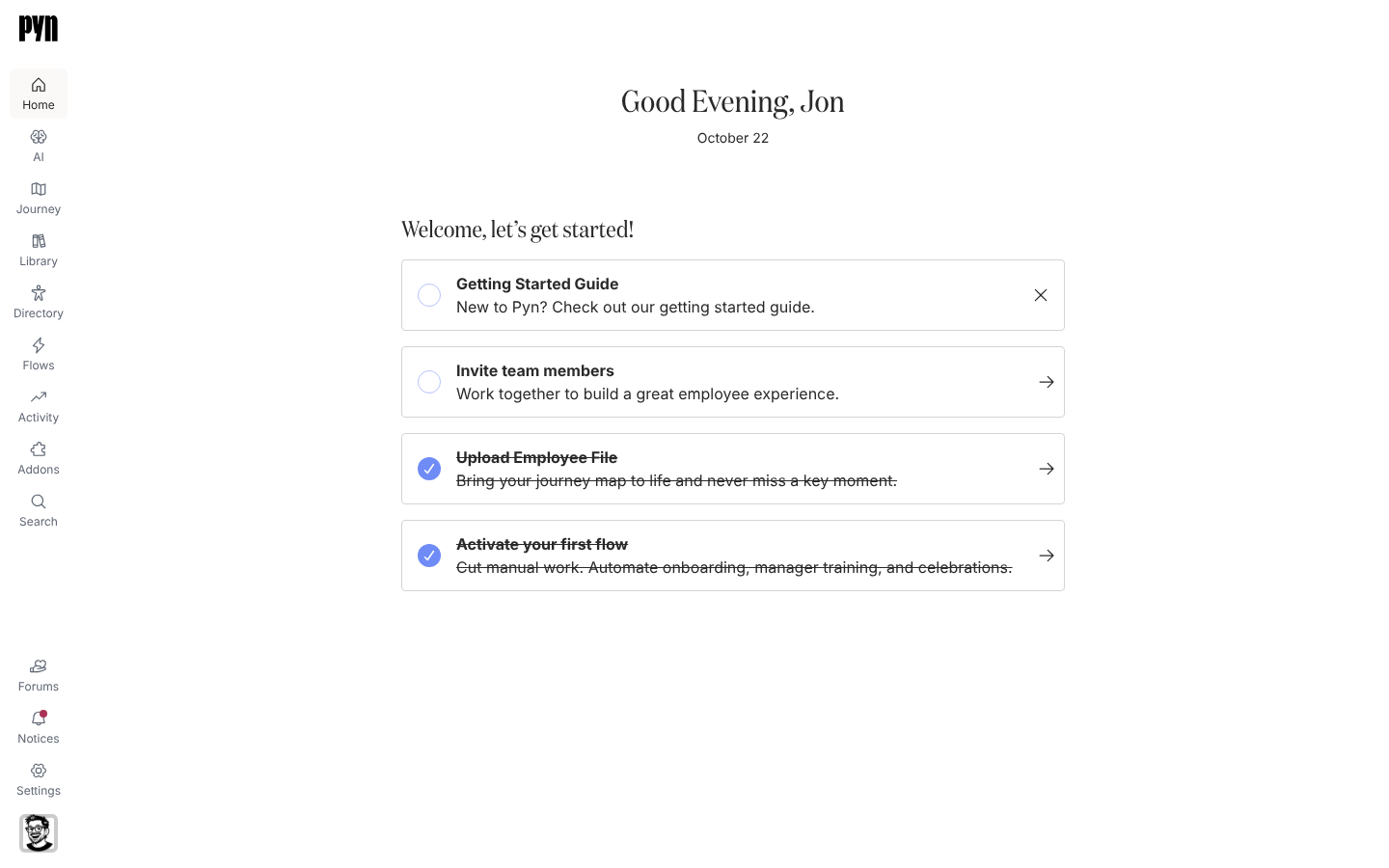
Home is the first page after sign-in and the page the Pyn logo returns you to. It greets you by name and shows a short checklist, Welcome, let’s get started!, of the things a new workspace needs: people data, a messaging channel, teammates and a live flow. Each card opens the place in the app where you do that step, and ticks itself off when the step is done.
Who uses it
Section titled “Who uses it”Everyone lands here, whatever their role. The checklist is aimed at the admin setting the workspace up: its cards lead to Settings, which only admins and owners can open. Once every card is ticked, Home is the greeting and the date; the day-to-day numbers live in Activity.
Concepts
Section titled “Concepts”- Greeting: Good Morning, Good Afternoon or Good Evening by your clock, followed by your preferred name or display name, and today’s date.
- Checklist card: one setup step, with a title, a one-line reason and an arrow. A ticked card shows a filled check and struck-through text; it stays in the list.
- Getting Started Guide: the first card, which opens this help site. It is the only card you dismiss by hand, with the X on its right; the others complete on their own.
- Playground banner: in a playground workspace a banner above the greeting says You’re in Playground Mode with an Exit button.
Which cards you see
Section titled “Which cards you see”The cards depend on the answers given when the workspace was created. Every workspace gets Invite team members and Activate your first flow. Choosing BambooHR or Workday as the HRIS adds an Integrate with BambooHR or Integrate with Workday card; HiBob and Rippling get an inactive integration under Settings but no card; any other HRIS answer adds Upload Employee File. Choosing Slack as the messaging platform adds Connect to Slack. Complete the getting-started checklist lists where each card goes and what ticks it.
What you can do here
Section titled “What you can do here”- Complete the getting-started checklist
- Navigate Pyn: the left navigation, who sees which items, Search and Notices
- Set up your workspace in 30 minutes: the checklist as a start-to-finish tutorial
Where it is in the app
Section titled “Where it is in the app”/home. Opening https://app.pyn.ai/ redirects here, and so does selecting Home at the top of the left navigation or the Pyn logo above it.
Related
Section titled “Related”- Complete the getting-started checklist for what each card does and when it ticks.
- Navigate Pyn for the navigation items and what each role sees.
- Set up your workspace in 30 minutes to work through the checklist end to end.
- Activity for enrollments, messages and the dashboard once flows are running.