

Export employees
You want the list in a spreadsheet: to audit time zones, to start the next Employee File upload from what Pyn has, or to hand to someone without a Pyn login. Export writes the table’s columns to a CSV and delivers it as a download in Notices.
Before you start
Section titled “Before you start”- The view is a Table with columns. Active has columns and offers Export; a view without configured columns, such as Upcoming, does not. Save your own view with the columns you want if you need another cut.
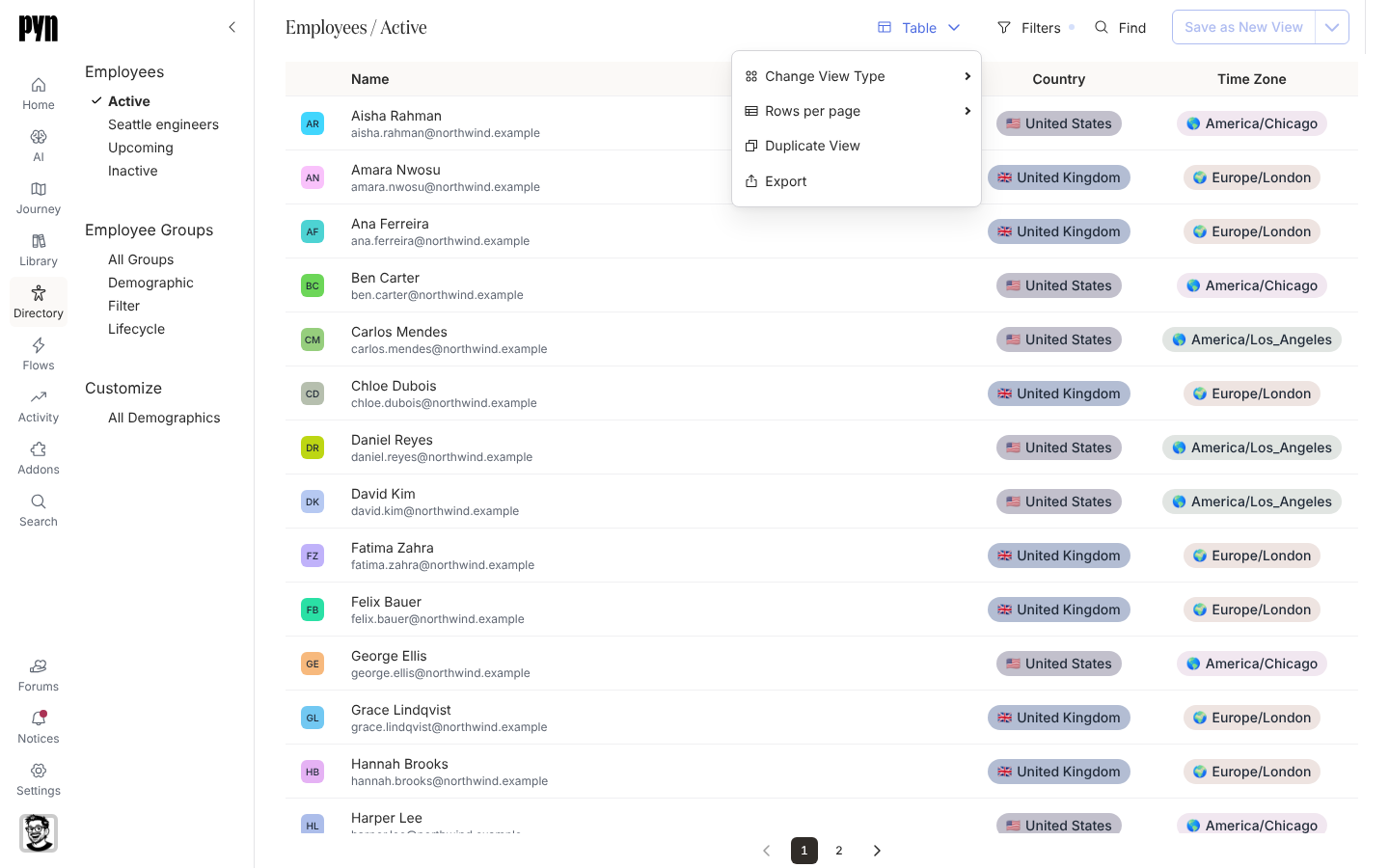
-
In Pyn, open Directory in the left navigation and select the view to export, for example Active.
-
Open the view-type menu: the button at the top that reads Table.
-
Select Export. Pyn starts building the file in the background.
-
Open Notices in the left navigation. When the file is ready a notice reads Active_2026-10-22.csv is ready to download (the view’s title and today’s date) with an Expires time.
-
Select Download.
What you should see
Section titled “What you should see”A CSV in your downloads with one row per employee in the view and a column per table column. To use it for an Employee File upload, add the employeeId column and rename the headers to the property keys in Employee properties.
Related
Section titled “Related”- Download an export for the Notices side.
- Upload employees from a spreadsheet to send an edited export back.