

Build a form
You want a few answers from people at a moment in their journey, in a shape you can report on. A form is a titled list of up to ten fields, each with a label, a description and, where it makes sense, a Required flag.
Before you start
Section titled “Before you start”- You are a Power User, Admin or Owner.
- You know the questions. Short forms get answered; three to five fields is typical.
-
In Pyn, open Flows in the left navigation, then select Forms.
-
Select Add Form in the top-right corner. A form titled New Form opens at
/flows/form/.... -
Select the title (Enter a Form Title) and name it after the task, for example
First week check-in. The name is what you pick from the Form list when embedding it, so make it specific. -
Select Add Field. In Select Field, choose a Common field (Checkbox, Content, Likert Scale, Text) or an Employee Field (Buddy, Mentor). The field is added and its settings open.
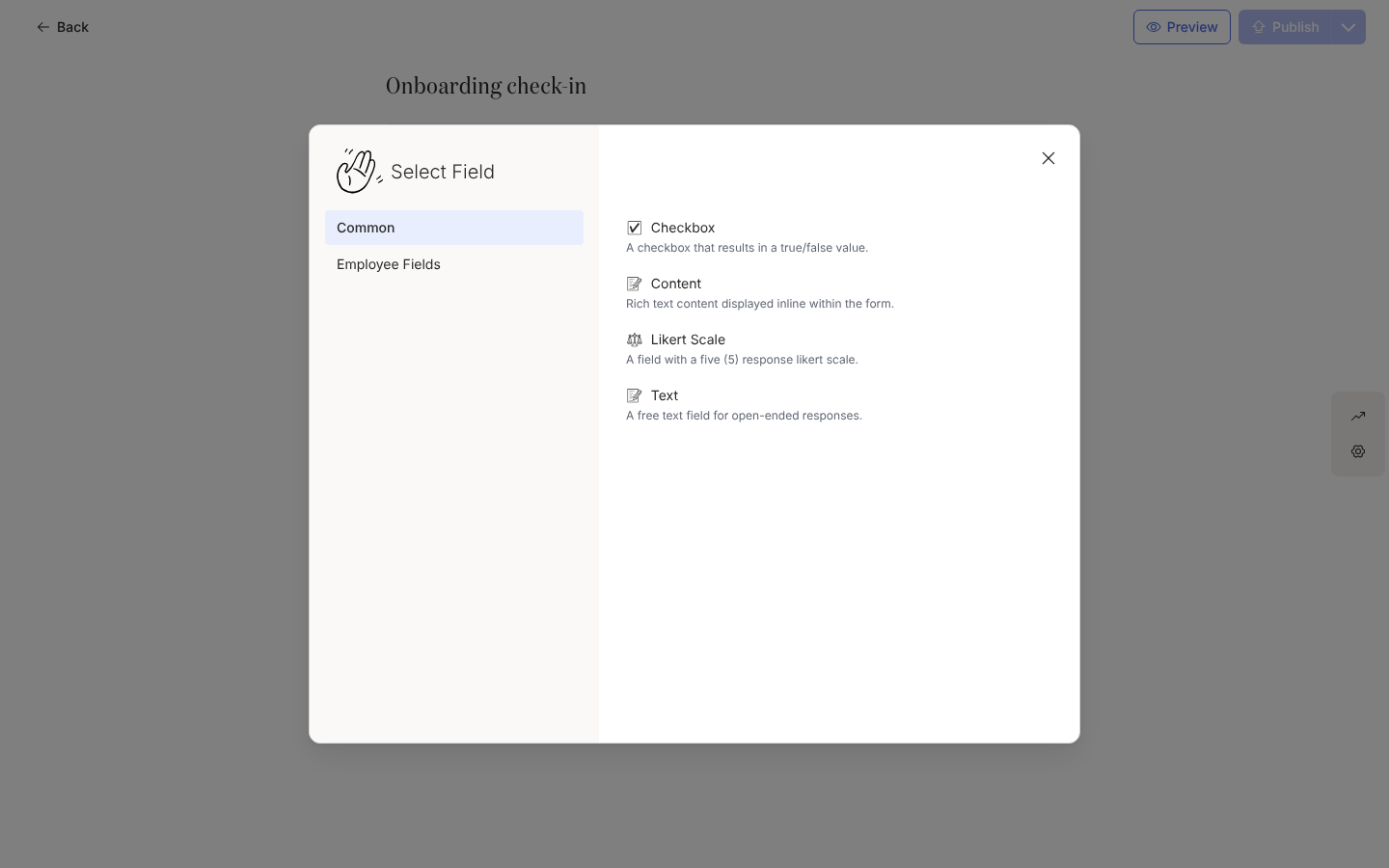
Add Field opens Select Field: Common fields and Employee Fields. -
Enter the Label (the question) and a Description (shown with the field as a hint). Tick Required if the person must answer before submitting; checkboxes and content blocks cannot be required. Select Save.
-
Repeat for each field. Fields appear in the order you add them; select a field’s row to edit it again, or its cross to remove it. A removed field can be put back from the Undo toast for eight seconds.
-
Select Preview to see the form as a respondent sees it on the respond page, then close the preview.
-
Select Publish. The button is enabled whenever there are unpublished changes.
What you should see
Section titled “What you should see”The form is listed under Forms with a tick in the Publish column. The rail on the right of the editor opens the Activity drawer (submissions) and the Settings drawer (the webhook). You can now embed it in a step: see Embed a form in a message. Changes you make later are drafts until you select Publish again; a Buddy or Mentor field stays on the employee record once published, even if you later remove it from the form.
Related
Section titled “Related”- Form field types for what each field collects and how it renders.
- Embed a form in a message to send it.
- Review and export submissions once answers arrive.