

Deactivate link and media unfurling
Slack unfurls: it expands a link into a card with a title, image and description, and shows an image or video link inline. That is helpful for a shared article and unhelpful under a carefully laid out welcome with a banner and three buttons, or a link to an internal page that previews as a login screen.
Before you start
Section titled “Before you start”- The step is a Send Direct Message or Post to Channel step. Email has no unfurling, so the switches are not shown there.
-
In Pyn, open the automation from Flows, Automations, and select the Slack step.
-
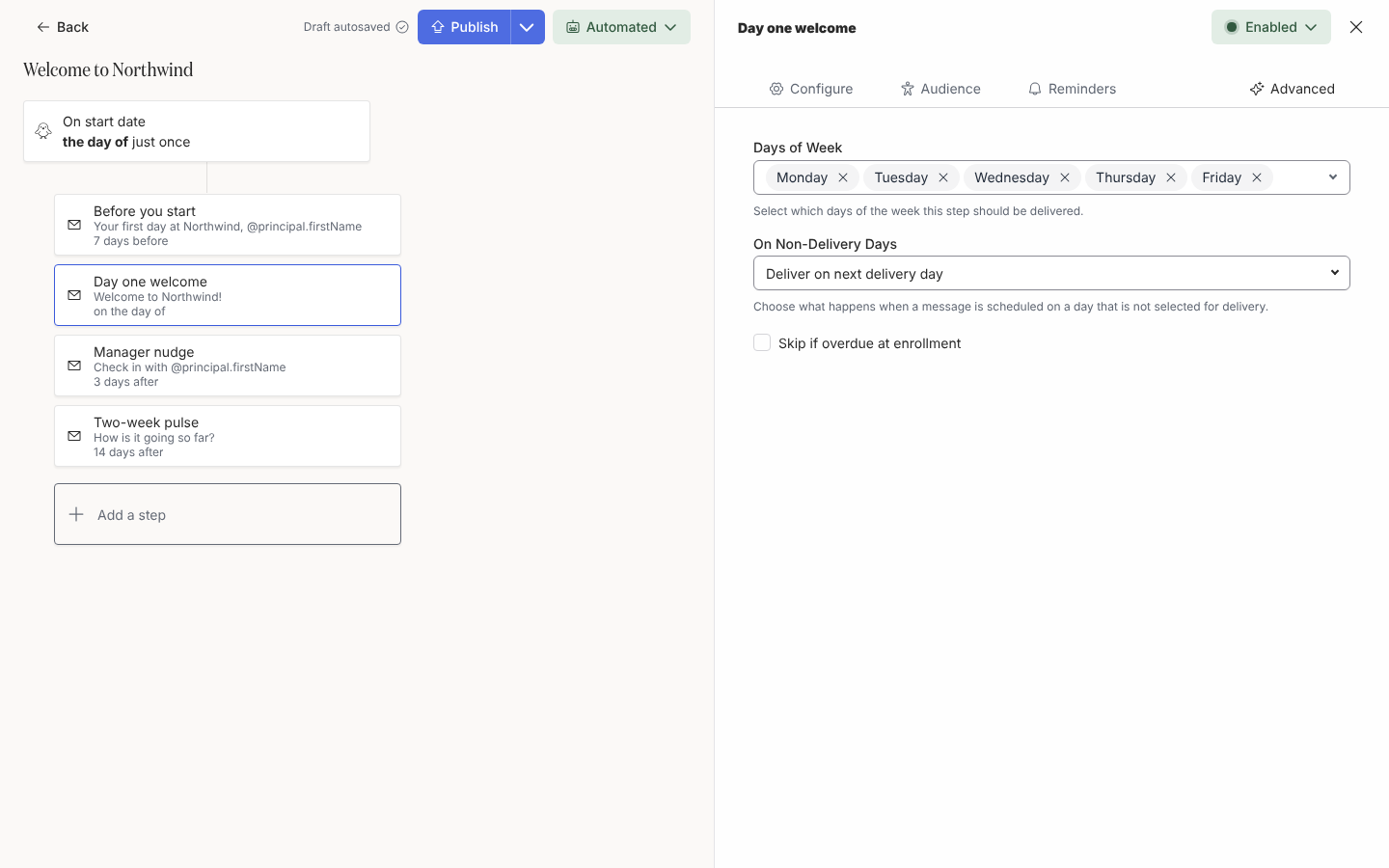
Select the Advanced tab.
-
Tick Deactivate link unfurling to stop link previews.
-
Tick Deactivate media unfurling to stop images and videos linked in the text from showing inline.
-
Close the drawer, then Publish the automation.
What you should see
Section titled “What you should see”Select Preview, then Send a test to yourself: the test in Slack shows the links as plain links with no card beneath them. The settings apply to reminders of the step as well, since a reminder is a copy of the original.
Related
Section titled “Related”- Add a direct message step and Post to a channel for the steps these switches apply to.
- Format a message for inserting media rather than linking it.