

Track actions
You asked forty managers to confirm a first-day plan and want to know who has not. The Actions view answers that and gives you a CSV to chase from.
-
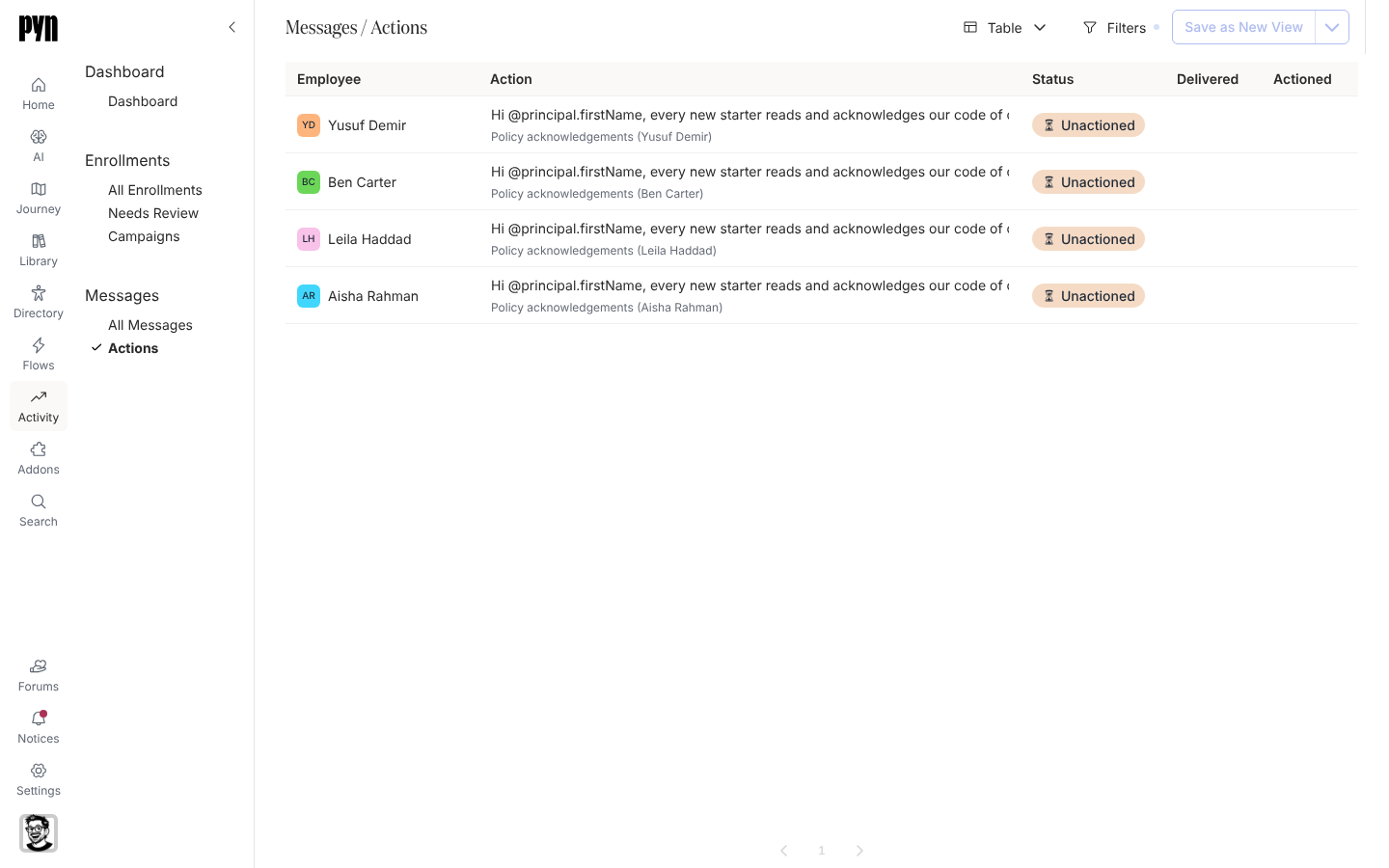
In Pyn, open Activity in the left navigation, then select Actions under Messages.
-
Select Filters, then Status, and tick Unactioned. The list narrows to deliveries whose action is not done, including ones where a link was clicked.
-
To look at one person, select Employee in Filters and pick them. To look at a period, select Delivered and choose Last 30 Days, Upcoming 30 Days or a custom range.
-
Select a row to open the delivery. The step page shows the message they received and, once they act, what they submitted.
-
Back on the list, open the view-type menu (the button that reads Table) and select Export Data. Pyn downloads a CSV named after the view, containing the rows that match your filters and sort.
What you should see
Section titled “What you should see”A table with Unactioned and Clicked rows only, and a CSV in your downloads with the same rows. When a recipient completes the action, their row’s status changes to Actioned and the Actioned column fills with the time; a reminder on the step, if the flow has one, stops.
Related
Section titled “Related”- Read a message as it was sent for the delivery page.
- Read an employee profile for one person’s outstanding actions.
- Enrollment, step and delivery statuses for Unactioned, Clicked and Actioned.