

Senders
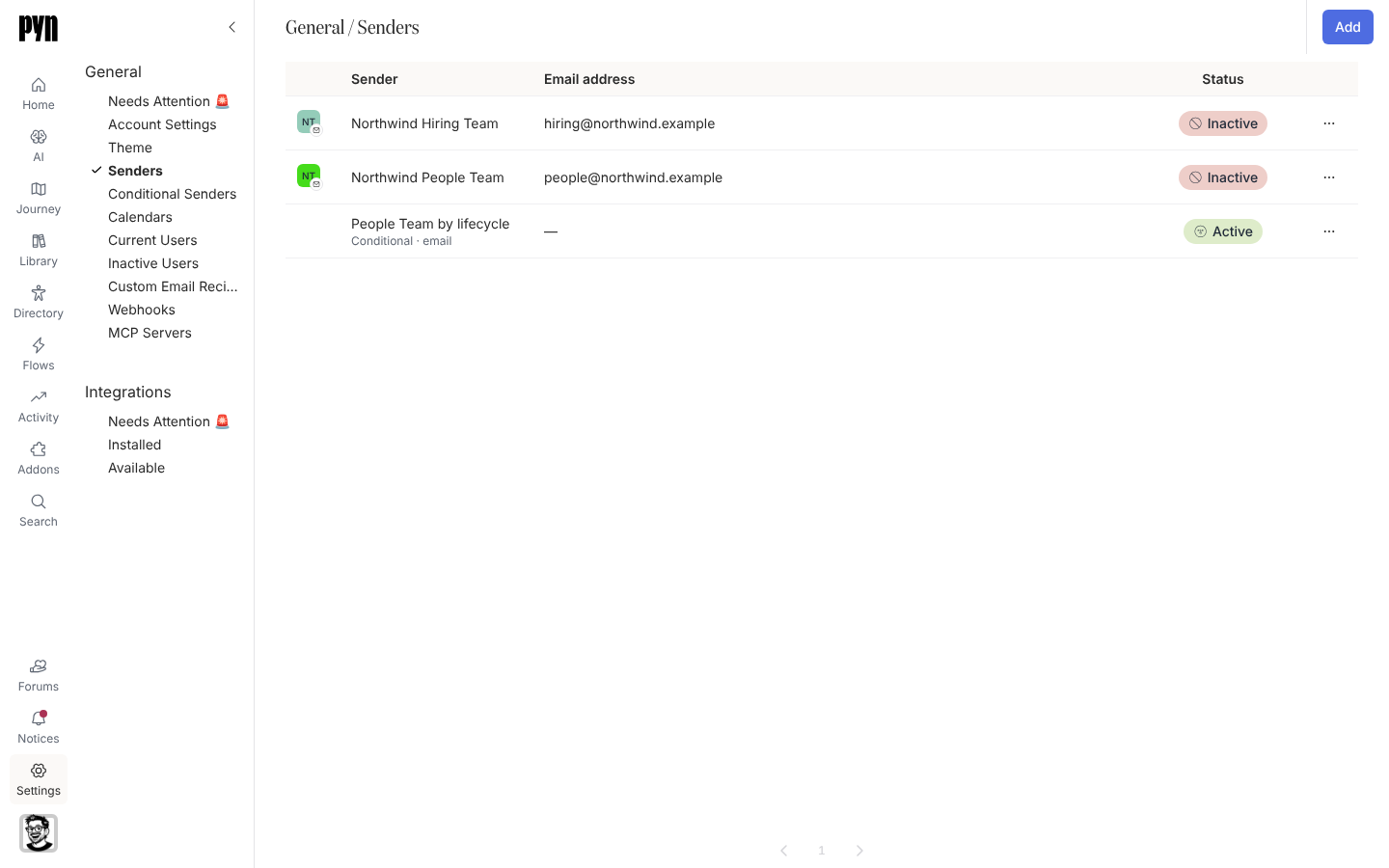
A sender is the identity a step sends from: a colleague’s Gmail or Outlook mailbox, a verified team address, a personal Slack account, the Pyn Bot, a custom Slack bot, or a conditional sender that picks one of those by audience. The Senders view lists them all with their status, and its Add menu is where every new sender starts.
What you can do here
Section titled “What you can do here”- Add an email sender and verify the address
- Add a Google or Microsoft 365 sender so a message comes from a real mailbox
- Add a Slack sender to send as yourself in Slack
- Create an auth link so an executive can connect their own Google or Slack account without a Pyn login
- Send Test from a sender’s … menu to check it works
- Archive a sender you no longer use
- Understand the sender types and states
The Senders table
Section titled “The Senders table”Each row shows the sender’s avatar, Sender name, Email address and Status. Senders sort by name regardless of type. Select a row to open its panel; the … at the end of the row opens its actions. Senders in an error state also appear under Needs Attention 🚨 at the top of the General group.
The Add button offers Add Google Email Sender, Add Microsoft 365 Email Sender (in workspaces with Microsoft 365 enabled), Add Slack Sender (once a Slack workspace is connected), Add Email Sender, Create Google Auth Link and Create Slack Auth Link. Teams senders are added by Pyn when the Teams integration is set up with you.
Where it is in the app
Section titled “Where it is in the app”Open /settings/general/senders in Pyn, or open Settings in the primary navigation and select Senders under General.
Related
Section titled “Related”- Sender types and states for the full reference.
- Conditional Senders to route by audience.
- General for the rest of the group.
- Automations to pick a sender on a step.