

Give managers a new-hire checklist
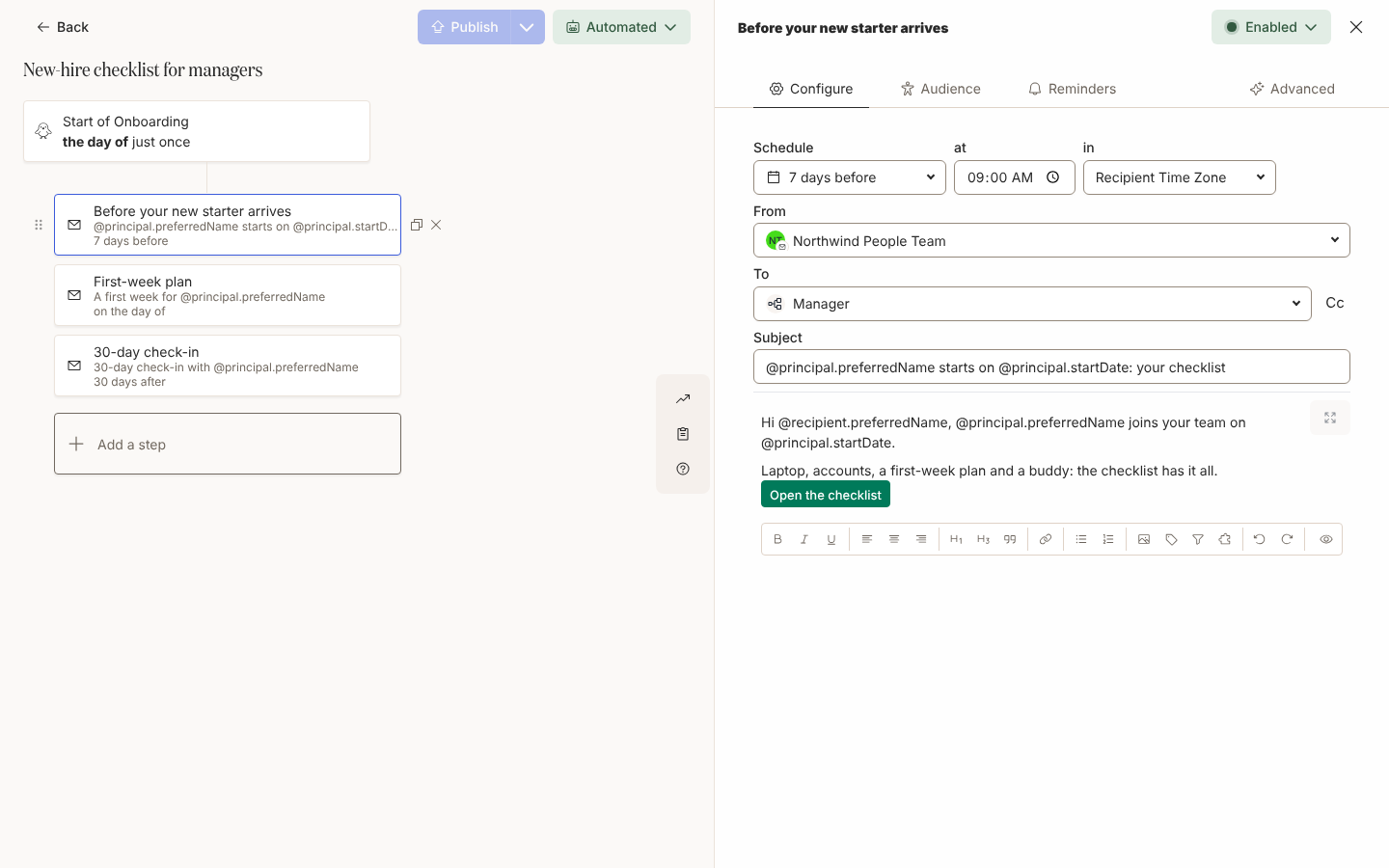
A manager is asked three times, at the right moment each time: order the equipment a week before the start date, run the first-week plan on day one, hold a check-in at 30 days. Each ask has a button to confirm, a reminder if they do not, an escalation if they still do not, and HR sees who has acted. For: admins and owners. Time: about 30 minutes.
What you’ll need
Section titled “What you’ll need”- Manager mapped and populated for every new starter; see HRIS fields. A blank manager traces back to one source, see Fix a missing manager, time zone or email.
- An email sender, or Slack connected for direct messages; see Add an email sender and Slack.
- The checklist published in Library > Content, or hosted somewhere a Link Button can open; see Publish content.
- An automation to put the steps in: Reach new starters before day one or Onboard from the first day to six months.
Build it
Section titled “Build it”-
In the automation, add a Send Email to Employee step scheduled 7 days before, and under To choose Manager, so the step resolves to each new starter’s own manager; see Choose recipients and Cc.
-
Write it to the manager with
@recipient.preferredName, and name the new starter and their date with@principal.preferredNameand@principal.startDate; see Tokens. -
Add a Link to Library Content button that opens the checklist, or a Link Button to your own page, and leave Track Action ticked so the click counts as done; see Add a button to a message and Link to content from a message.
-
On the Reminders tab add a reminder 2 days after send and a second at 4 days; see Add reminders.
-
Under Escalations, add one 7 days after send and change the recipient to Skip-level Manager, or a named person under People; see Add escalations.
-
Repeat for the first-week plan on the day of and the 30-day check-in 30 days after, each with its own button; see Schedule a step.
-
Open Preview, pick an upcoming joiner under Preview for principal and check the header shows their manager as the recipient, then Send a test to yourself; see Preview and send a test.
-
Publish, and tick the running enrollments in Update Enrollments so starters already in the flow get the new steps; see Publish an automation.
Variations
Section titled “Variations”Use Send Direct Message with To set to Manager, as in Add a direct message step. The button renders as a Slack button and the reminder is a copy of the same DM. An escalation goes out in the step’s own medium, so a Slack step can notify your People team’s channel, chosen under Channels.
Keep Send Email to Employee so the ask sits in the manager’s inbox, and set From to a mailbox a reply can reach. An email step escalates to a verified custom email recipient under Email addresses, where enabled for your workspace; see Choose recipients and Cc.
For a step only some managers get, use the step’s Audience tab; it is checked against the recipient, so a department group there means the manager’s department, not the new starter’s; see Set a step audience.
Watch out for
Section titled “Watch out for”- A step without a tracked button or form is not actionable: the Reminders tab reads This step has no actionable content such as buttons or forms, and any reminder on it sends every time; see Add a button to a message.
- An escalation that resolves to the original recipient is not created, so on a step to Manager pick Skip-level Manager or a named person; see Add escalations.
- A reminder still pending when the manager acts is cancelled and shows as Invalid under Enrollments; the Actions view is the record to trust; see Add reminders.
- Tokens follow roles:
@principal.startDateis the new starter’s date even in a message to the manager, and@recipient.startDateis the manager’s own; see Tokens. - A new starter with no manager makes the step read No recipient, then Skipped once its time passes; a relationship group of Employees without a manager finds everyone affected; see Fix a missing manager, time zone or email.
Check it worked
Section titled “Check it worked”Under Enrollments, each manager step lists the resolved manager by name, and a delivered step shows its reminders and escalation beneath it as Scheduled. Open Activity > Actions under Messages, filter Status to Unactioned and select Export Data for the CSV to chase from; see Track actions. A manager’s own Activity tab lists the same asks under Outstanding; see Read an employee profile.
Related
Section titled “Related”- What nudges and escalations look like for what the manager and their skip-level receive.
- Track actions for the Unactioned filter and the export.
- Reach new starters before day one for the pre-boarding automation the equipment ask belongs in.
- Onboard from the first day to six months for the day-one and 30-day steps.