

Review and unpause enrollments
When you enrol people with Verify Mode on, Pyn creates their enrollments Paused: every step is held as a Draft and nothing sends until you release it. Needs Review is where those enrollments wait.
Before you start
Section titled “Before you start”- There is at least one paused enrollment. Manual enrolment with Verify Mode switched on creates them; Automations covers the enrolment dialog.
-
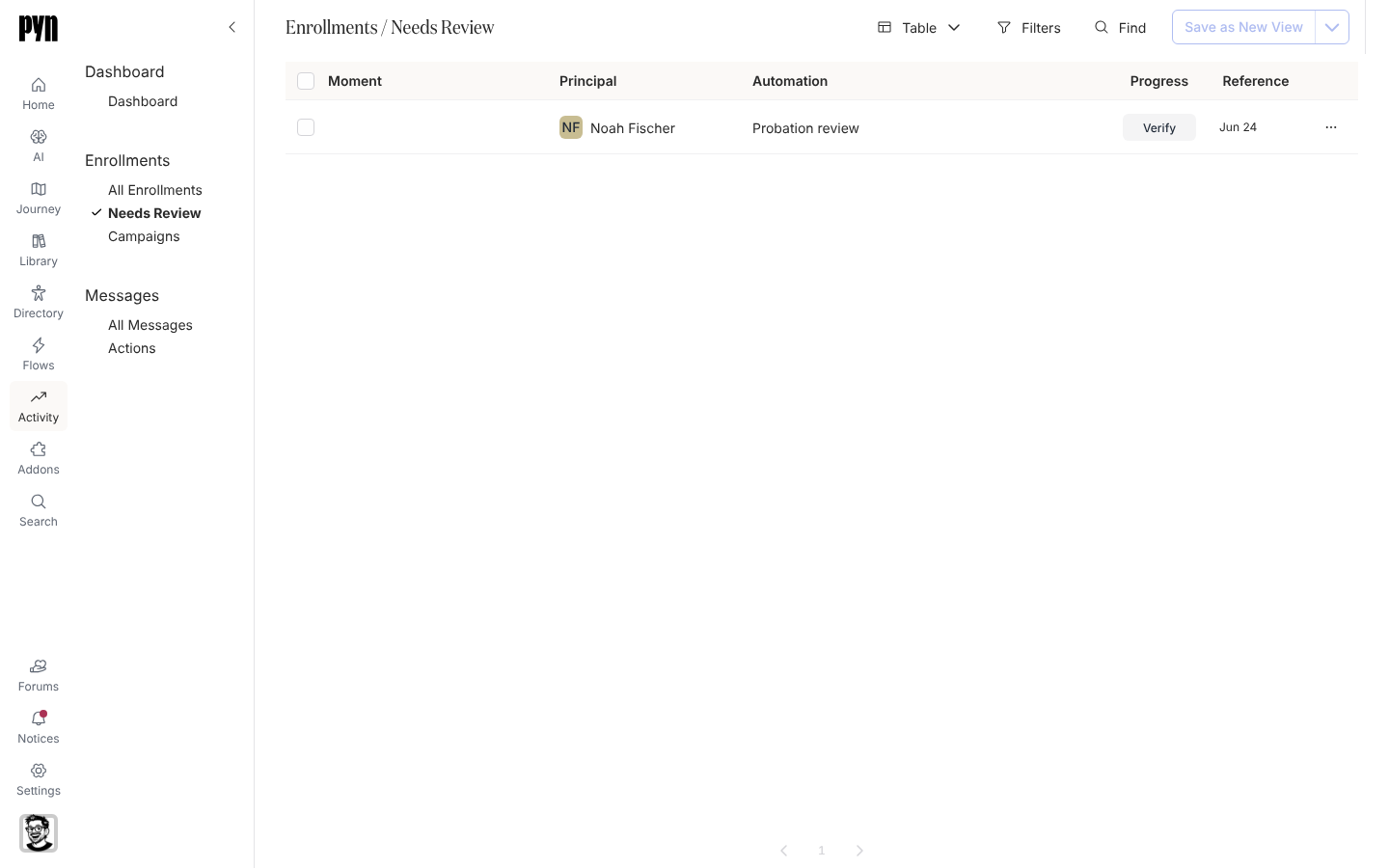
In Pyn, open Activity in the left navigation, then select Needs Review under Enrollments.
-
Find the enrollment. Each row shows the Principal, the Automation and the Reference date, and a Verify button where the progress bar would be.
-
Select the row to open the enrollment in the panel and read its Enrollment Steps. Select a step to preview the message as it will send. Close the panel.
-
Select Verify on the row. The dialog Select messages to unpause lists every step with its Recipients, the Delivery text and when it is Scheduled. A step with nobody to send to reads No valid recipients.
-
Every step is ticked. Untick any you do not want to send, then select Unpause.
What you should see
Section titled “What you should see”The enrollment leaves Needs Review and appears in All Enrollments as Pending. The steps you ticked move from Draft to Scheduled and send on their dates; a step whose date has passed sends straight away unless the automation set it to skip when overdue. Steps you left unticked stay Draft; scheduling one of them later, from its step page, also moves the enrollment to Pending. To cancel a paused enrollment instead, open its panel and select Archive from its menu.
Related
Section titled “Related”- Stop an enrollment to cancel an enrollment that is already pending.
- Enrollment, step and delivery statuses for Paused, Pending and Draft.
- Automations for Verify Mode and manual enrolment.