

Set exit conditions on an automation
The audience decides who is enrolled; an exit condition decides who stays enrolled. Each one is an audience the employee must keep matching for the rest of the sequence. The moment they fall outside any of them, Pyn completes the enrollment and cancels every step still to send. Use it to stop an onboarding sequence for someone who leaves before the end, or a regional flow for someone who moves country.
Before you start
Section titled “Before you start”- You are a workspace admin.
- The automation has a trigger. On a No trigger automation the Exit conditions tab is switched off, like Audience.
- Groups come from Directory > Employee Groups; an exit condition uses the same lifecycle stages and groups as the audience. See Set the audience for an automation.
-
In Pyn, open Flows in the left navigation, then Automations, and select the automation.
-
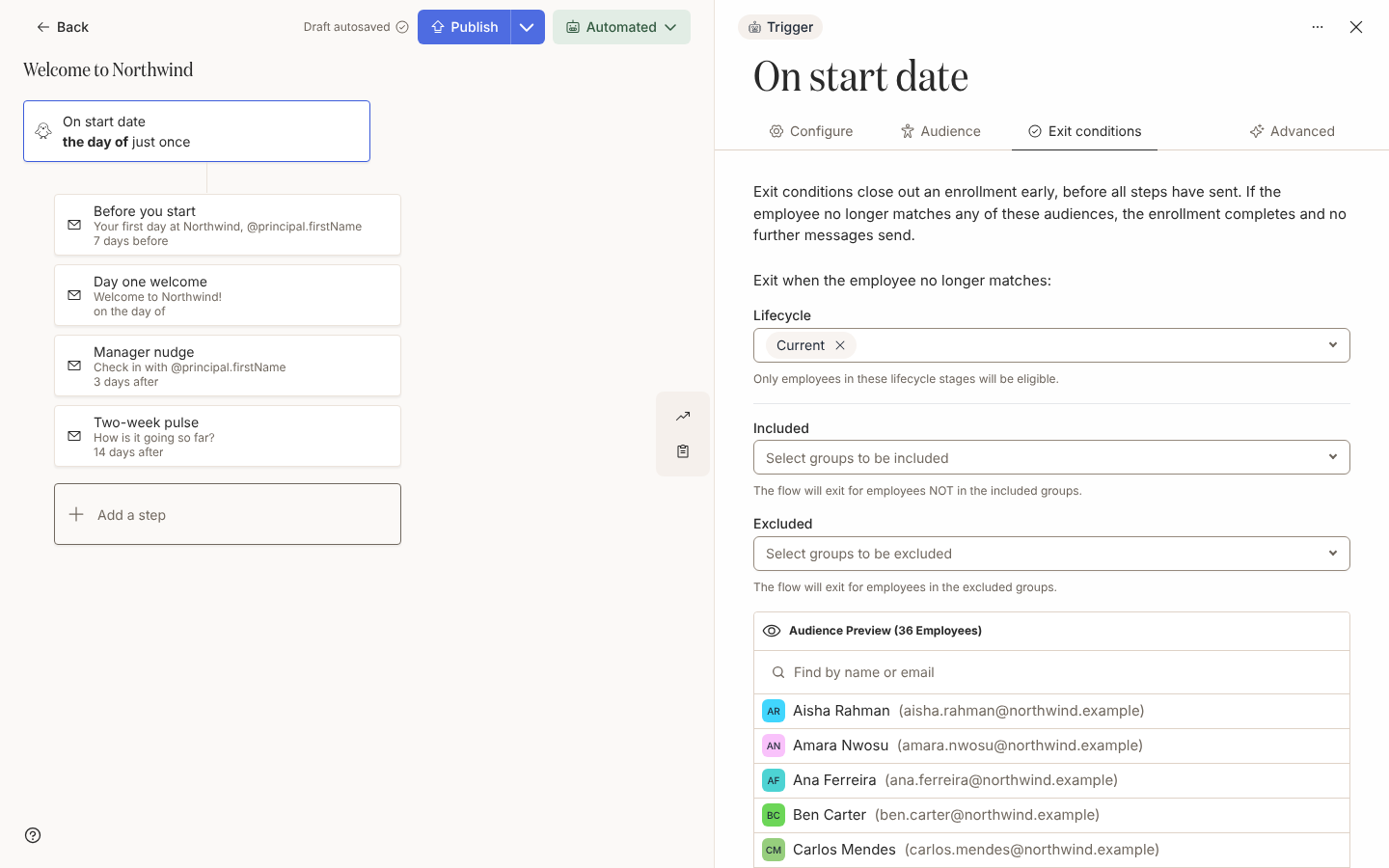
Select the trigger card at the top of the canvas, then the Exit conditions tab in the drawer. It opens with “Exit conditions close out an enrollment early, before all steps have sent. If the employee no longer matches any of these audiences, the enrollment completes and no further messages send.”
-
Select Add exit condition. A new condition starts with Current ticked under Lifecycle and no groups.
-
Under Exit when the employee no longer matches:, set the audience the employee must keep matching. Under Lifecycle, tick the stages they must stay in. Under Included, pick the groups they must stay in (“The flow will exit for employees NOT in the included groups.”). Under Excluded, pick the groups they must stay out of (“The flow will exit for employees in the excluded groups.”).
-
Check Audience Preview below the fields: it lists who matches the condition today, so everyone listed would stay enrolled.
-
Add another condition for each separate rule, or select Remove beside one you no longer want.
-
Select Publish.
How Pyn evaluates them
Section titled “How Pyn evaluates them”Pyn checks the conditions again before each message or reminder sends, so nothing sends to someone who no longer matches. A condition with no lifecycle stage ticked is ignored rather than exiting everyone. The groups are matched the way an audience is: included groups under the same demographic match any one of them, different demographics must each match, and an exclusion wins. See How audiences match.
What you should see
Section titled “What you should see”Under Enrollments, an enrollment that exits moves to Complete and records the time it was stopped, the same as Stop from its panel. Its unsent steps are completed and their deliveries cancelled; a delivery already sending finishes. Employees who keep matching every condition are unaffected.
Related
Section titled “Related”- Set the audience for an automation for who is enrolled in the first place.
- Automation and enrollment states for what Complete and a stopped enrollment mean.
- Publish an automation to move running enrollments onto the version that carries the conditions.
- How audiences match for the matching rule with worked examples.