

Add a custom email recipient
You want the facilities inbox copied on every new-starter email. A custom email recipient is added with a name and address, verified by a link sent to that inbox, and is then available on steps.
Before you start
Section titled “Before you start”- You are an admin or owner.
- Someone can open the inbox to confirm the verification link within 24 hours.
-
In Pyn, open Settings in the left navigation, then Custom Email Recipients under General.
-
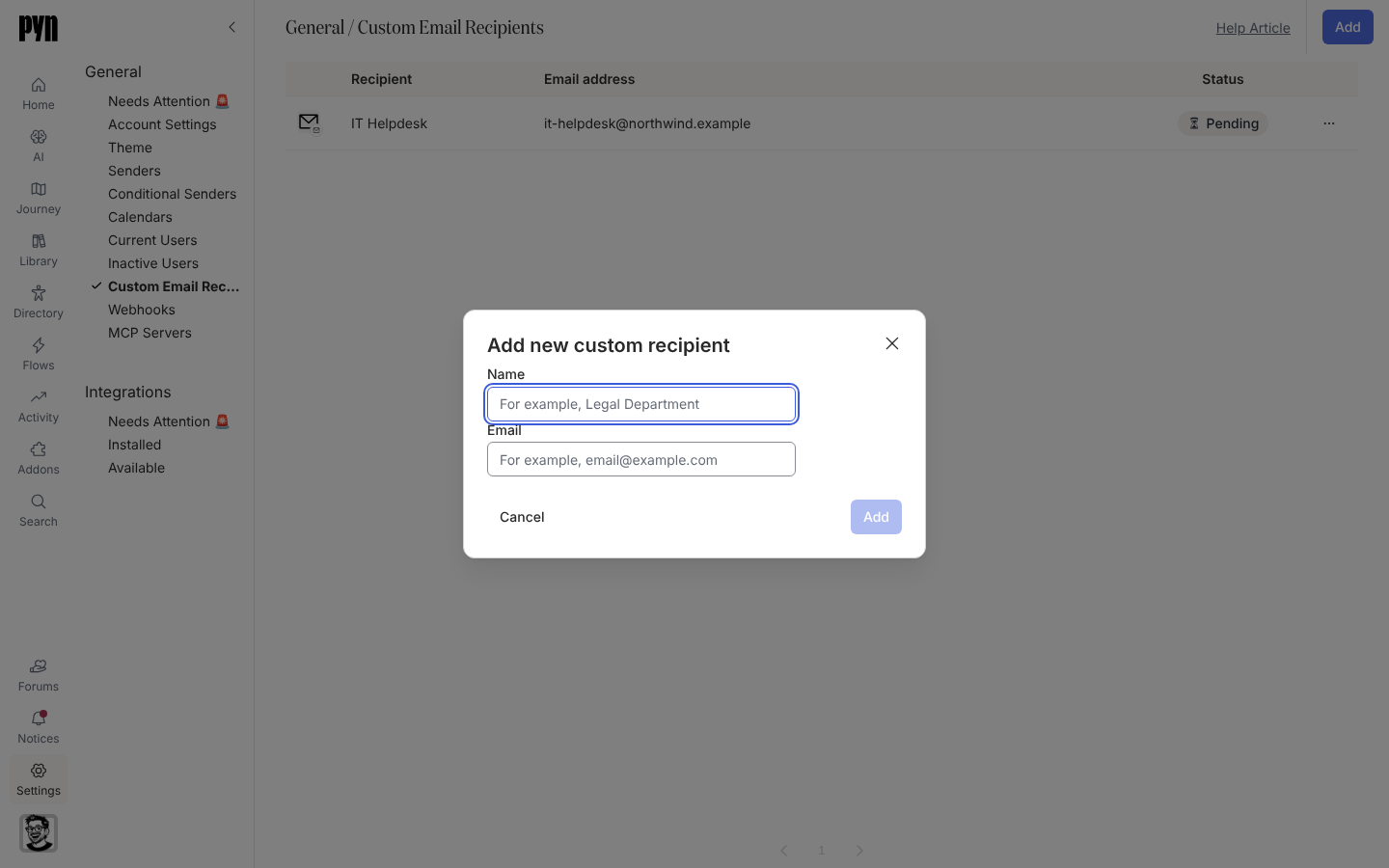
Select Add. The Add new custom recipient dialog opens.
-
Enter a Name (for example “Legal Department”) and the Email. Select Add.
-
The recipient’s panel opens with “This recipient email address has not been verified.” Select Send Verification Email; the notice becomes “Verification email sent! Check your inbox and click the link to verify.”
-
Ask the inbox owner to open the email from
Pyn <notifications@pynhq.com>and confirm the link. -
In the panel, set Time Zone if steps scheduled in the recipient’s time zone should use a particular zone for this address.
What you should see
Section titled “What you should see”The row’s status changes from Pending to Active and the panel’s Verified field reads true. In Automations, open an email step: the recipient appears in the recipient list and in Cc. If the link does not arrive, check spam and shared-inbox filters, then use Send Verification Email in the … menu to send a fresh one.
Related
Section titled “Related”- Custom Email Recipients for statuses and the time zone field.
- Automations to Cc the recipient on a step.
- Add an email sender when the address should send instead.