

Configure a recurring trigger
A recurring trigger has nothing to do with any one employee’s dates. On each tick of its schedule it enrols everyone in the audience, with that day as the reference date. Use it for a weekly pulse, a monthly reminder to book leave or a yearly compliance acknowledgement.
Before you start
Section titled “Before you start”- Set the audience before you publish. A recurring trigger with the default audience enrols every current employee on every run. See Set the audience for an automation.
- Decide the time zone. The trigger keeps local time across daylight-saving changes in the zone you pick.
-
In Pyn, open Flows in the left navigation, then Automations. Select Create New, choose Dates and Schedules, then Recurring Trigger. On an existing automation, select the trigger card to open its drawer.
-
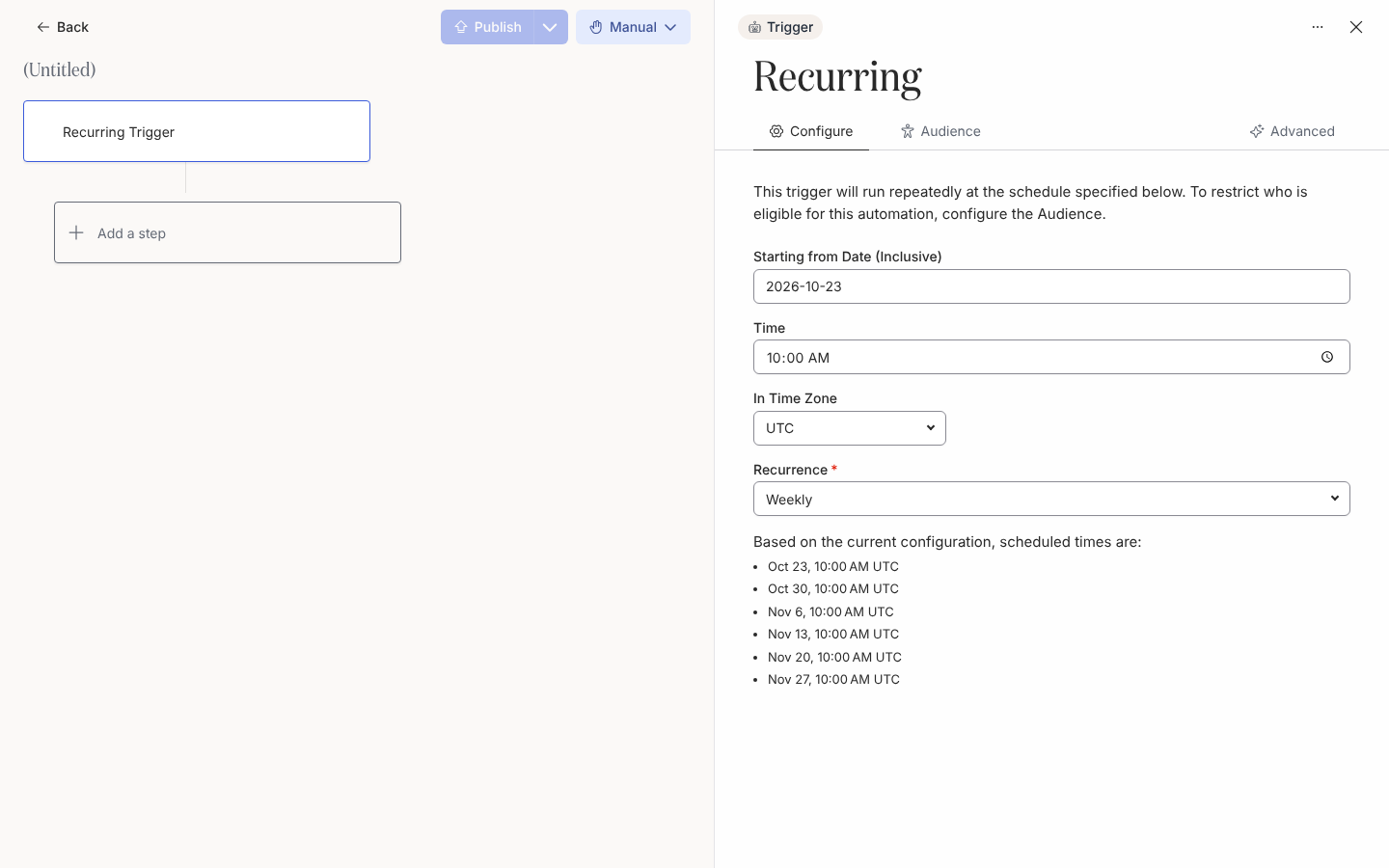
On Configure, set Starting from Date (Inclusive). The first run is on this date if the time has not passed yet.
-
Set Time in five-minute steps and choose the zone under In Time Zone.
-
Under Recurrence, choose Daily, Weekly, Monthly or Yearly. Weekly repeats on the weekday of the start date; monthly and yearly repeat on its day of the month.
-
Check the list under “Based on the current configuration, scheduled times are:”. It lists the upcoming runs in the trigger’s zone.
-
Open Audience and set the lifecycle stages and groups. Then select Publish.
What you should see
Section titled “What you should see”After the first run, Enrollments lists one enrollment per audience member with the run date as the reference date. Each later run adds a new set. The default Prevent repeat enrollments for this trigger is 1 day, so a daily schedule still enrols each person once per day.
Related
Section titled “Related”- Set the audience for an automation to decide who each run reaches.
- Trigger catalogue for the trigger’s defaults.
- Scheduling internals for the hourly cadence and time-zone rules.