

Set up a custom domain
You want email from Pyn to be signed by your own domain rather than Pyn’s, so it passes your employees’ mail filters and looks like it came from you. Adding a domain gives you three DNS records; once they are live and verified, the domain is ready and can be set as the default.
Before you start
Section titled “Before you start”- You are an admin or owner, and custom domains are enabled for your workspace; the Add Custom Domain action appears only then.
- Someone can add CNAME records at your DNS provider. Use a subdomain such as
mail.example.com.
-
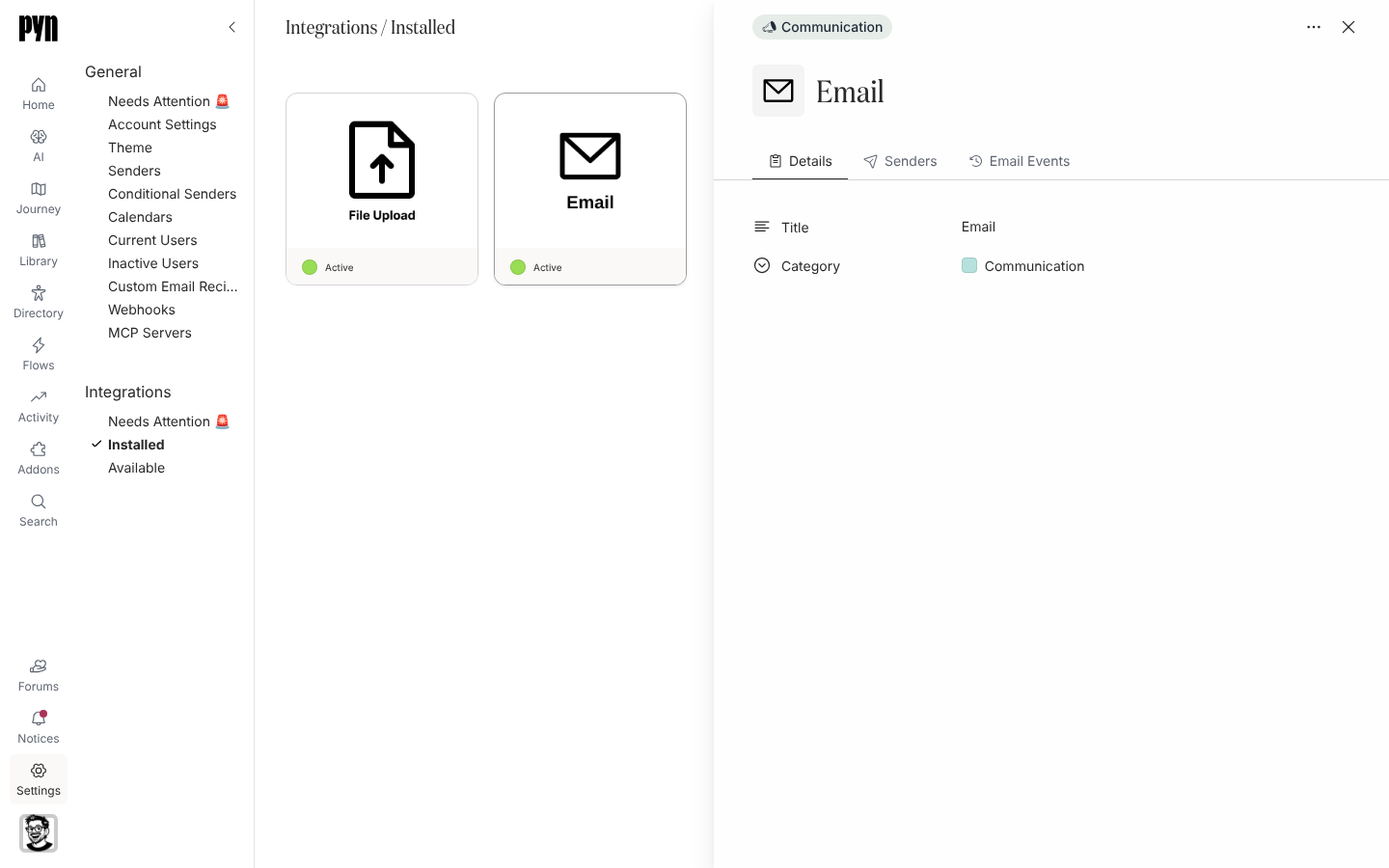
In Pyn, open Settings in the left navigation, then Installed under Integrations, and select the Email tile.
-
Open the … menu and select Add Custom Domain.
-
Enter the Domain (for example
mail.example.com) and select Add. -
The dialog changes to DNS Records: “Add these DNS records to your domain, then verify the domain.” It lists DKIM 1, DKIM 2 and Mail CNAME, each with a Type, Host and Value. Copy them to your DNS provider exactly, then select Done.
-
When the records have propagated, open the Custom Domains tab, select the domain, and select Verify DNS. “Domain Verified” with “Your custom domain is ready to use.” confirms it.
-
Open the domain’s … menu and select Set Default. “This domain is now the default.” confirms it.
What you should see
Section titled “What you should see”The domain’s panel shows Default and the three records each marked Valid, under “Your domain is verified.” The first domain you add becomes the default automatically. If verification fails the panel reads “DNS verification failed. Please check your DNS records:” and names the failing record with the reason; DNS changes can take a while to propagate, so correct the record, wait, and select Verify DNS again.
Related
Section titled “Related”- Email for the rest of the Email integration.
- Add an email sender to send from an address on the domain.