

Choose a trigger
The trigger decides when an automation runs, who it runs for and what date the steps are scheduled against. Pick it by the moment you are designing for: a date in the employee record, a change in the org chart, a form someone submits, a property value or a timetable.
Before you start
Section titled “Before you start”- Decide what the reference date should be. Steps are scheduled relative to it, so “3 days after” means 3 days after the start date for a start-date trigger, but 3 days after the day the trigger fired for a Buddy Assigned or Group Change trigger.
- If the automation already has enrollments, changing the trigger does not touch them. They keep their reference date and version.
Which family to pick
Section titled “Which family to pick”| You want the flow to start when… | Family | Trigger |
|---|---|---|
| Someone appears in the HRIS with a future start date | Employee Lifecycle | Will be joining |
| The start date is approaching | Employee Lifecycle | Pre-onboarding (fires any day in the week before, through the start date) |
| Someone starts | Employee Lifecycle | Start of Onboarding |
| A termination date is set and approaching | Employee Lifecycle | Off-boarding (the day before) |
| A work anniversary comes round | Dates and Schedules | Upcoming Anniversary, Upcoming Milestone Anniversary |
| A birthday comes round | Template catalogue | Birthday celebration or Birthday opt-in (see the note below) |
| The same day each week, month or year | Dates and Schedules | Recurring Trigger |
| A buddy is nominated | Team and Org Changes | Buddy Assigned |
| Someone gets their first direct report | Team and Org Changes | Promoted to Manager |
| Someone’s manager changes | Team and Org Changes | Change of Manager |
| Someone joins or leaves a group you choose | Team and Org Changes | Group Change |
| Someone’s country changes | Team and Org Changes | Change of Location |
| Someone is matched to their Slack account | Team and Org Changes | Connected to Slack |
| A published form is submitted | Form Submission | the form |
| A date property such as Probation End Date is reached, or a text or yes/no property matches a value | Employee Properties | the property |
| You will enrol people yourself | Other | No trigger |
| An external system enrols people | Other | Custom trigger |
-
In Pyn, open Flows in the left navigation, then Automations, and select the automation. For a new automation, select Create New; the picker opens straight away.
-
On an existing automation, select the trigger card at the top of the canvas to open the trigger drawer, then open the … menu in the drawer header and select Change Trigger.
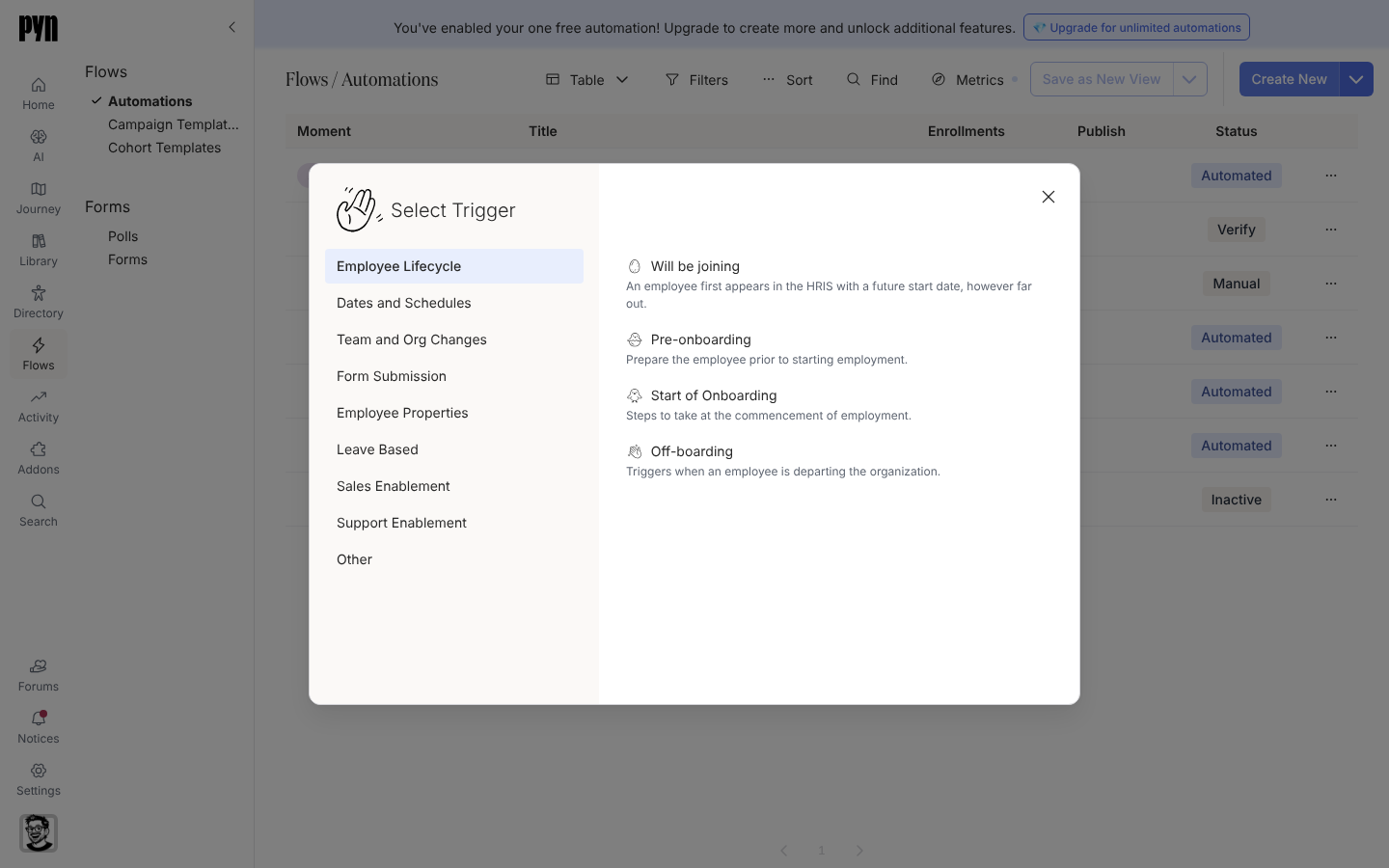
Select Trigger lists the categories on the left and each category's triggers with a one-line description. -
Select a category on the left of Select Trigger. Each row shows the trigger’s name and a one-line description. A greyed row cannot be selected: the Leave Based, Sales Enablement and Support Enablement categories carry the banner “Some triggers are only available with the associated integration and plan”, and every trigger in them is inactive.
-
Select the trigger. For Form Submission, choose the form from the list that reads No selection, then select Done. For Employee Properties, choose the property, type the value to match for a text property, and select Done.
-
The drawer’s Configure tab now shows the trigger’s settings. Follow the guide for its family: date trigger, recurring trigger, group change, team change, form submission, employee property or no trigger.
-
Select Publish so the new trigger is the one Pyn evaluates.
What you should see
Section titled “What you should see”The trigger card at the top of the canvas shows the trigger’s emoji and name. For a date trigger it also shows the offset and recurrence, for example the day of just once, or 1 week before every year.
Related
Section titled “Related”- Trigger catalogue for every trigger with its defaults.
- Configure a date trigger for offsets and recurrence.
- Configure a team change trigger for buddy, manager, location and Slack triggers.
- Trigger a flow from a form submission for forms.