

Views, filters, search and export
Directory, Flows, Journey, Library, Notices and Settings show their records in views: a table, gallery, calendar, board or page that belongs to a group in the area’s left rail (for example Employees, Active). Activity’s views are built in. Every view has the same control bar above it; the sections below cover each control.
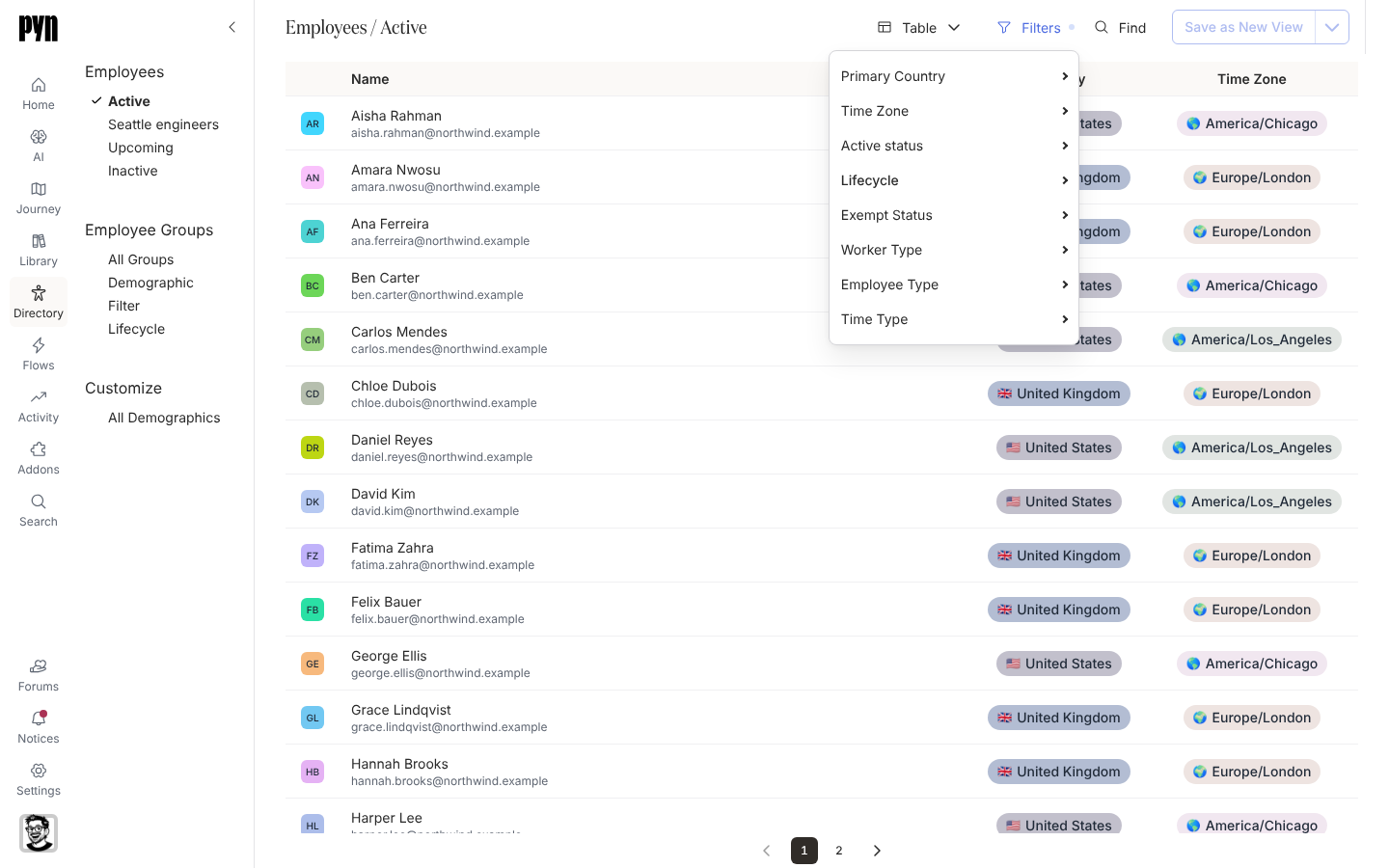
The control bar, left to right
Section titled “The control bar, left to right”| Control | Shown when | What it does |
|---|---|---|
| Heading | Always | The group and view name, such as Employees / Active. |
| View menu (named Table, Gallery, Calendar, Journey or Page) | Always | Changes the layout and holds the view’s own actions; see below. |
| Filters | The view’s records have a select or indexed date property | One submenu per property. |
| Sort | Flows and Messages tables | A fixed list of sort orders for that table. |
| Find | Journey, Content, Employees, Employee Groups, Enrollments, Flows and Messages | Text search within the view. |
| Metrics | The view has metrics, such as enrollment counts on Flows | Choose the metrics shown and their date range. |
| Save View or Save as New View | Always | Stores the changes you made, or discards them. |
| Primary action | Depends on the view | Invite on Journey and Current Users; Create New and similar on others. |
Filters
Section titled “Filters”Each submenu lists the property’s options plus (No Value); tick the values to keep. Show Everything removes the filter for that property; Clear All unticks every value. A date property offers All Time, Last 30 Days, Upcoming 30 Days and Custom Range…, which opens a start and end date picker. The Filters button is highlighted while a filter is applied, and marked dirty while you have unsaved changes.
Flows offers Journey order, then status (the default), Status, then journey order, Title A to Z, Newest first and Needs publishing first, then journey order. Messages offers Sort by Scheduled, Sort by Completed and Sort by Draft. Picking the current option again returns to the default. Sort is kept for the session and is not saved with the view.
Find opens a field labelled Enter your terms. Words match anywhere in the record’s text, including the middle of a word, and an email address matches that address exactly. Find is separate from universal Search in the navigation, which spans areas; see Navigate Pyn.
Metrics
Section titled “Metrics”On views with metrics, Metrics has two submenus: the metrics to show, and Date Range with last 30 days, last 90 days, last 6 months and last 12 months. The chosen metric and range are saved with the view.
The view menu
Section titled “The view menu”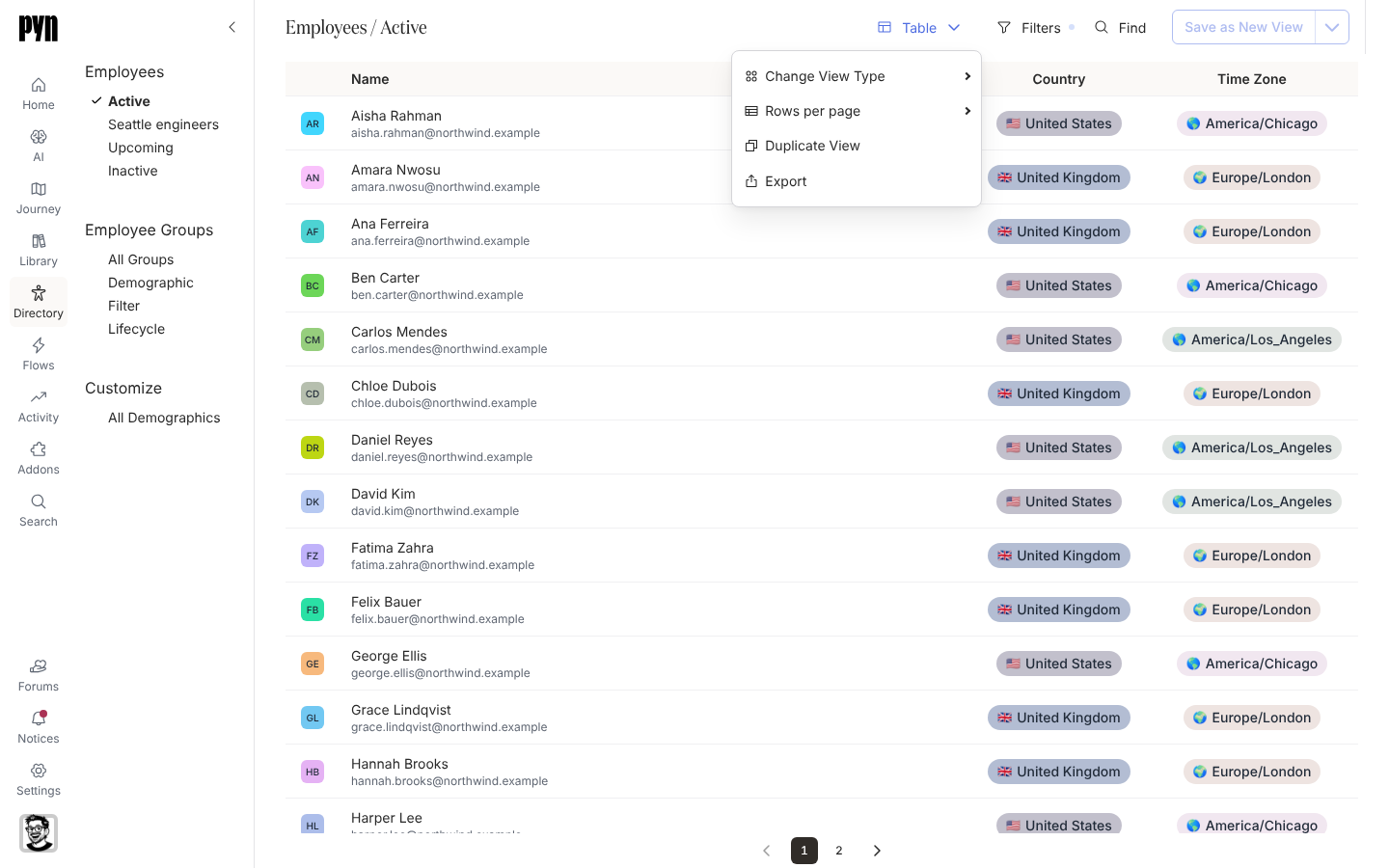
| Item | Shown when | What it does |
|---|---|---|
| Change View Type | The group allows more than one layout | Table (a table or spreadsheet view), Gallery (large cards), Calendar, Journey (a journey map) or Page. |
| Rows per page | Table layout | 25 (the default) or 100. |
| Rename View | The view is one you saved | Prompts for a new title. |
| Duplicate View | Always | Copies the view without its filters and metrics, and opens the copy. |
| Export | Journey layout | Saves the board as a PNG image in a new tab. |
| Export Data | Table layout on Actions, Enrollments or Flows | Downloads a CSV of the rows as shown, including unsaved filter and sort. |
| Export | Table layout on a saved view with columns, except Flows | Starts a background export; a notice tells you when the file is ready. |
| Archive View | The view is one you saved | Asks for confirmation, then removes the view and returns to the area’s first view. |
Built-in views (Active, Upcoming, All Enrollments and the rest) cannot be renamed or archived. Duplicate one to get a view you own.
Saving a view
Section titled “Saving a view”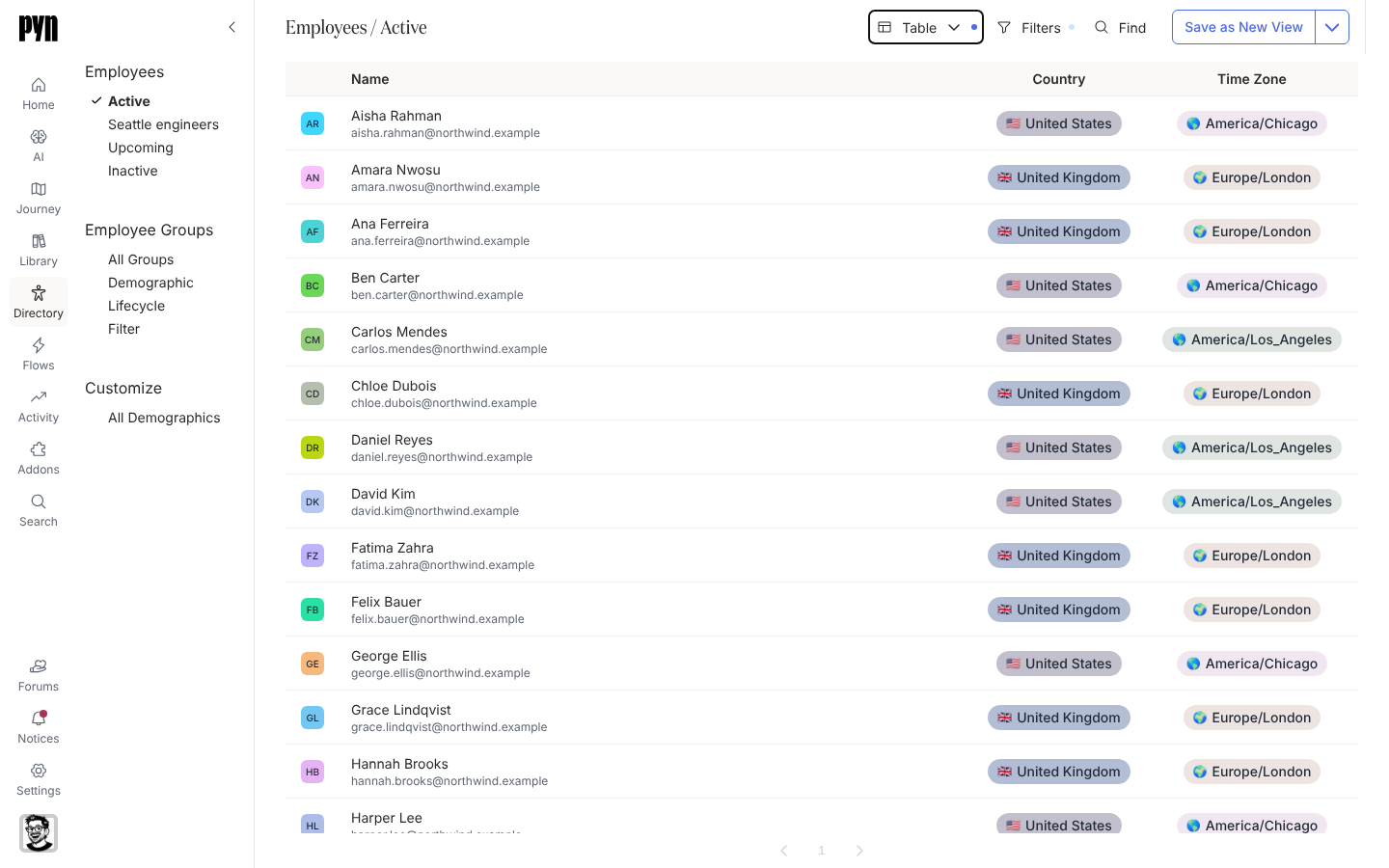
Changing the filter, layout, rows per page or metrics marks the view dirty and enables the save button. On a view you own it reads Save View and updates the view in place. On a built-in view it reads Save as New View, creates a copy under the same group with your changes, and opens it; the new view appears in the left rail with an asterisk until it is saved again. The menu beside the button offers Discard Changes.
The three exports
Section titled “The three exports”| Export | Where | Result | Who |
|---|---|---|---|
| Image | Journey board, view menu, Export | A PNG of the board, opened in a new tab; “Could not export image” if it fails | Everyone |
| CSV now | Actions, Enrollments and Flows tables, view menu, Export Data | A .csv named after the view, downloaded at once, up to 1,000 rows, matching the current filter and sort |
Everyone |
| Background export | Other saved table views, view menu, Export | A file produced in the background; a notice under Notices carries the download, visible only to the person who asked | Everyone |
Related
Section titled “Related”- Navigate Pyn for universal Search across areas.
- Activity for the Actions, Enrollments and Messages tables these controls appear on most.
- Directory for the Employees and Employee Groups views.
- Notices for where a background export arrives.