

A skill is what an AI agent follows for one job: a name, a description that says what the skill does and when to use it, and instructions in markdown that say how. You add it under AI, Agents, Skills, blank or from a preset, and change its description and instructions in place afterwards.
Before you start
Section titled “Before you start”- You are an admin or owner. Only those roles see AI in the navigation.
- Pick a name that will not change: lowercase letters, numbers and hyphens, starting with a letter, up to 63 characters. A skill and an MCP server cannot share a name.
- Have the instructions ready, in markdown, or choose the preset that comes closest.
-
In Pyn, open AI in the left navigation, then Skills under Agents.
-
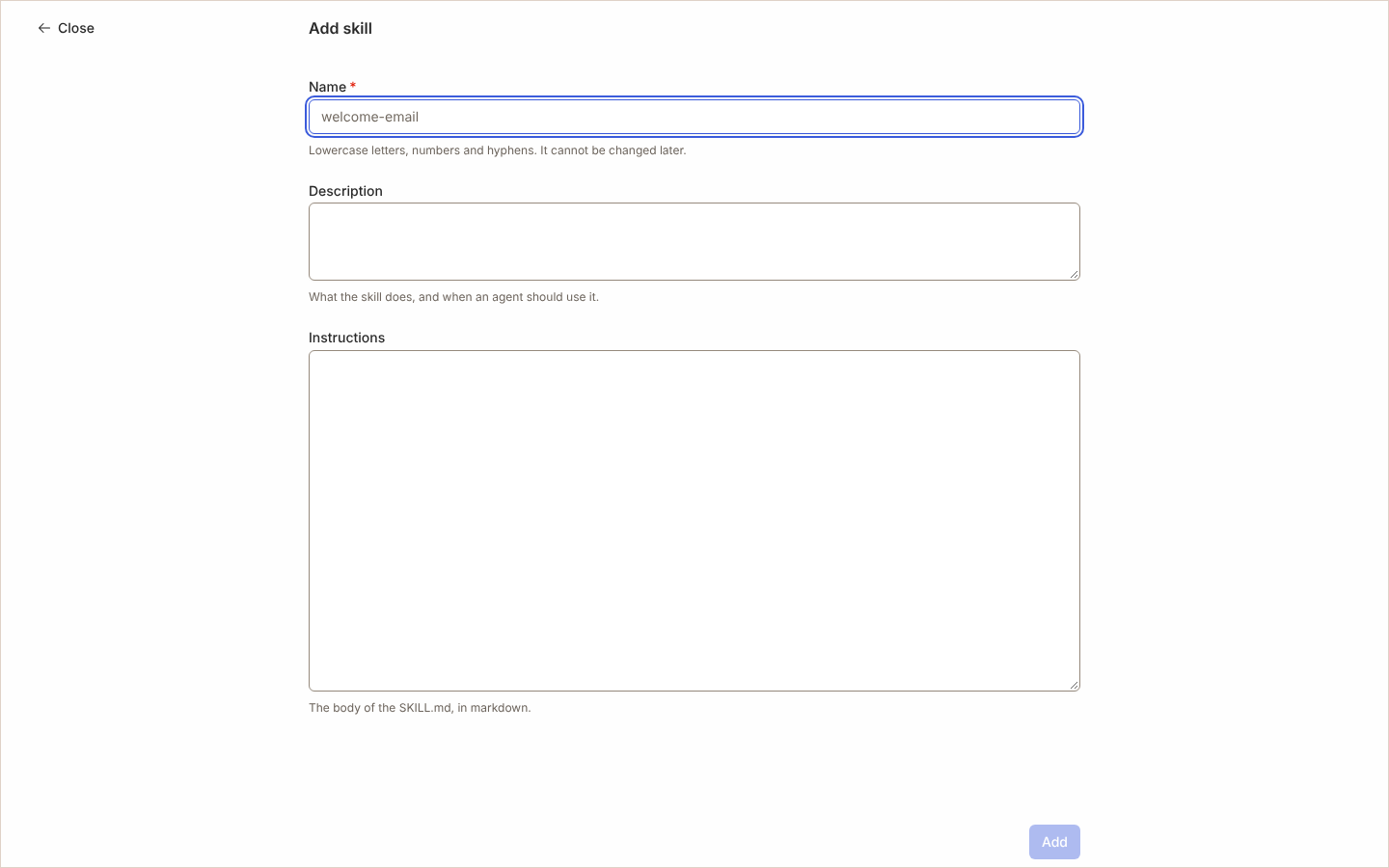
Select Add. The Add skill page opens. To begin from a ready-made skill instead, open the arrow beside Add and select Add from Preset: pick a category on the left, then a preset. Choosing one fills in the name, description and instructions, all of which you can still change, and nothing ties the skill to the preset afterwards.
-
Enter the Name (for example
leave-policy-faq). The field explains “Lowercase letters, numbers and hyphens. It cannot be changed later.” -
Enter the Description: “What the skill does, and when an agent should use it.”
-
Enter the Instructions: “The body of the SKILL.md, in markdown.”
-
Select Add. The skill’s panel opens on the right.
What you should see
Section titled “What you should see”The skill’s row in the Skills table shows its name, its description and Enabled. In the panel, the description sits at the top and the instructions under Instructions; edit either in place. To keep a skill without agents using it, select Disable in the row’s … menu; its status reads Disabled until you select Enable. Archive removes it from the table and frees its name.
Related
Section titled “Related”- Agents for the Skills table and the other views under Agents.
- Add an MCP server to give an AI client operations to call.
- AI for who sees the area.