

Navigate Pyn
The left navigation is the same on every page of Pyn. It lists the product areas top to bottom, in the order below, with Search after them, Notices and Settings at the bottom, and your avatar last.
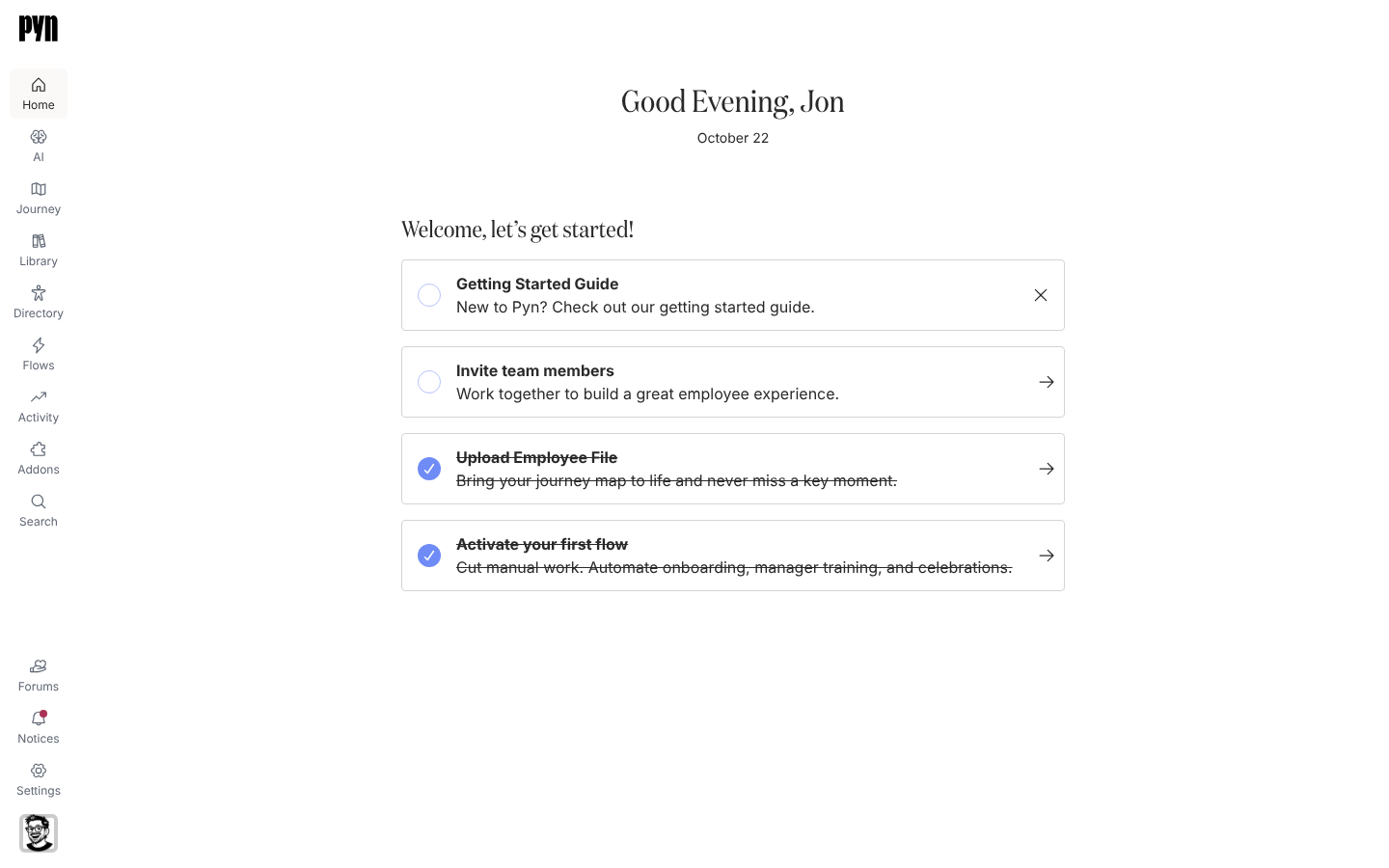
The items, top to bottom
Section titled “The items, top to bottom”| Item | Opens | Who sees it |
|---|---|---|
| Home | /home, the greeting and checklist |
Everyone |
| AI | /ai/home, Pyn AI |
Everyone except Enterprise-plan workspaces |
| Journey | The journey map | Everyone |
| Library | Content and Media | Everyone |
| Directory | Employees, Employee Groups, Demographics | Owners and Admins |
| Flows | Automations, Campaign Templates, Cohort Templates, Forms, Polls | Owners, Admins and Power Users |
| Activity | Enrollments, Messages, Actions and the Dashboard | Everyone |
| Addons | The add-ons catalogue | Owners and Admins |
| Search | Universal search, as a dialog | Everyone |
| Notices | /notifications/home, in-app notices |
Everyone |
| Settings | /settings/home, which opens Integrations, Installed |
Owners and Admins |
| Your avatar | The profile menu | Everyone |
A User therefore sees Home, AI, Journey, Library, Activity, Search and Notices; a Power User adds Flows; Admins and Owners see everything. Roles and permissions covers what each role can do inside those areas.
Steps: find something with Search
Section titled “Steps: find something with Search”-
In Pyn, select Search in the left navigation. A dialog opens at the top of the page with the field focused.
-
Type part of a name. Pyn searches employees, employee groups, forms, journey moments and automations, matching in the middle of words, and lists up to ten results as you type.
-
Select a result. An employee or group opens in a panel over Directory, a moment opens in a panel over Journey, and a form or automation opens its editor.
Typing an email address searches for that exact address. Universal search does not cover enrollments, messages, polls or library content; use Find on those tables instead, as described in Views, filters, search and export.
Notices, warnings and collapsing
Section titled “Notices, warnings and collapsing”- Notices shows a red dot when you have open notices: a bounced delivery, an integration or sender that needs reconnecting, a webhook that could not take a payload, or an export that is ready to download.
- A yellow bar down the left edge of the navigation marks a sandbox workspace.
- The Expand navigation button appears when the navigation is collapsed to icons; the warning bar stays visible in the collapsed state.
What you should see
Section titled “What you should see”The current area is highlighted, and selecting it again does nothing. Every item is a link, so middle-click or Cmd-click opens it in a new tab.
Related
Section titled “Related”- Home for what the first item shows.
- Roles and permissions for the full matrix behind the Who sees it column.
- Views, filters, search and export for Find, Filters and Sort inside each area.
- Notices for what each notice means and how to act on it.