

Sign in with a magic link
You want to sign in with an email address that is not a Google or Microsoft account, or you prefer not to connect those accounts to Pyn. Pyn sends a link to your inbox; opening it proves you own the address and signs you in.
Before you start
Section titled “Before you start”- You can read email at the address you were invited with.
- You have about half an hour: a magic link stops working 30 minutes after it is sent, and it works once.
-
Open
https://app.pyn.ai/sign-inand select Continue with Magic Link. -
On Enter your email address, type your work email in Email and select Send. Restart takes you back to the four sign-in buttons.
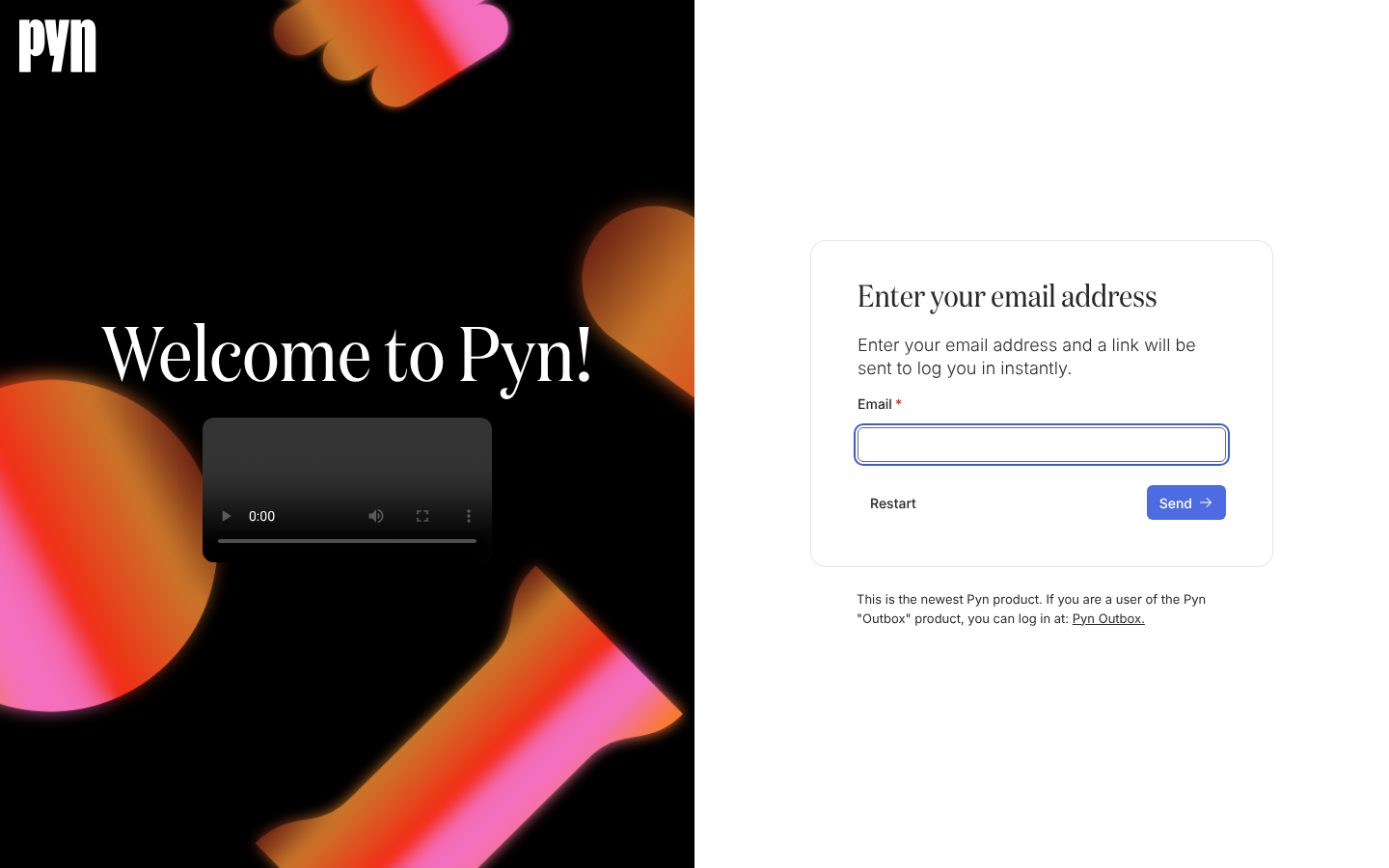
After Continue with Magic Link, the page asks for the email address to send the link to. -
Read Email sent! and open your inbox. The message comes from Pyn and contains one link.
-
Open the link. Pyn shows Sign In with Magic Link with the line “Click the button below to use your magic link and sign-in.”
-
Select Sign In.
What you should see
Section titled “What you should see”The Signing In screen, then Home for one workspace, Switch Workspace for several, or Create a Workspace for your team for none. Because a magic link carries no photo or display name, your avatar shows the first letter of your email until a Google or Microsoft sign-in for the same address supplies one.
Troubleshooting
Section titled “Troubleshooting”- No email arrives. Check spam, and check that you typed the address you were invited with. The page shows Email sent! whether or not Pyn knows the address, so a silent inbox usually means a typo, a filter or an address nobody invited.
- “The magic link has expired or already been used. Try signing in again.” The link was older than 30 minutes or had been opened before. Select Continue with Magic Link again and request a new one.
- The page lands on Create a Workspace for your team. The address has no workspace linked to it. Ask the admin to invite that address, or use the address they invited.
Related
Section titled “Related”- Sign in for the other options and what happens after sign-in.
- Sign in with Google or Microsoft for a one-click sign-in that also brings your photo.
- Fix a sign-in problem for each message the sign-in page can show.