

Users
A user is someone who signs in to Pyn to build flows, read activity or manage settings. Employees in the Directory are not users unless they are invited. The Current Users view lists everyone with access; Inactive Users lists deactivated accounts.
| Role | What it adds | Who can assign it |
|---|---|---|
| User (shown as Limited User when inviting) | Read access to Journey, Library and Activity; can pause and unpause enrollments and messages. | Admins and owners |
| Power User (shown as Power) | Everything User has, plus Flows: create and publish automations and campaigns, and view form submissions. | Admins and owners |
| Admin | Everything Power User has, plus Directory, Addons and Settings: integrations, senders, users and role changes. Admins cannot change an owner or make someone an owner. | Admins and owners |
| Owner | Everything, including assigning and changing other owners. The person who created the workspace is an owner. | Owners |
Each role inherits the ones below it. A user holds one role at a time; assigning a new one replaces the old.
The Current Users table
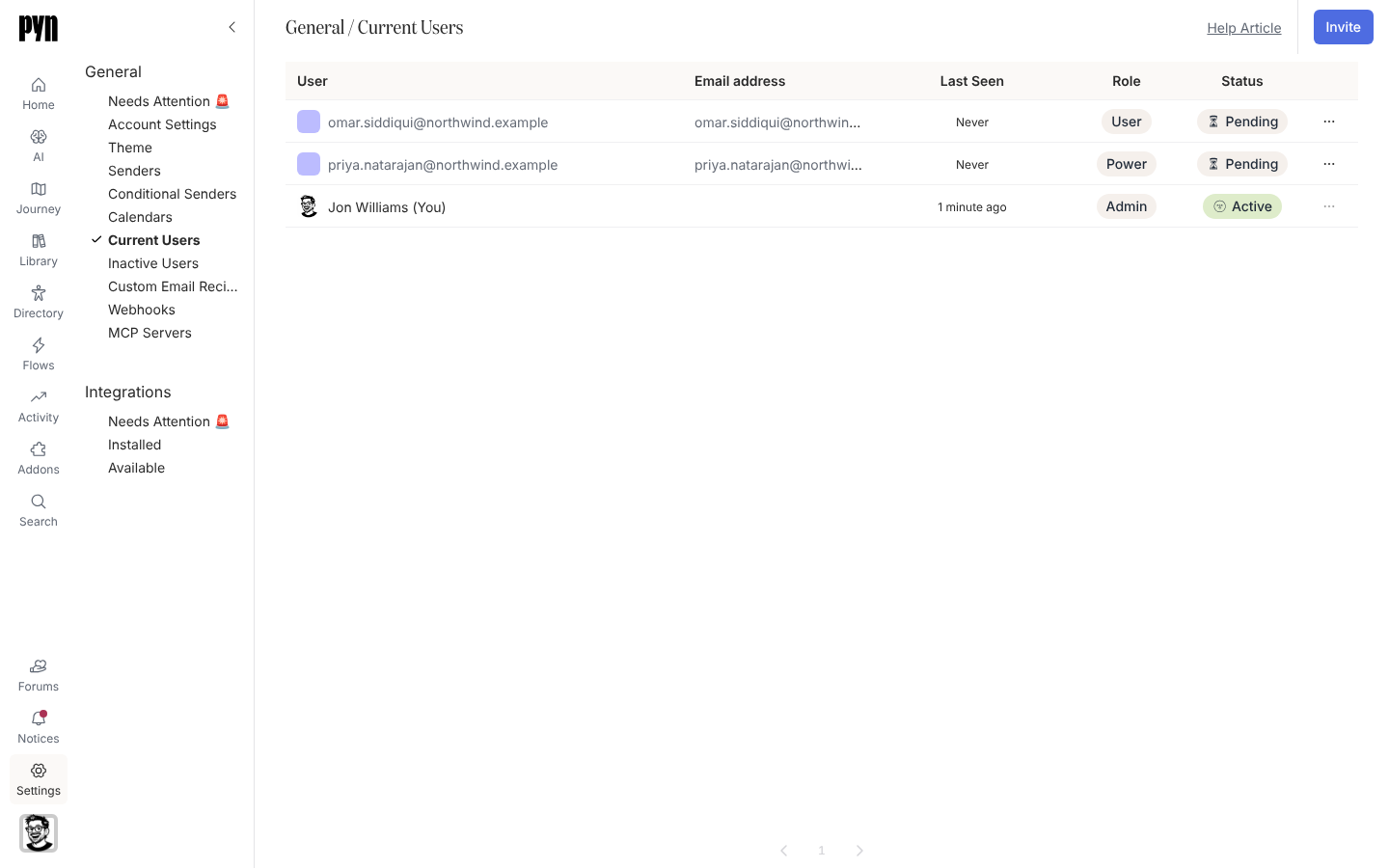
Section titled “The Current Users table”Columns are User (with “(You)” after your own name), Email address, Last Seen, Role and Status. Pyn staff who have been given access show a Support chip. The Invite button in the top right is where new users start.
| Status | Meaning |
|---|---|
| Pending | Invited but has not signed in. The … menu offers Resend Invite. |
| Active | Has signed in and can use the workspace. |
| Inactive | Deactivated; listed under Inactive Users. |
What you can do here
Section titled “What you can do here”- Invite a user by email with a role
- Change a user’s role from the … menu
- Remove a user’s access by archiving them
- Resend an invitation that was not received
With single sign-on configured and group mappings set, your identity provider decides roles at each sign-in; see Single sign-on.
Where it is in the app
Section titled “Where it is in the app”Open /settings/general/current-users in Pyn, or open Settings in the primary navigation and select Current Users or Inactive Users under General.
Related
Section titled “Related”- Invite a user to add a teammate.
- Change a user’s role to promote or restrict someone.
- Remove a user’s access when someone leaves.
- Single sign-on to map identity-provider groups to roles.